The Diagonal Split Duo Diagram offers a dynamic and modern way to present two ideas in a clean and visually balanced format. This free graphic works perfectly in both PowerPoint and Google Slides, giving you complete control over shapes, colors, text, and icons. Its bold diagonal layout helps you highlight contrasts, comparisons, or paired concepts with clarity and visual impact.
Diagram Preview
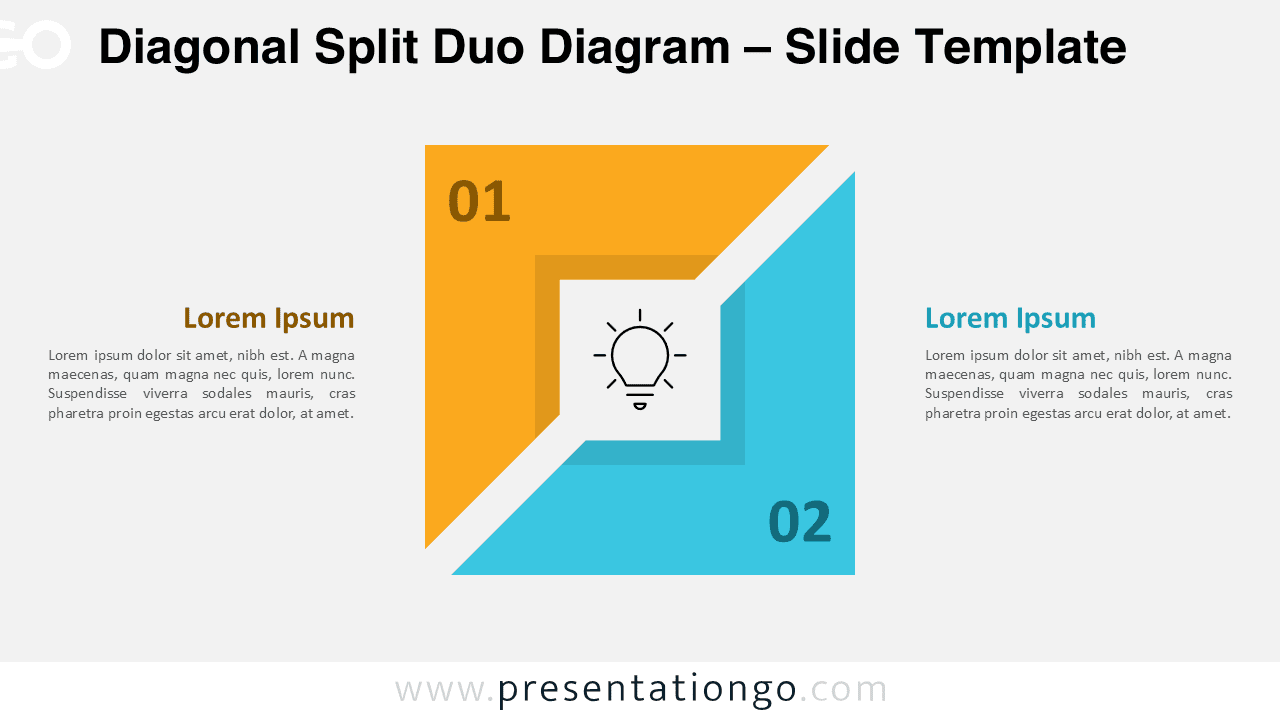
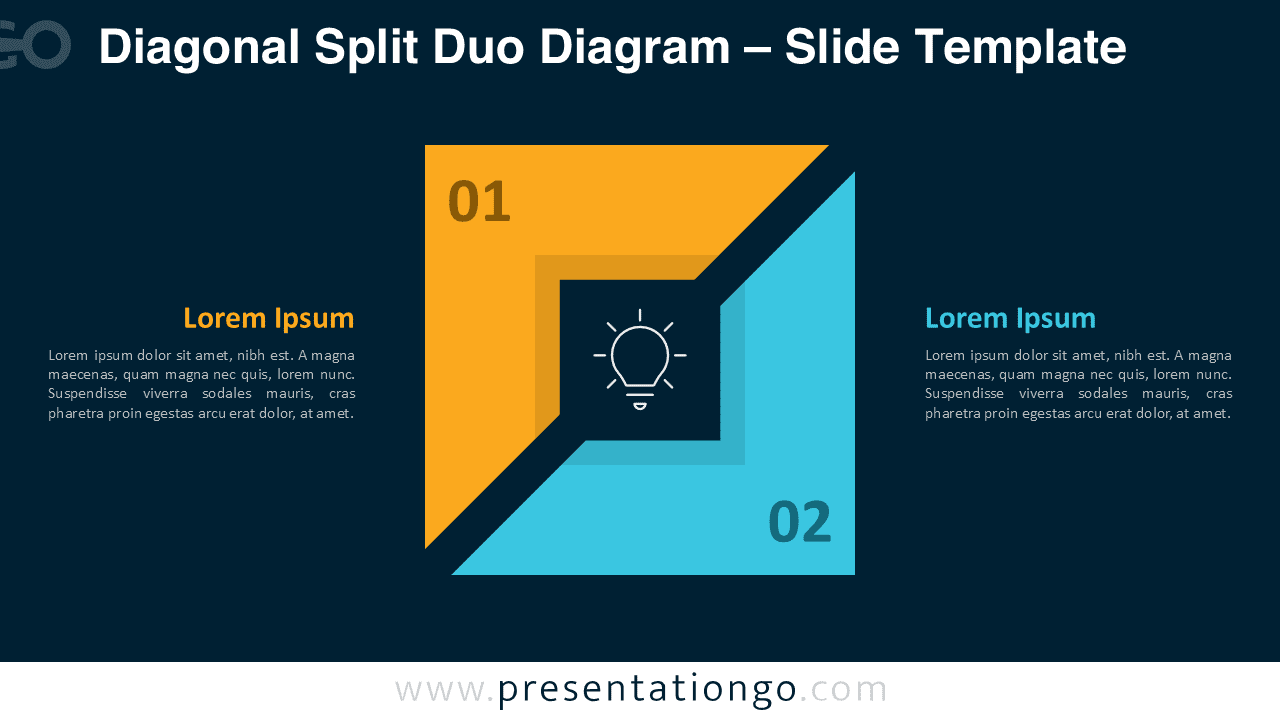


Diagram Features and Customization Options
- Fully editable shapes for quick customization
- Clean two-part diagonal layout for clear visual separation
- Editable text placeholders for titles and descriptions
- Customizable color scheme to match branding
- Scalable vector shapes for high-quality resizing
- Includes editable icon placeholders for flexible visual enhancement
Design and Structure
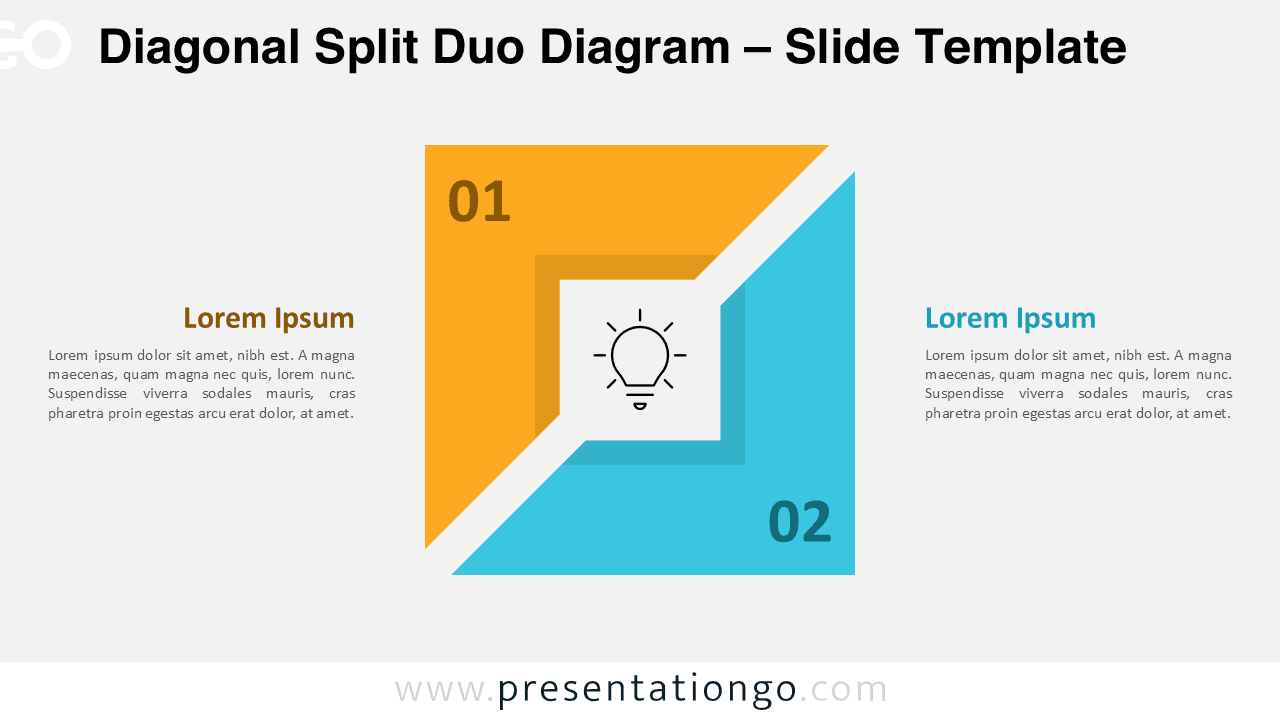
The visual structure centers on a square divided diagonally, forming two contrasting triangular regions. Each side features its own number, allowing you to label steps, ideas, or categories. The center contains an icon block that reinforces the theme or message visually. The diagonal band between sections emphasizes separation while maintaining symmetry. This structure creates a sense of movement and contrast, making it ideal for from–to comparisons or dual narratives.
The diagram is available in both light and dark variations. The bright version uses warm orange and cool cyan on a light background, while the dark version applies the same colors against deep navy for maximum contrast. Both options deliver a modern, geometric aesthetic suitable for professional presentations.
Practical Applications
- Explaining two complementary or opposing ideas
- Presenting a 2-step workflow or process
- Highlighting pros and cons or before-and-after concepts
- Comparing features, strategies, or alternatives
- Visual storytelling for business, education, and marketing topics
Summary
The Diagonal Split Duo Diagram is a versatile tool for presenting structured two-part information with visual clarity. With editable elements, adaptable icon placeholders, and a bold diagonal layout, it enhances communication and helps audiences grasp key messages quickly.
Frequently Asked Questions (FAQ)
In PowerPoint, select the icon, delete it, and insert a new one using Insert → Icons or Insert → Pictures. In Google Slides, delete the icon and add a new one through Insert → Image or Insert → Icons. Adjust size and color as needed.