Quick summary
- Both tools can produce professional presentations — the difference is in how you work, not what you make.
- PowerPoint gives you more design control, better offline performance, and deeper animation capabilities.
- Google Slides makes collaboration effortless, runs entirely in the browser, and costs nothing on its own.
- The best choice depends on your workflow, your audience, and who else needs to edit the file.
A practical guide to choosing between Google Slides and PowerPoint — based on how you actually work
Google Slides vs PowerPoint — it’s a debate usually framed as a contest. It shouldn’t be. Both tools produce professional, polished presentations. The real question is not which one is better in the abstract — it’s which one fits the way you actually work.
Over the past few years, the two tools have diverged in meaningful ways. PowerPoint has deepened its design capabilities, added Copilot AI, and improved its web version. Google Slides, meanwhile, has doubled down on collaboration, integrated Gemini, and remained free. Neither has overtaken the other — instead, they’ve become better at serving different kinds of users.
Design and features
Where PowerPoint’s depth still leads, and where Google Slides has closed the gap.
Collaboration and sharing
Where Google Slides wins by design, and what PowerPoint has done to catch up.
The right tool for your situation
A clear decision guide based on your workflow, audience, and team setup.
Quick overview
Jump to any section:
The core difference: desktop depth vs. browser simplicity
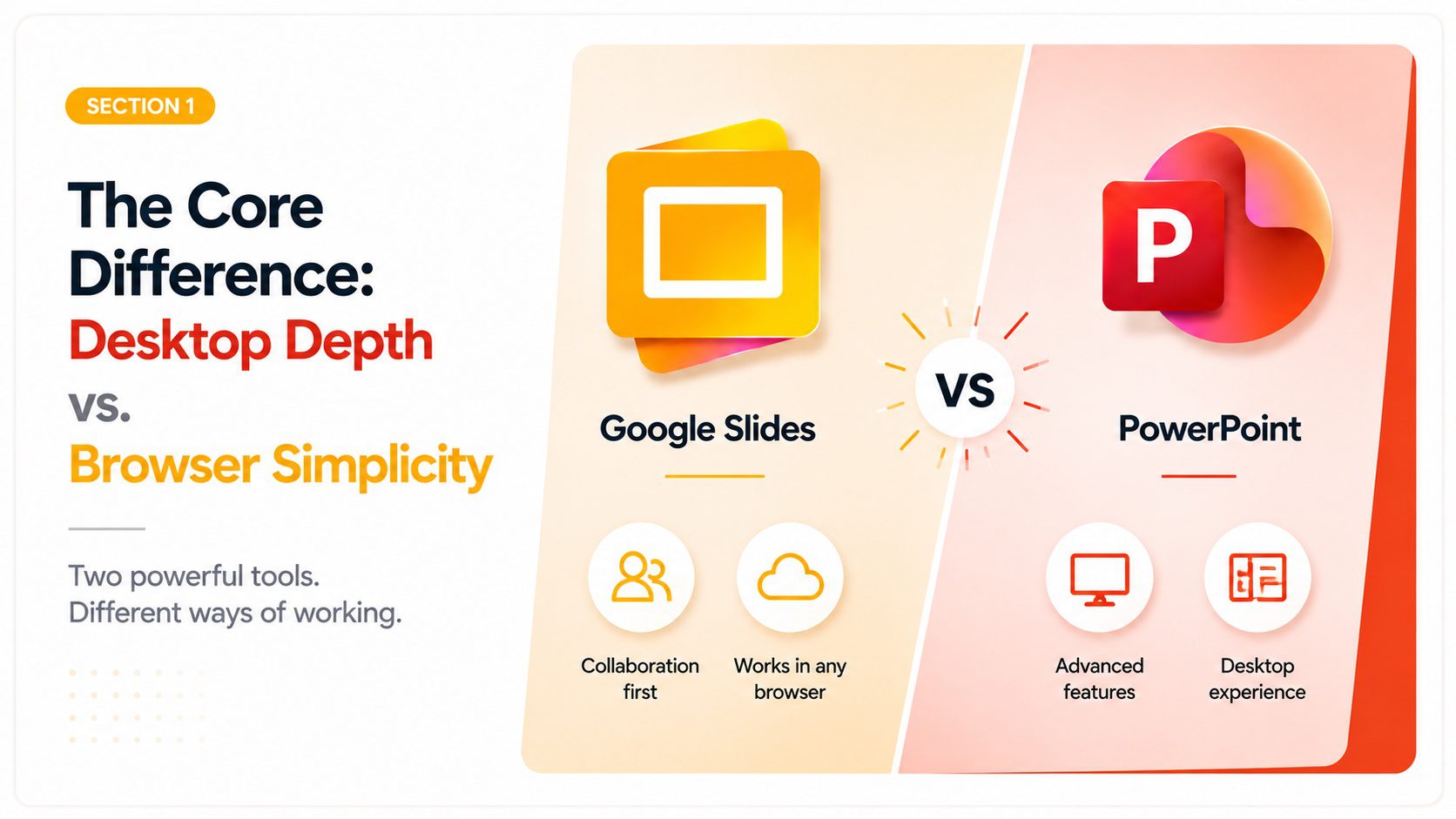
Before comparing specific features, it’s worth understanding what each tool was fundamentally built to do — because that philosophy shapes everything else.
PowerPoint started as a desktop application and keeps that architecture optimized for precision: fine-grained control over layouts, animations, typography, and data visualization. For three decades, it has been the standard for presentations that need to look exactly right, run reliably offline, and travel between devices without formatting surprises. Even today, the desktop version of PowerPoint is meaningfully more capable than the web version.
Google Slides, on the other hand, took a browser-first approach from the start. Its architecture prioritizes accessibility and real-time collaboration: open a link, start editing, share instantly, and work simultaneously with a team anywhere in the world. No installation required, no version conflicts, no emailing files back and forth. In exchange for that simplicity, however, it trades some of the depth that PowerPoint users take for granted.
Neither philosophy is wrong. In fact, they’re simply built for different realities. Understanding which reality matches yours is therefore the fastest path to the right answer.
Design and visual capabilities: PowerPoint vs Google Slides
This is where PowerPoint’s lead is most significant — and also most misunderstood.
For most presentations, Google Slides is perfectly capable. It handles text, images, basic charts, and standard layouts without any problem. The gap only becomes apparent when you need more: complex animation timelines, custom motion paths, advanced chart formatting, embedded video with precise timing, or exact font control across every device that opens the file.
PowerPoint’s animation system is genuinely more powerful. You can trigger animations based on clicks, time delays, or other animations. Custom motion paths and layered effects on a single object are both possible. Google Slides, by contrast, offers basic entrance and exit animations — useful for most purposes, but not comparable for anything cinematic or complex.
Collaboration and sharing: where Google Slides leads
Here, Google Slides has a structural advantage that PowerPoint has not fully closed — and probably cannot, by design.
Real-time collaboration in Google Slides is genuinely seamless. Share a link, set permissions, and multiple people can edit simultaneously with changes appearing live. Comments, suggestions, and version history are all built into the same interface. As a result, there’s no need to send files, reconcile versions, or worry about who has the “latest” copy. For teams that build presentations together, this eliminates an entire category of friction.
PowerPoint has responded with its web version and OneDrive co-authoring, and it works reasonably well. However, it requires everyone to use a Microsoft account, store the file in OneDrive or SharePoint, and either use the web app or have desktop PowerPoint installed. That’s a meaningful setup requirement compared to Google’s “just share a link” approach.
Sharing for viewing is also simpler in Google Slides. A shareable link requires no software, no account, and no download — anyone with a browser can view it. PowerPoint files, on the other hand, require either the recipient to have PowerPoint, to use the PowerPoint web viewer, or to download and open the file. Each step adds friction, and friction matters when you’re sending a deck to a client or stakeholder outside your organization.
Offline access and file compatibility
On offline capability, the Google Slides vs PowerPoint comparison tips decisively toward PowerPoint. The desktop application works fully without an internet connection — no caveats, no degraded experience. For presenters who travel, work from locations with unreliable connectivity, or present in venues where internet access isn’t guaranteed, this is not a minor consideration.
Google Slides does offer an offline mode, but advance setup is required: enable offline access in Google Drive while connected, and bear in mind the experience is more limited than working online. For most needs it’s workable, though it’s not the same as a desktop application that simply opens and runs.
File compatibility is a separate but related issue. The .pptx format — PowerPoint’s native format — has become the de facto standard for presentation files. It’s what clients expect, what conference organizers request, and what most professional contexts assume. Google Slides can export to .pptx, but the conversion is imperfect: complex animations, custom fonts, certain chart types, and some layout elements don’t survive the trip cleanly. For a simple deck the conversion is usually fine, but for a heavily designed presentation, expect to do some cleanup afterward.
Importing .pptx files into Google Slides has the same issue in reverse. Consequently, if you regularly exchange files with PowerPoint users, Google Slides introduces friction that doesn’t exist if everyone stays in the same ecosystem.
AI features: Copilot vs. Gemini
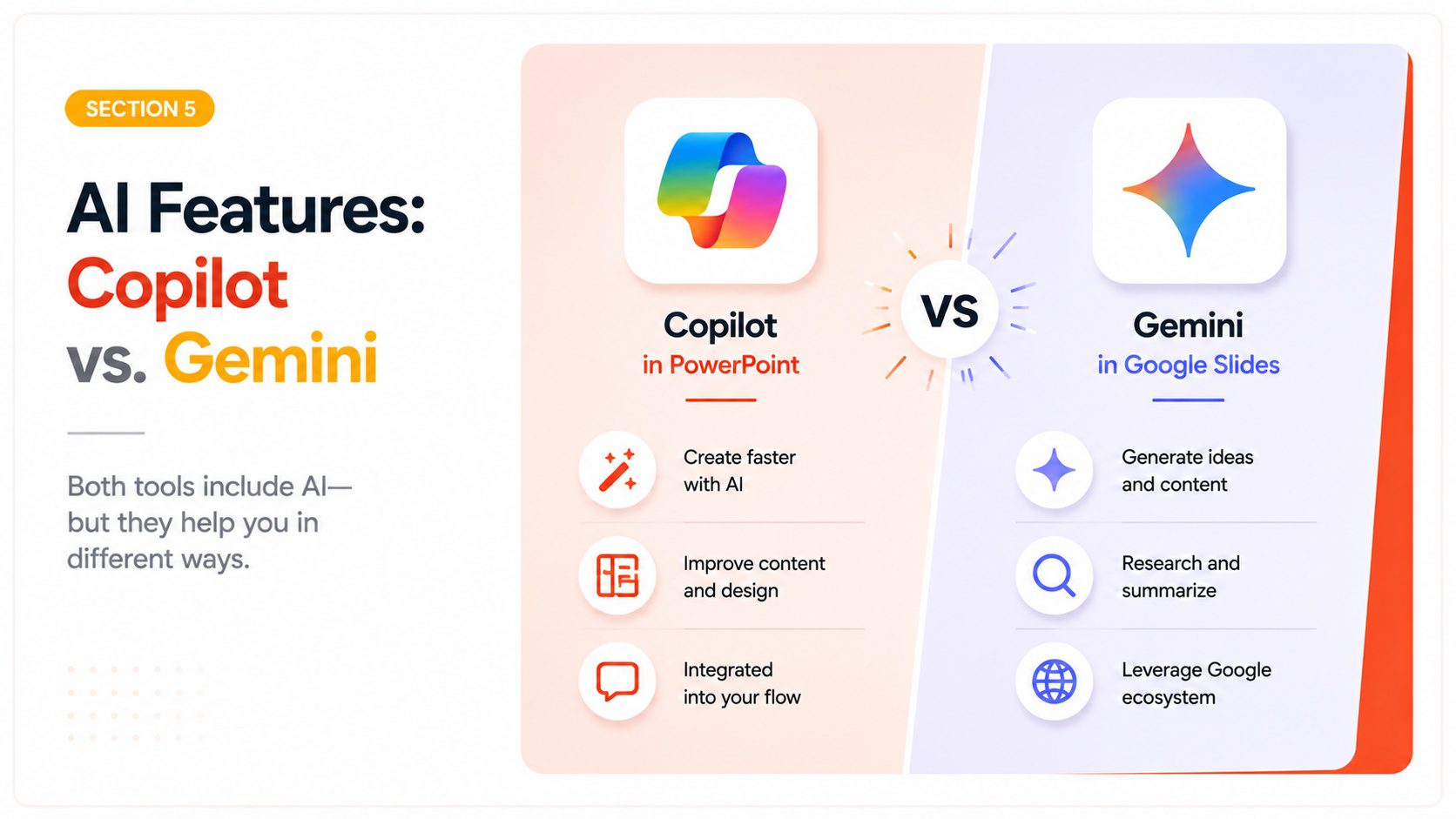
Both tools now have AI assistance built in, and both are genuinely useful — though in different ways, for different users.
Microsoft Copilot in PowerPoint can generate a full presentation from a text prompt, rewrite or refine slide content, summarize long documents into slides, and suggest design improvements. Critically, it integrates with your Microsoft 365 environment — meaning it can pull from files, emails, and documents you already have, respecting the same permissions your organization uses. For enterprise users already in the Microsoft ecosystem, this is a meaningful workflow accelerator. The catch, however, is that Copilot requires a Microsoft 365 Copilot subscription, which adds cost on top of the base Microsoft 365 plan.
Google Gemini in Slides can help draft presentations, refine slide text, and generate content from prompts. In late 2025, Google added the ability to generate full presentations directly from the Gemini app, which then open in Google Slides for editing. For users who already have Google Workspace, higher-tier plans include Gemini. For personal Google account users, some Gemini features are available in the free tier.
Neither AI tool eliminates the need for good judgment about content and structure. Nevertheless, both meaningfully reduce the blank-page problem — the hardest moment in any presentation is getting started, and AI assistance genuinely helps here.
Cost and accessibility
On cost, the Google Slides vs PowerPoint gap is clear: Google Slides is free with any Google account — a genuine advantage, particularly for students, educators, freelancers, and anyone who doesn’t need the full Microsoft 365 suite for other reasons.
PowerPoint requires a Microsoft 365 subscription. Personal plans start at around $70 per year, which includes the full Office suite — Word, Excel, Outlook, and more. For users who need those other applications anyway, the incremental cost of PowerPoint is effectively zero. For users who only need a presentation tool, however, it’s a meaningful expense.
Microsoft offers a free browser-based version of PowerPoint at office.com, but it is significantly more limited than the desktop application — no desktop-quality animation controls, reduced layout options, and no offline capability. It’s useful for light editing, not for building complex presentations.
The accessibility gap extends beyond cost as well. Google Slides works on any device with a browser — Chromebook, tablet, older laptop, school computer. PowerPoint’s desktop version, by contrast, requires a Windows or macOS machine with sufficient specs. For education contexts especially, this difference is significant: a school that has deployed Chromebooks has effectively deployed Google Slides by default.
Which one should you use? A decision guide
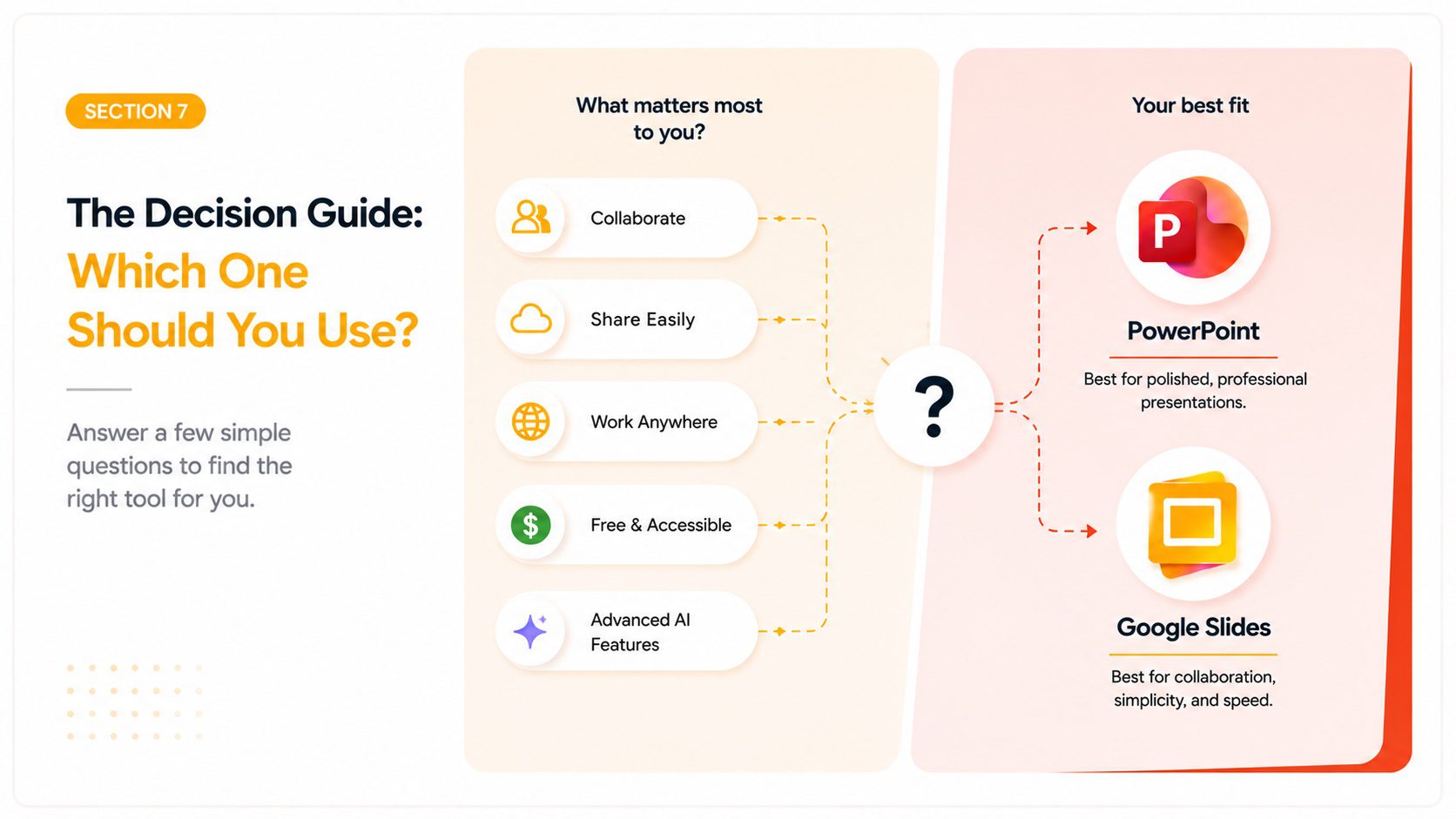
Rather than a single verdict on Google Slides vs PowerPoint, here are direct recommendations by user type.
Use Google Slides if you are:
- A student working on assignments and group projects
- A teacher creating materials for a class using Google Workspace or Chromebooks
- A remote or distributed team that frequently co-edits presentations
- Someone who needs to share presentations publicly or with external stakeholders who may not have PowerPoint
- Anyone who wants zero setup cost and zero installation
Use PowerPoint if you are:
- A professional in a corporate environment where .pptx is the expected file format
- A designer or presenter who needs precise control over animations, fonts, and layout
- Someone who presents offline or in venues where internet access isn’t guaranteed
- A Microsoft 365 user who already pays for the suite and uses the other applications
- Anyone presenting at a high-stakes event where formatting reliability is non-negotiable
Use both if you are:
- Working across mixed environments where some colleagues use Google Workspace and others use Microsoft 365
- Drafting quickly in Slides and finishing in PowerPoint — a legitimate and increasingly common workflow
- Downloading templates from PresentationGO, which provides every design in both formats
Ultimately, the honest answer for most people is that either tool will do the job. The decision matters most at the edges: complex design work (PowerPoint), seamless team collaboration (Google Slides), and offline reliability (PowerPoint).
Putting it all together
In the end, Google Slides vs PowerPoint is less a rivalry than a choice between different tools for different workflows. PowerPoint is deeper. Google Slides is simpler. PowerPoint travels better as a file. Google Slides travels better as a link. Neither is categorically better — and for most everyday presentations, the tool you’re already comfortable with is probably the right one.
One thing that genuinely doesn’t depend on your tool choice: the quality of your starting point.
Quick reference: Google Slides vs PowerPoint
| Google Slides | PowerPoint | |
|---|---|---|
| Cost | Free with Google account | Microsoft 365 subscription (~$70/yr) |
| Design depth | Good for standard presentations | Superior for complex, precise design |
| Animation | Basic entrance/exit effects | Advanced timelines, triggers, motion paths |
| Font control | Web fonts only; custom fonts may break | Embed fonts directly in the file |
| Collaboration | Real-time, link-based, frictionless | Good via OneDrive/SharePoint; requires setup |
| Offline access | Limited; requires advance setup | Full desktop capability, no internet needed |
| File format | Exports to .pptx; conversion imperfect | Native .pptx; the industry standard |
| AI features | Gemini (included in some plans) | Copilot (requires paid add-on) |
| Best for | Collaboration, education, simplicity | Design control, enterprise, offline delivery |
Frequently asked questions
Neither is categorically better — they’re optimized for different workflows. Google Slides is better for real-time collaboration, browser-based access, and zero-cost setup. PowerPoint is better for design depth, animation control, offline reliability, and enterprise environments where .pptx is the standard. The better tool is the one that fits how you work.
Yes. Google Slides can open .pptx files directly. However, the conversion is imperfect — complex animations, custom fonts, and some chart types may not transfer cleanly. For simple presentations the import is usually fine; for heavily designed decks, expect to review and fix formatting afterward.
It can, but it requires setup. You need to enable offline access in Google Drive while connected to the internet, using the Google Docs Offline Chrome extension. Once set up, you can view and edit presentations without a connection, though some features are limited compared to the online experience.
A limited browser-based version of PowerPoint is available free at office.com. The full desktop application requires a Microsoft 365 subscription, starting at around $70 per year for personal use. That subscription also includes Word, Excel, Outlook, and other Office applications.
For most students, Google Slides is the more practical choice. It’s free, works on any device including Chromebooks, makes group projects easy with real-time collaboration, and shares instantly without file attachments. PowerPoint is worth learning if you’re heading into a corporate environment where it’s the standard.
Yes. In Google Slides, go to File → Download → Microsoft PowerPoint (.pptx). The file downloads as a .pptx that can be opened in PowerPoint. As with the reverse conversion, complex formatting elements may shift slightly, so review the result before presenting.
It depends on the industry. Corporate, finance, consulting, and enterprise environments overwhelmingly use PowerPoint — it’s been the standard for decades. Education, startups, and tech companies have increasingly adopted Google Slides, particularly teams running on Google Workspace. Both are professional tools; the choice reflects the ecosystem, not the level of professionalism.