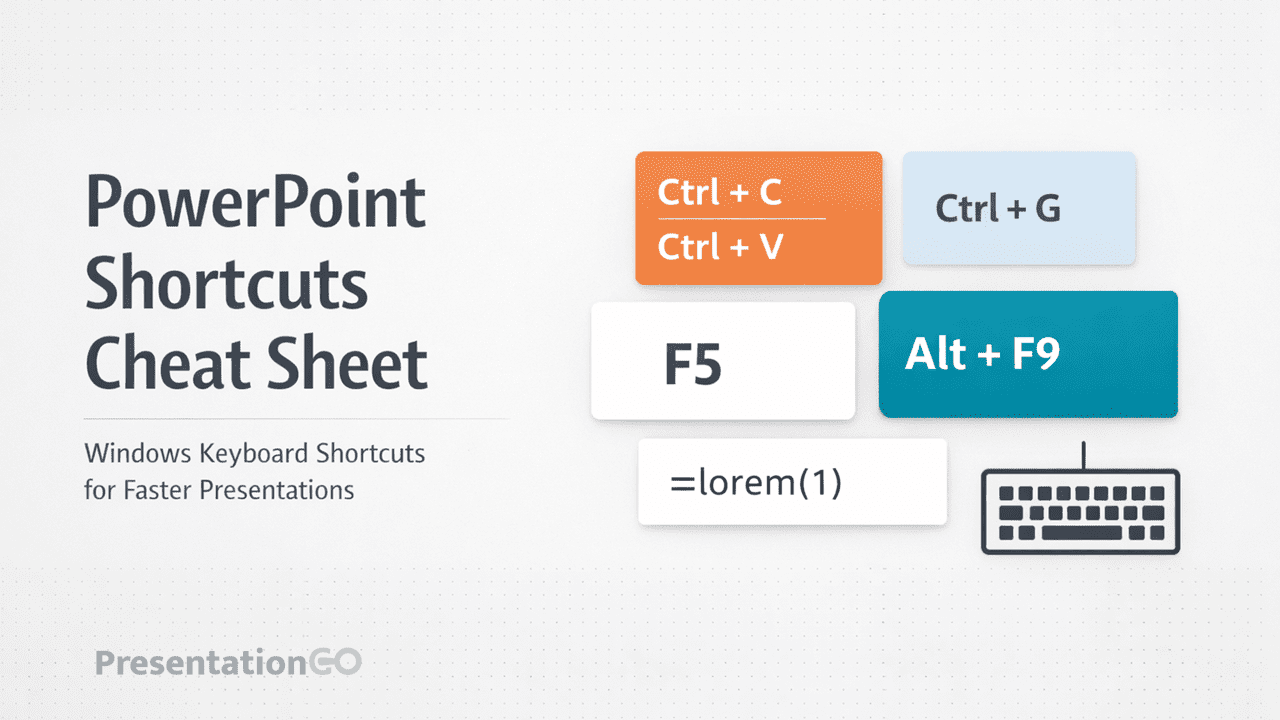
Want to design slides faster? This PowerPoint shortcuts cheat sheet gives you the most useful shortcuts for text, alignment, Slide Master, animations, and charts—plus a one-slide visual guide you can keep open while you work.
Why Use a PowerPoint Shortcuts Cheat Sheet?
PowerPoint includes a lot of features. However, many shortcuts remain hidden or forgotten. Therefore, using a PowerPoint shortcuts cheat sheet helps you work faster and keep your slides consistent.
- Save time on repetitive tasks
- Keep layouts perfectly aligned
- Maintain design consistency across slides
- Focus on your message instead of clicking menus
Basic Editing
- Ctrl + N – New presentation
- Ctrl + O – Open presentation
- Ctrl + S – Save
- Ctrl + W – Close presentation
- Ctrl + Z – Undo
- Ctrl + Y – Redo
- Ctrl + C – Copy
- Ctrl + X – Cut
- Ctrl + V – Paste
- Ctrl + A – Select all
Slide Navigation & Management
- Ctrl + M – Insert new slide
- Ctrl + D – Duplicate slide
- Delete – Delete selected slide
- Page Up / Page Down – Move between slides
- Home – Go to first slide
- End – Go to last slide
- Ctrl + ↑ / ↓ – Move slide up/down in list
- Ctrl + < – Add section
Presentation Mode
- F5 – Start slideshow from beginning
- Shift + F5 – Start slideshow from current slide
- Ctrl + Shift + F5 – Start slideshow (alternate)
- Alt + F5 – Presenter view
- Esc – End slideshow
- N / Enter / Space – Next slide
- P / Backspace – Previous slide
- Number + Enter – Jump to specific slide
- B – Black screen (toggle)
- W – White screen (toggle)
- S – Pause slideshow
- Ctrl + P – Show pen pointer
- Ctrl + A – Show arrow pointer
- E – Erase pen annotations
Text Formatting
- Ctrl + B – Bold
- Ctrl + I – Italic
- Ctrl + U – Underline
- Ctrl + E – Center align
- Ctrl + L – Left align
- Ctrl + R – Right align
- Ctrl + J – Justify
- Ctrl + Shift + > – Increase font size
- Ctrl + Shift + < – Decrease font size
- Ctrl + T – Open Font dialog
Placeholder Text (Design Layouts)
- =lorem(1) – Insert 1 paragraph of Lorem Ipsum
- =lorem(2) – Insert 2 paragraphs of Lorem Ipsum
- =lorem(3) – Insert 3 paragraphs of Lorem Ipsum
- =rand(1) – Insert “The quick brown fox…” text
- =rand(2) – Insert 2 paragraphs of random text
- =rand(3) – Insert 3 paragraphs of random text
Object Grouping & Alignment
- Ctrl + G – Group objects
- Ctrl + Shift + G – Ungroup objects
- Ctrl + Shift + J – Regroup last selection
- Ctrl + Drag – Duplicate while dragging
- Ctrl + Shift + Drag – Move in a straight line
- Arrow Keys – Nudge object
- Ctrl + Arrow Keys – Fine nudge
- Shift + Arrow Keys – Resize object
Object Formatting
- Ctrl + Shift + C – Copy formatting
- Ctrl + Shift + V – Paste formatting
- Ctrl + 1 – Open Format Shape pane
- Alt + Shift + ← / → – Rotate object
Slide Master & Theme Management
- View → Slide Master – Open Slide Master view
- Ctrl + Shift + C – Copy formatting
- Ctrl + Shift + V – Paste formatting
- Ctrl + 1 – Open Format Shape pane
Animation & Transitions
- Alt + Shift + C – Copy animation
- Ctrl + Click – Select multiple animations
- Drag items – Reorder animations
- Shift + Draw – Draw straight lines
View & Precision Tools
- Alt + F9 – Toggle guides
- Shift + F9 – Toggle gridlines
- Alt + Drag – Disable snap temporarily
- Ctrl + F1 – Show/hide ribbon
- Ctrl + Shift + H – Toggle Notes Pane
- Ctrl + Shift + U – Open Selection Pane
- Alt + W, L – Normal view
- Alt + W, I – Slide Sorter view
Quick Access & Insert
- Ctrl + K – Insert hyperlink
- Alt + N, P – Insert picture
- Alt + N, S, H – Insert shape
- Alt + H, S, H – Insert text box
- F7 – Spell check
- Alt + Shift + D – Insert date and time
- Alt + Q – Tell Me / Search box
Final Tips
- Group objects before animating
- Duplicate elements instead of redrawing them
- Use placeholder text before final content is ready
- Edit Slide Master to avoid repetitive formatting
Note: These shortcuts work on Windows. For Mac, generally replace Ctrl with Cmd (⌘), and Alt with Option (⌥).
Download the PowerPoint Shortcuts Cheat Sheet
We created a 1-slide visual PowerPoint shortcuts cheat sheet to make these shortcuts easy to reference while you work.
Download the Free Cheat Sheet (PPTX)
Free for personal and commercial use.