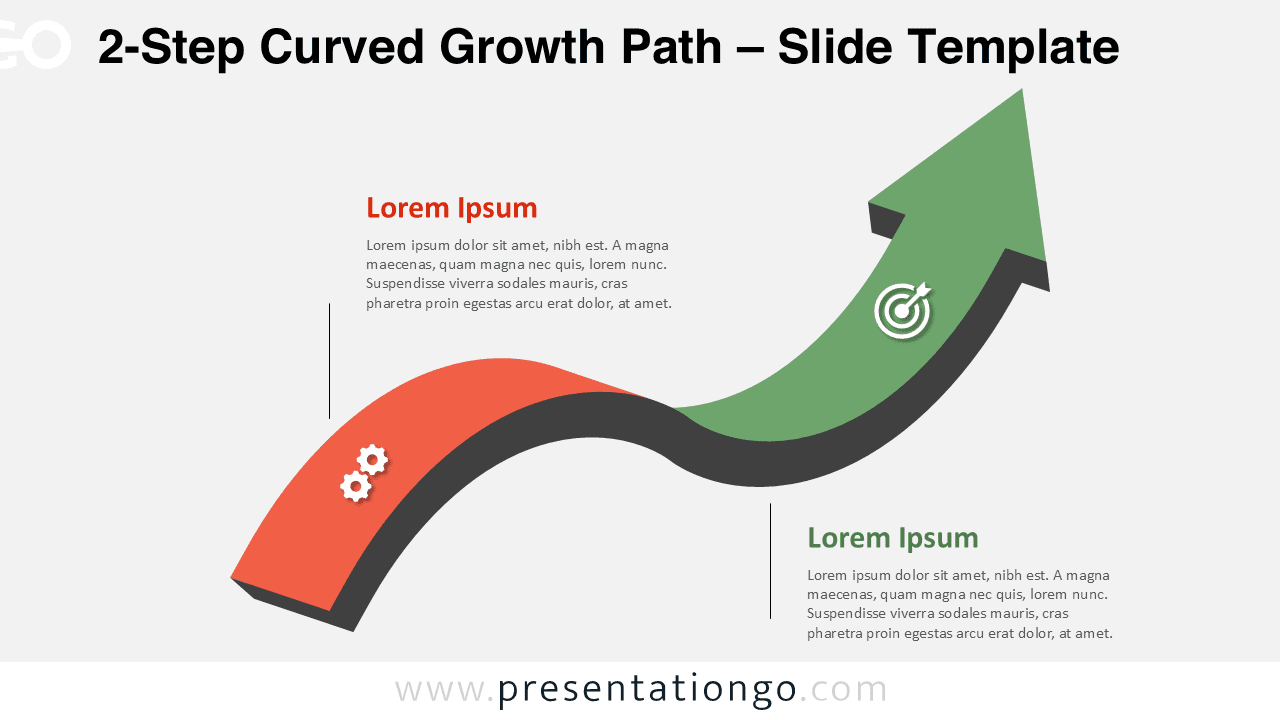
The 2-Step Curved Growth Path diagram offers a clean and effective way to illustrate a simple process in both PowerPoint and Google Slides. Its flowing curved line creates a smooth transition from one stage to the next, ending in a rising arrow that symbolizes progress and achievement. This diagram is ideal for presenting clear, concise information while maintaining a visually engaging layout that supports storytelling and comprehension.
Diagram Preview
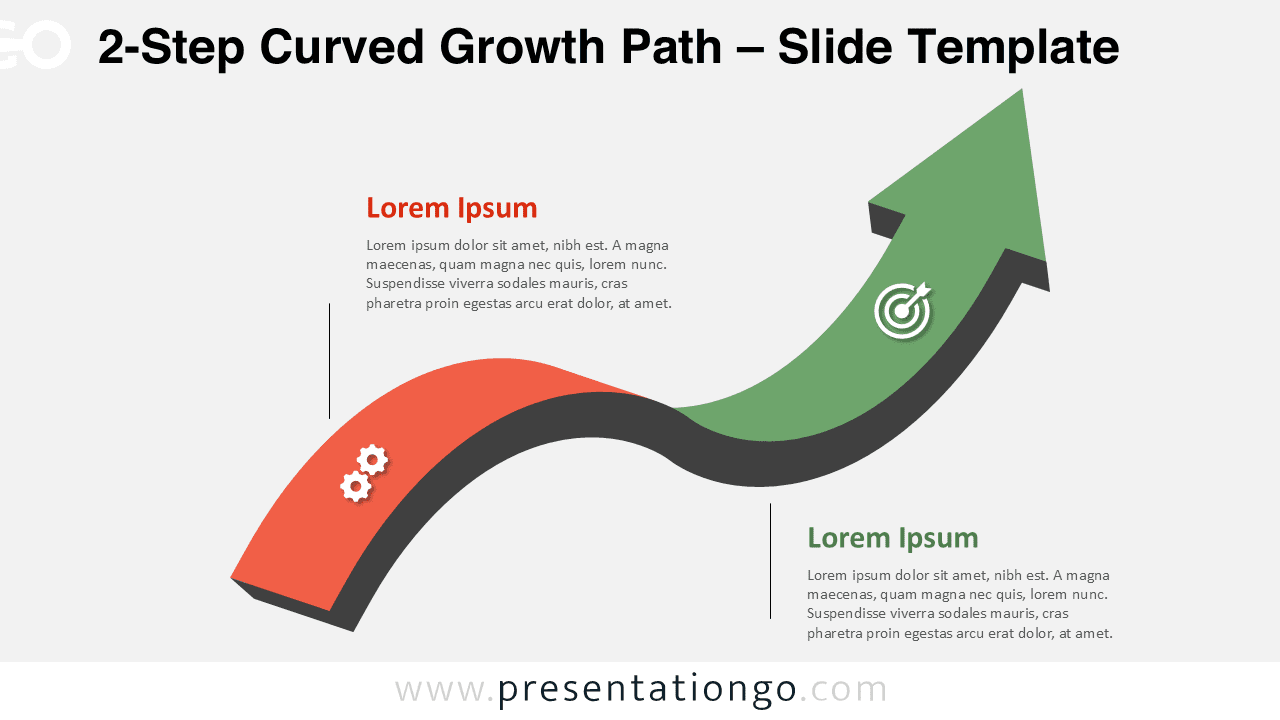
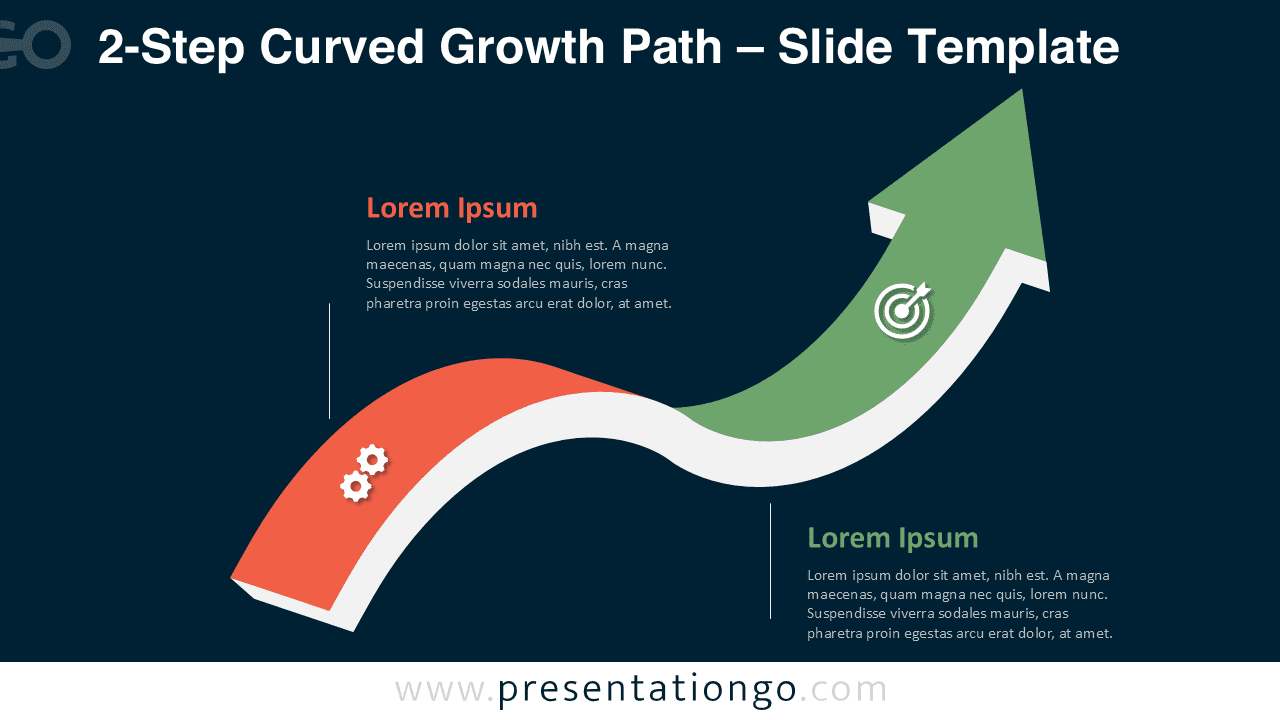


Diagram Features and Customization Options
- Editable shapes for full customization in PowerPoint and Google Slides
- Two-step curved ribbon layout ending with a rising arrow
- Includes editable icon placeholders for each step
- Compatible with 16:9 widescreen format
- Easy-to-edit colors, shapes, and text labels
- Light and dark background versions included
Design and Structure
This diagram uses a curved, organic flow to represent movement and direction. The design begins with a bold colored segment featuring a gear icon, signaling an initial action or starting point. It then transitions toward a final green arrow to highlight progress or success. The dark spine beneath the curve enhances depth and helps the path stand out on both light and dark backgrounds. Each point along the diagram includes space for a title and descriptive text, making it easy to adapt the design to a variety of presentation needs.
Practical Applications
- Before-and-after comparisons
- Two-step workflows or quick processes
- Short customer journeys or decision paths
- Minimalist progress or improvement illustrations
- High-level business, marketing, or educational explanations
Summary
The 2-Step Curved Growth Path diagram is an engaging yet simple template for visual communication. Its flowing layout, icon placeholders, and upward arrow make it ideal for showing quick processes and clear transitions. Whether you are presenting a basic workflow or demonstrating improvement, this diagram brings clarity and visual appeal to your message.
Frequently Asked Questions (FAQ)
Changing icons is simple in both PowerPoint and Google Slides.
In PowerPoint, select the icon, press Delete, then go to Insert → Icons or insert your own image. You can also recolor native icons using the Graphics Fill options.
In Google Slides, select the icon and delete it, then choose Insert → Image or Insert → Icons (if available) to add a replacement. Resize or recolor your new icon as needed.