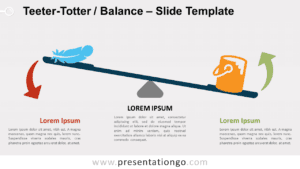
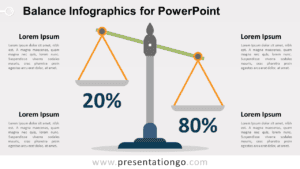
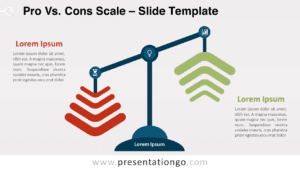
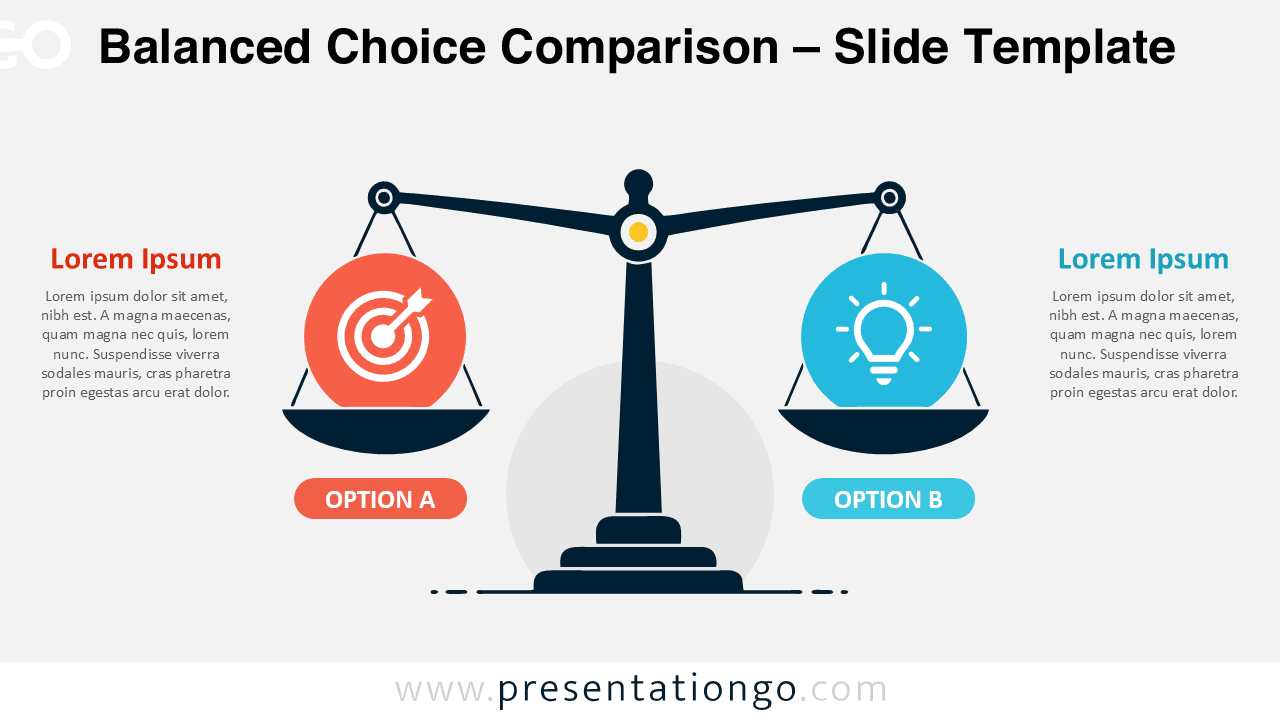
The Balanced Choice Comparison diagram gives you a clear way to present two alternatives side by side. Its central balance scale creates an immediate visual connection between both choices. Each side offers dedicated space for a heading, supporting text, and an editable visual placeholder. The symmetrical composition keeps both alternatives equally important and avoids suggesting a preferred outcome.
This Balanced Choice Comparison diagram works well when a standard table feels too rigid or text-heavy. The scale metaphor adds meaning without making the slide difficult to read. You can use it to discuss competing options, compare viewpoints, evaluate alternatives, or explain trade-offs. The simple structure also helps your audience understand the relationship between both sides quickly.
Diagram Preview


Features and Customization Options
- Fully editable PowerPoint elements
- Compatible with Google Slides
- Light and dark background options
- Editable headings and descriptions
- Resizable vector shapes
- Flexible labels and text
- Icons from the Office icon library
- Icons are easy to modify or replace
- Light and dark slide versions
Design and Structure
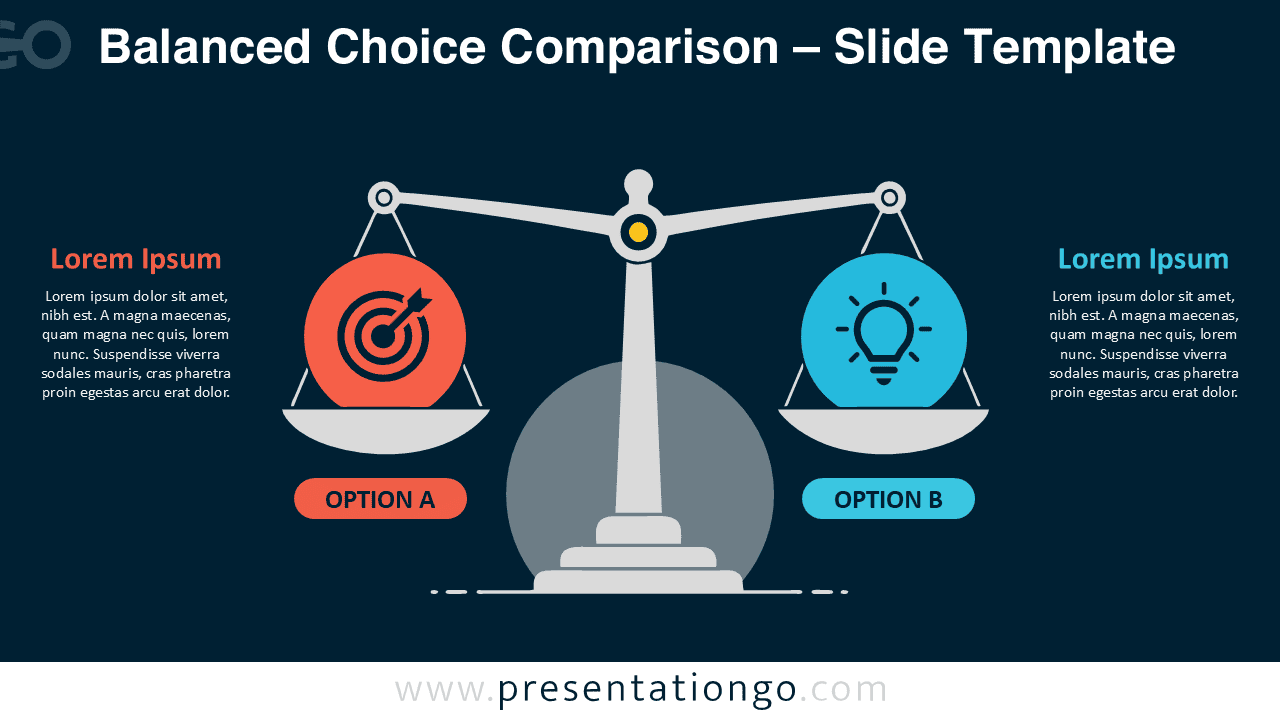
The layout uses strong symmetry to create a balanced comparison between two alternatives. A large scale anchors the center of the slide. Each side contains a circular visual area, an option label, and space for explanatory text. This structure guides the eye naturally from one alternative to the other.
The Balanced Choice Comparison diagram keeps the content hierarchy simple. The central metaphor introduces the concept first. The two option areas then provide the details needed for discussion. Because the slide gives both sides similar visual weight, it suits neutral evaluations and open-ended decision processes.
You can edit the text to match your topic and adjust the shapes for your presentation. The included icons come from the Office icon library. They serve as editable illustrative placeholders rather than defining the subject of the diagram. You can modify, recolor, resize, or replace them easily with other Office icons that better fit your message.
Practical Applications
- Compare two business alternatives
- Present pros and cons
- Evaluate competing strategies
- Explain cost versus benefit
- Discuss risk versus reward
- Compare products or services
- Review two project directions
- Present opposing viewpoints
- Support decision-making meetings
- Explain strategic trade-offs
Summary
The Balanced Choice Comparison diagram combines a familiar balance metaphor with a clean two-option structure. It helps presenters explain alternatives without overwhelming the audience with information. The editable layout supports many business, educational, and strategic topics. Use it in PowerPoint or Google Slides whenever you need to compare two choices in a clear and visually engaging way.