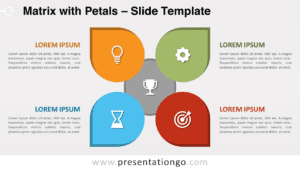
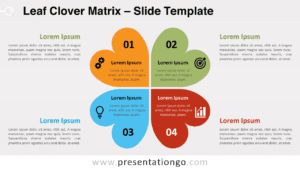
The 4-Petal Photo Quadrant diagram is a creative and elegant layout designed to visualize four ideas or categories in a balanced, flower-like structure. Available for PowerPoint and Google Slides, this infographic blends colorful petal shapes with editable photo placeholders to bring your concepts to life.
Template Preview
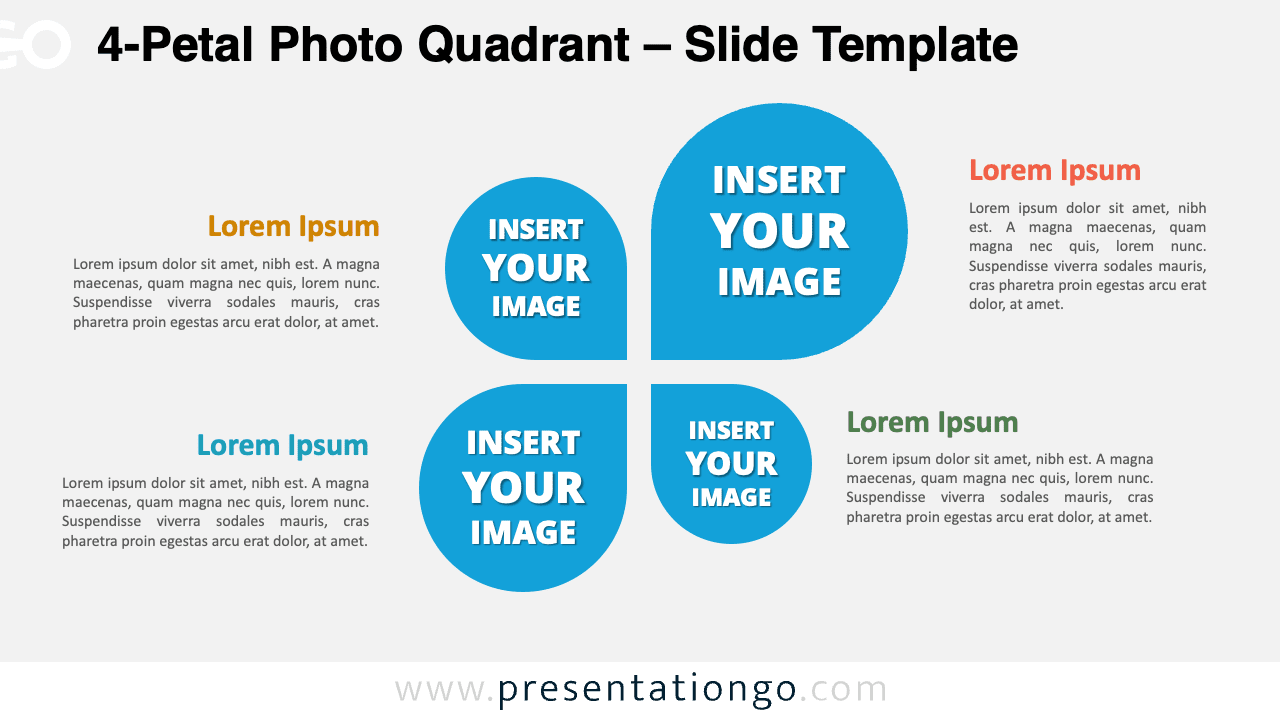
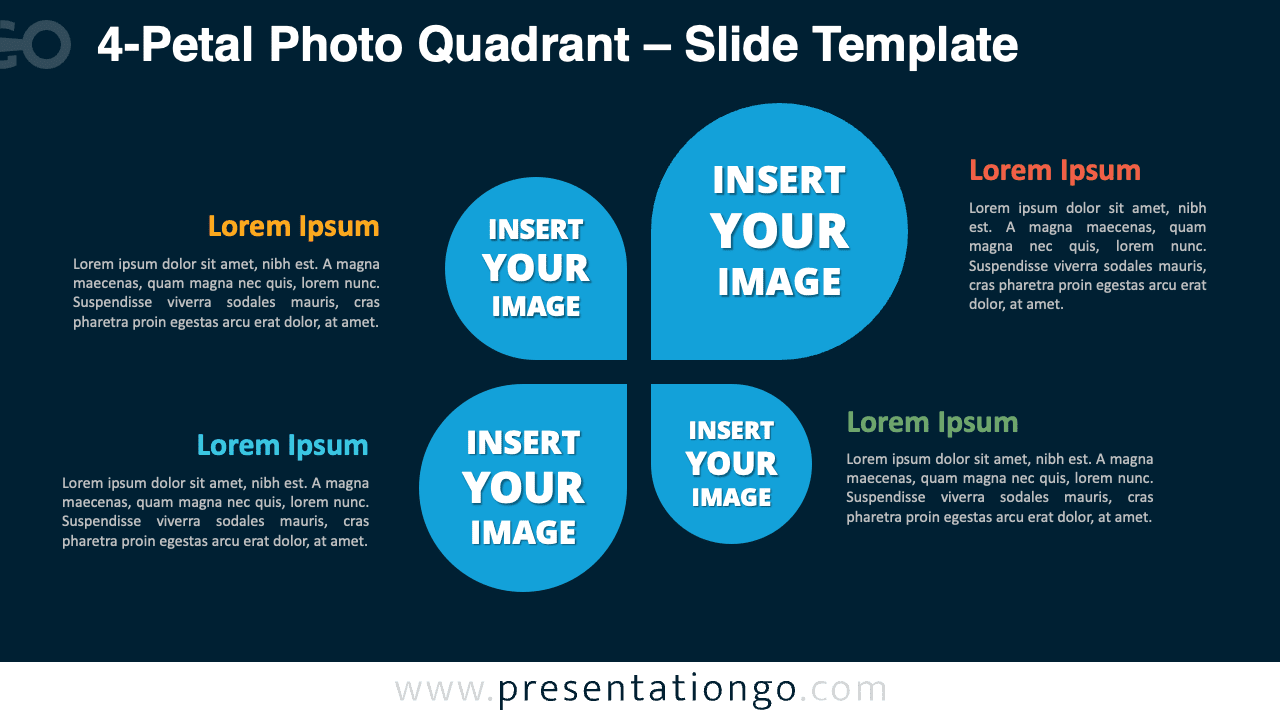
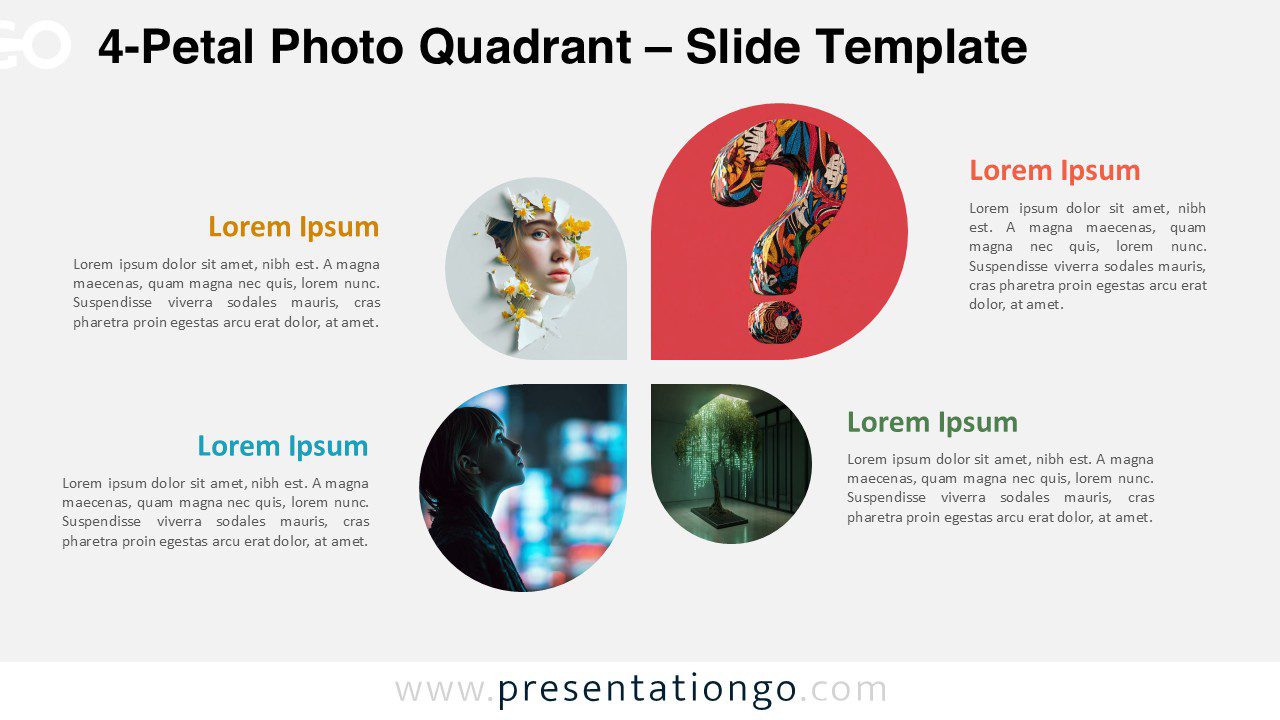


Diagram Features and Customization Options
- Includes 2 slides: light and dark background versions (slide with photos not included)
- 1 unique design featuring 4 rounded petals forming a central quadrant
- Fully editable vector shapes, colors, and text
- Photo placeholders included in each petal for easy image replacement
- Compatible with PowerPoint and Google Slides in widescreen (16:9) format
Design and Layout Overview
This diagram features four curved petals arranged in a cross-shaped structure, creating a natural and harmonious balance. Each petal can hold an image or icon, paired with descriptive text around the layout. The light background enhances readability and simplicity, while the dark version adds visual depth and focus. The organic geometry conveys unity, growth, and creativity—ideal for storytelling and conceptual visuals.
Practical Applications
- Display four related ideas, departments, or features
- Showcase a 4-step process or comparison matrix
- Use as a visual metaphor for balance, teamwork, or diversity
How to Edit
- Open the template in PowerPoint or Google Slides.
- Select one of the petal shapes containing the default “Insert Your Image” placeholder.
- Right-click the shape and choose:
- In PowerPoint → Format Shape → Fill → Picture or Texture Fill → Insert Picture from File…
- In Google Slides → Replace image → Upload from computer (or choose another source)
- Insert your photo. The image will automatically fit inside the petal’s clipping mask.
- Adjust brightness, contrast, or transparency as needed for visual balance.
- Edit the surrounding text boxes with your own titles and descriptions.
- Change petal colors using the fill options to match your brand palette.
- Optionally, apply subtle animations for each petal to reveal your four ideas dynamically.
Summary
The 4-Petal Photo Quadrant offers a modern, image-centric way to present four key concepts. It’s a balanced, creative, and professional layout for business, education, and design presentations.