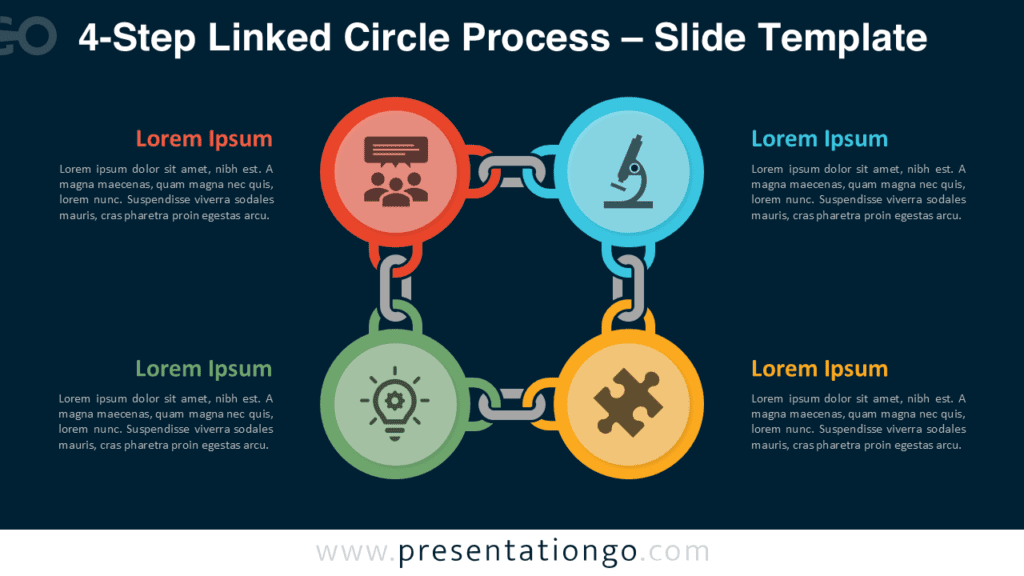
The 4-Step Linked Circle Process diagram is designed to help you communicate structured workflows and cycles using four clearly connected stages.
As part of the Linked Circle Process collection, this diagram follows the same visual logic as the other variants while offering additional depth for more complex stories.
The four-step format is especially effective when a process must be explained in distinct but interdependent phases.
Diagram Preview
Preview the 4-Step Linked Circle Process diagram for PowerPoint and Google Slides in the gallery below.
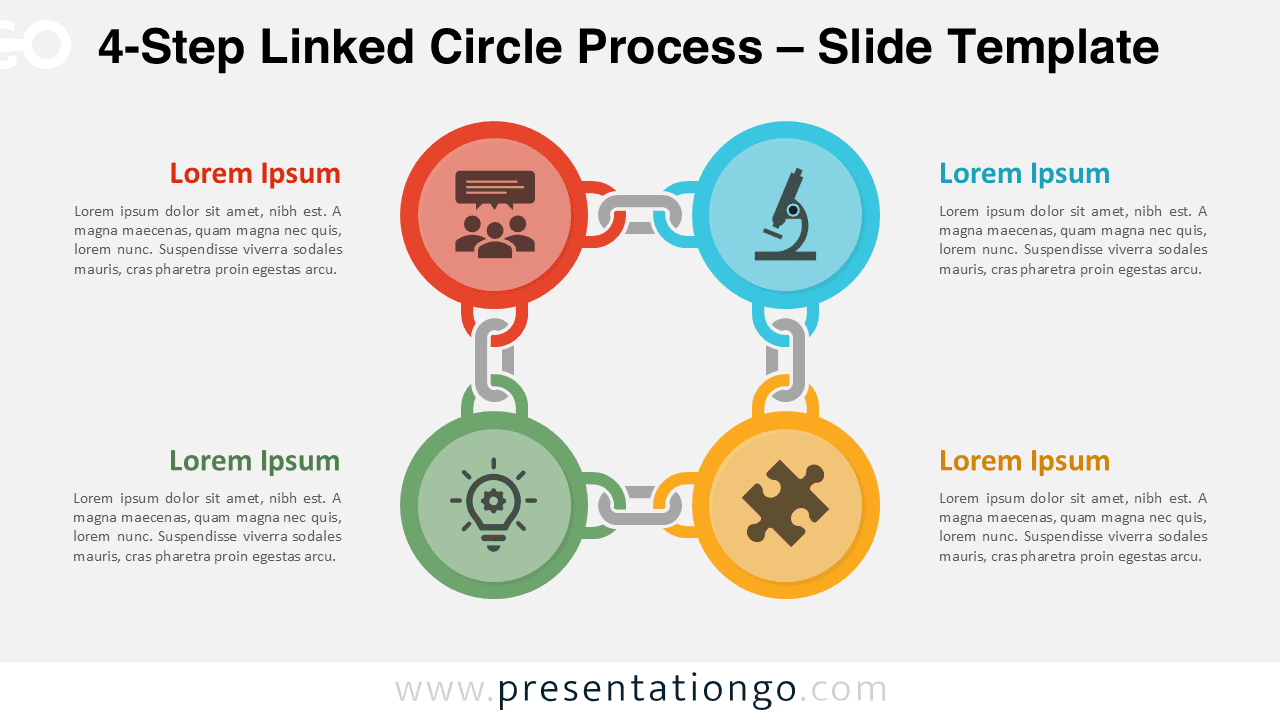
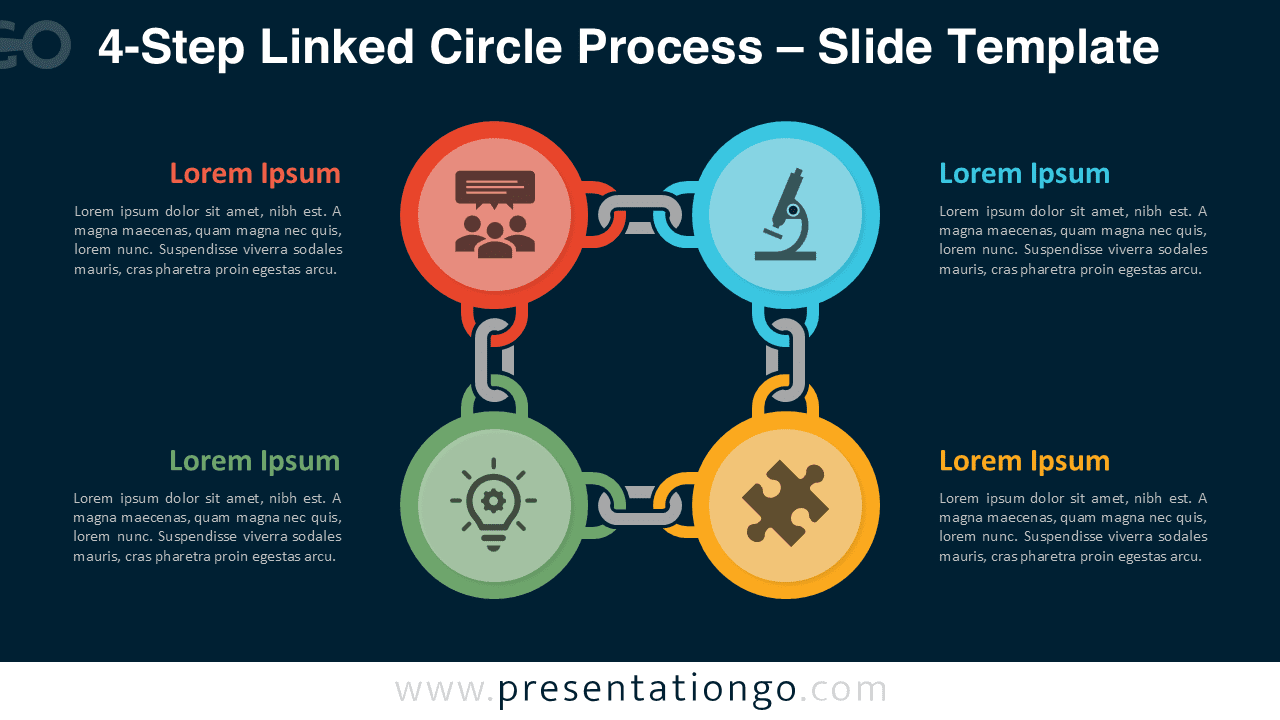
Diagram Features and Customization Options
- Four-step circular workflow structure for phased processes and frameworks
- Editable shapes, connectors, and text placeholders
- Includes editable icon placeholders within each step
- Light and dark background versions included
- Works seamlessly in PowerPoint and Google Slides
Design and Structure
This diagram uses four evenly distributed circular nodes connected by interlocking links that naturally guide the audience through the sequence. The circular composition works well for cyclical processes, recurring workflows, and structured frameworks that repeat over time.
Practical Applications
- Explain four-phase workflows, methodologies, or operational cycles.
- Present strategic frameworks, audits, or evaluation processes.
- Visualize customer journeys or product lifecycle stages.
- Support training content and educational step-by-step explanations.
Summary
The 4-Step Linked Circle Process diagram provides a structured and visually consistent way to explain multi-stage processes without overwhelming your audience.
Complete Linked Circle Process Collection
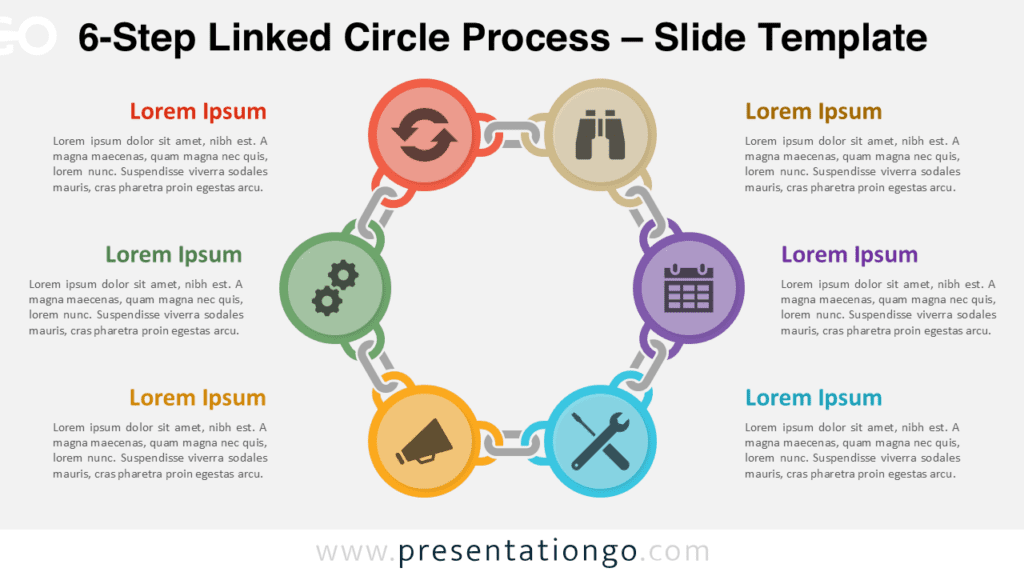
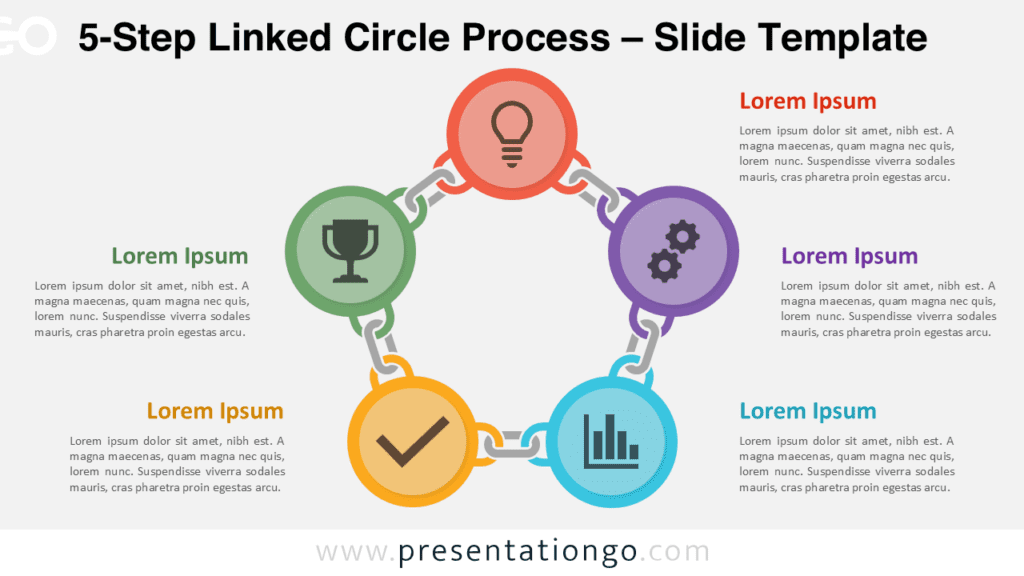
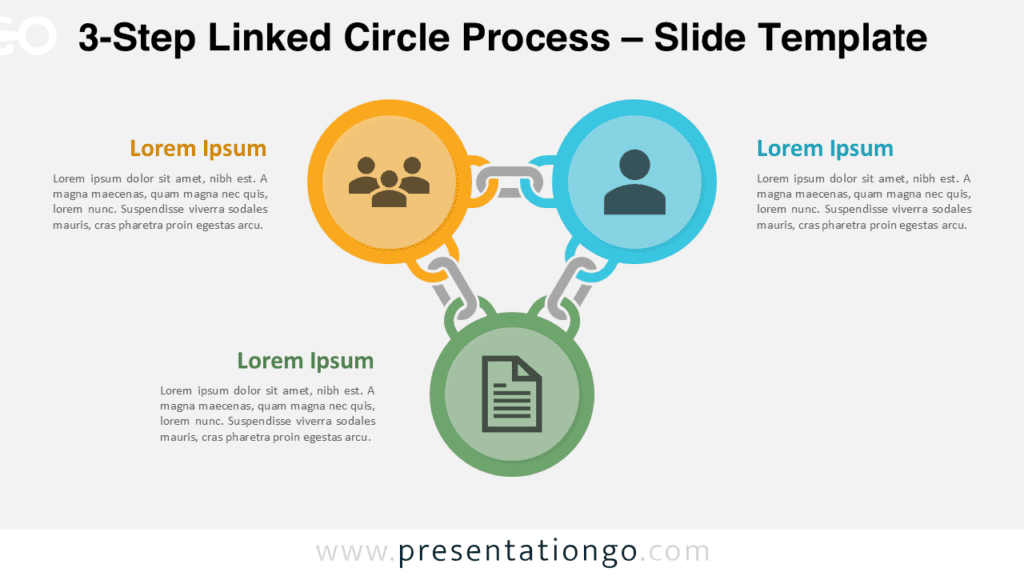
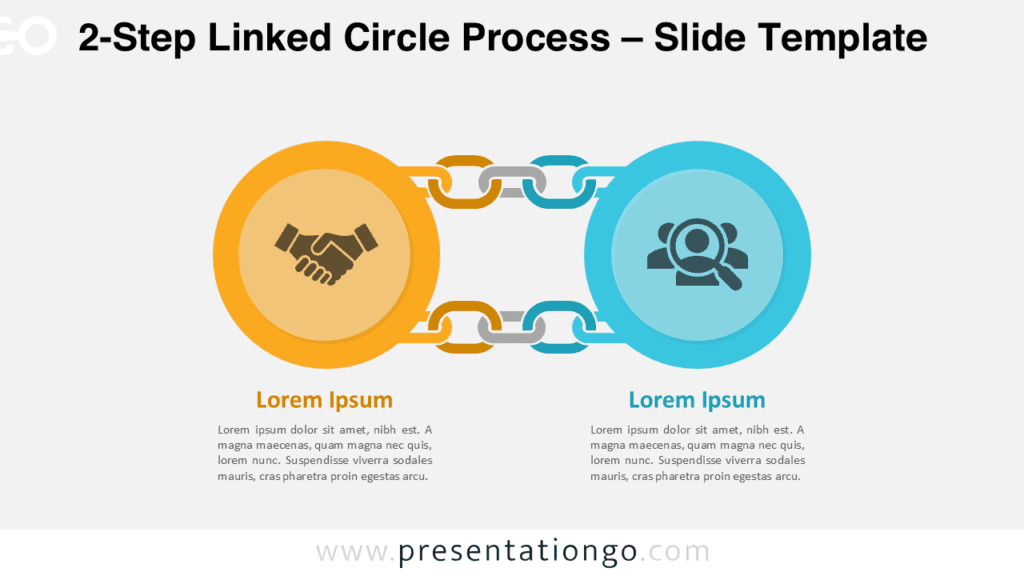
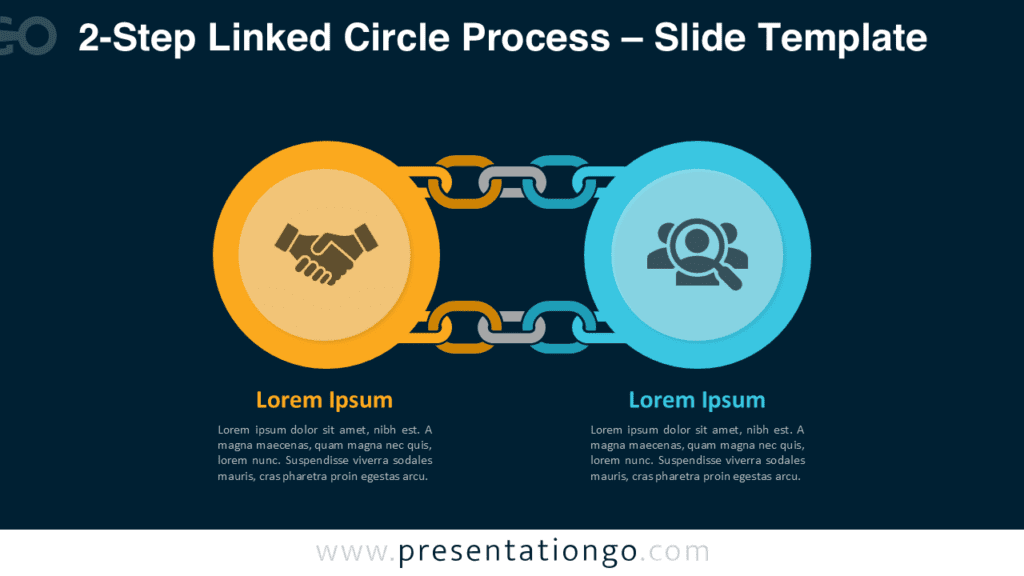
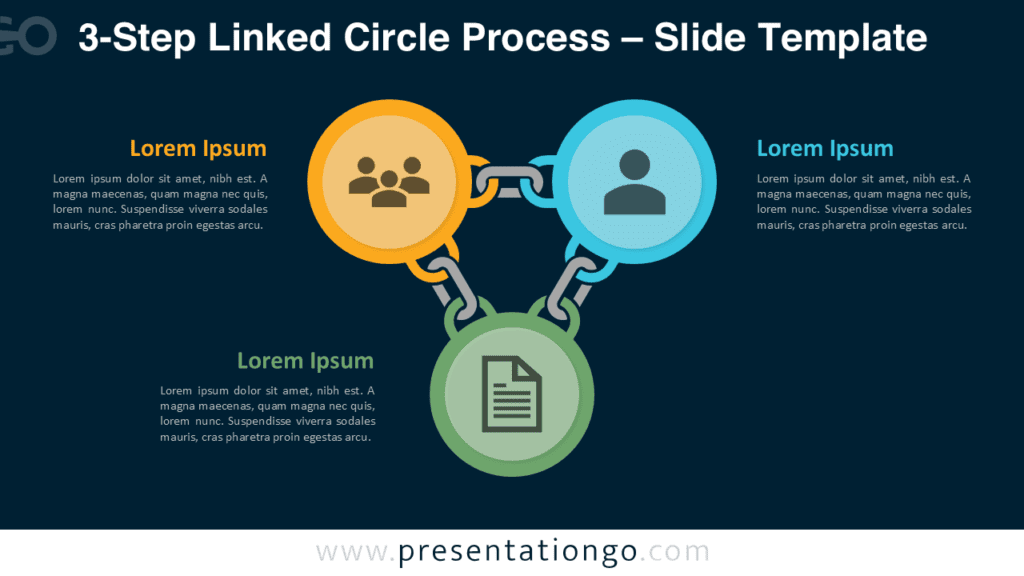
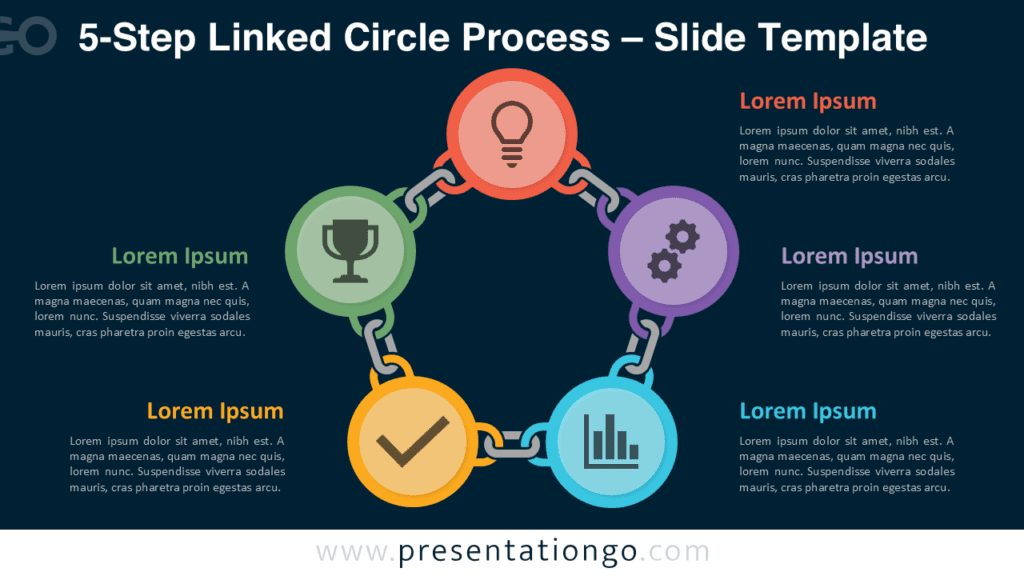
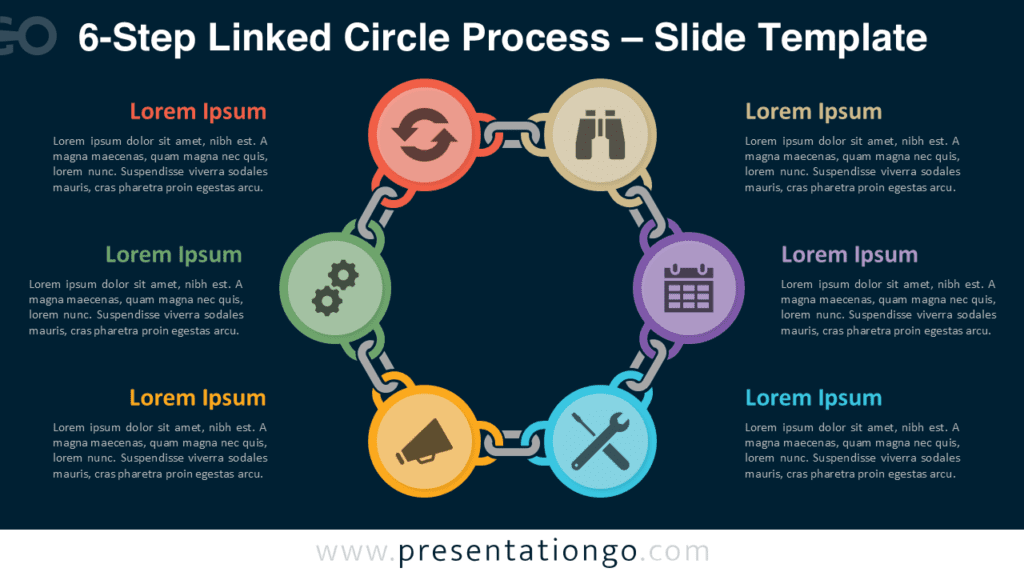
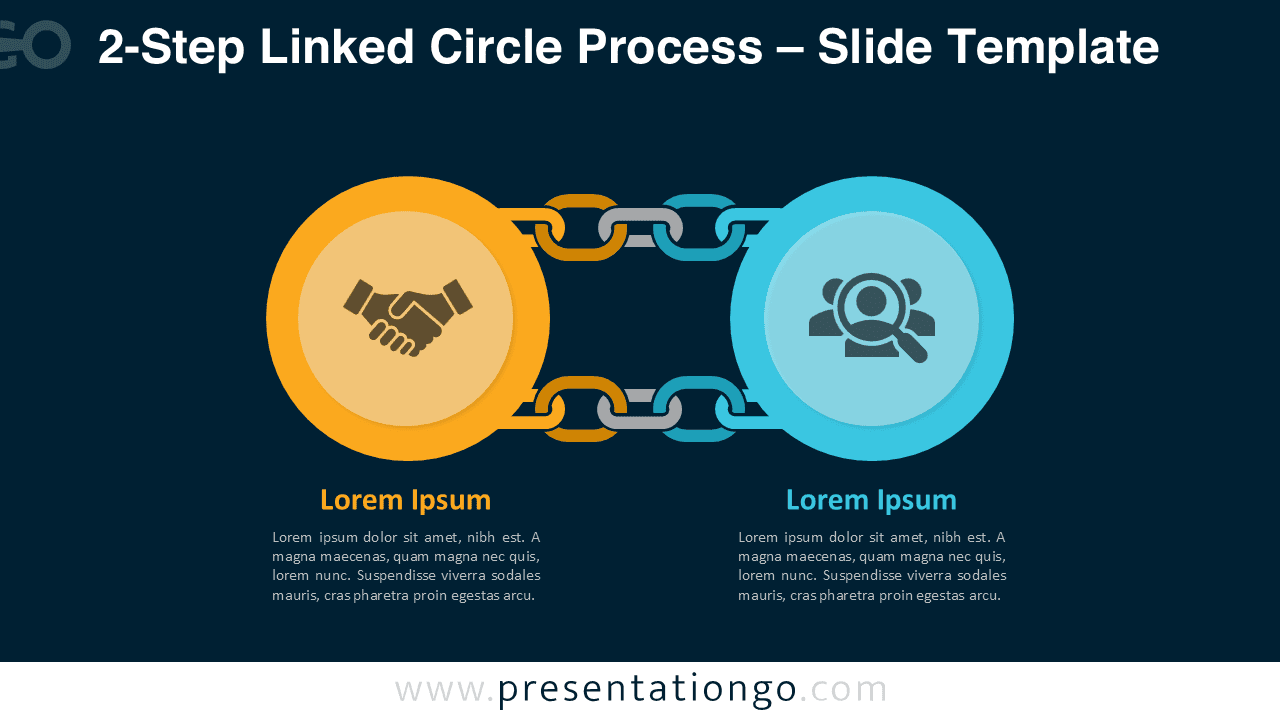
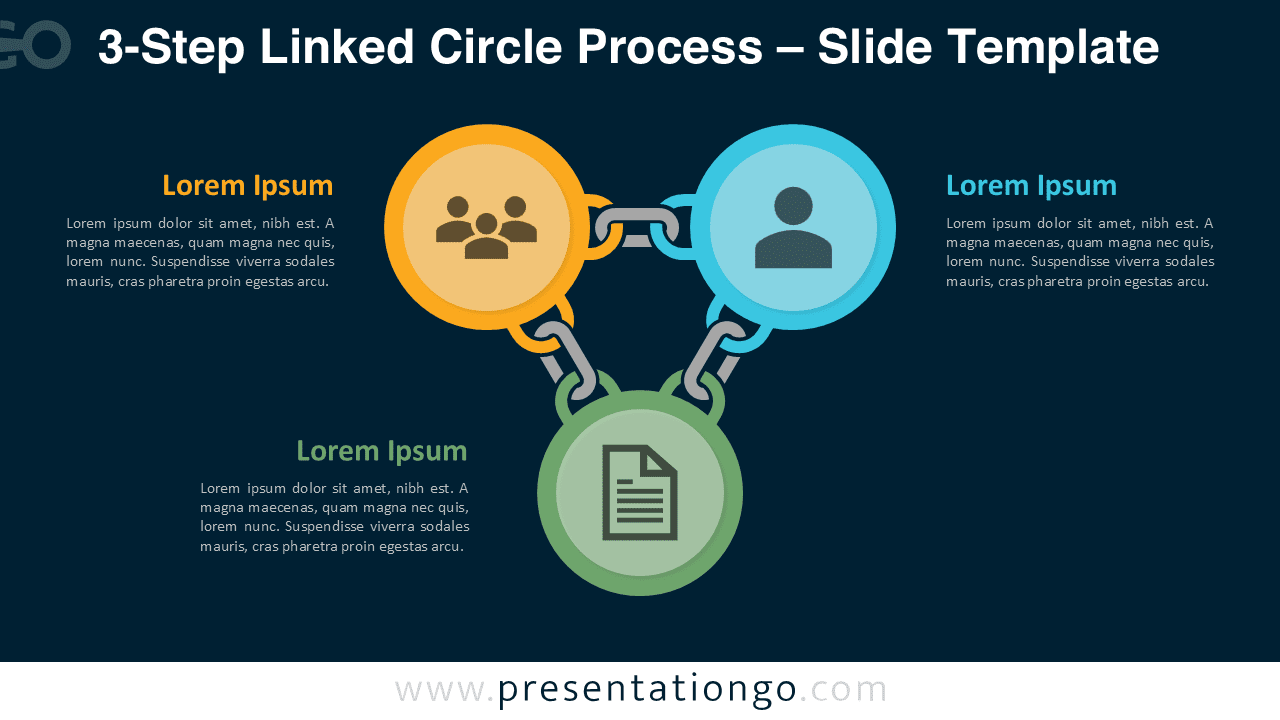
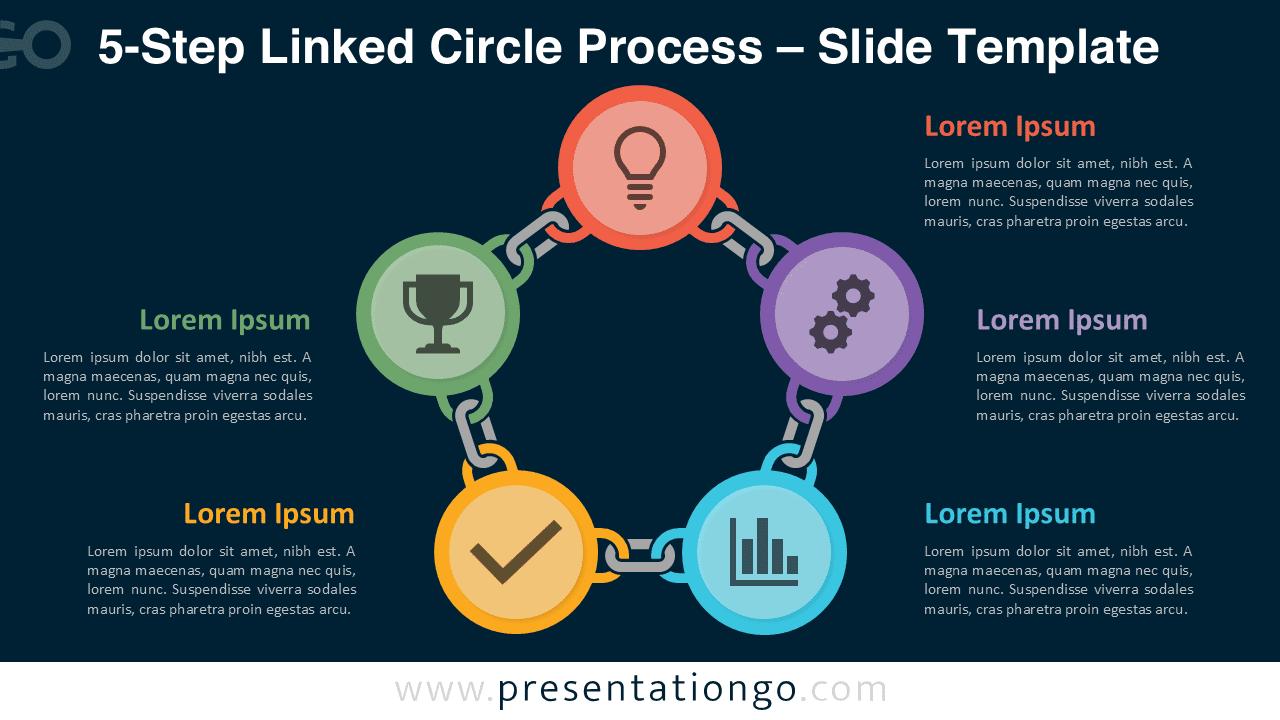
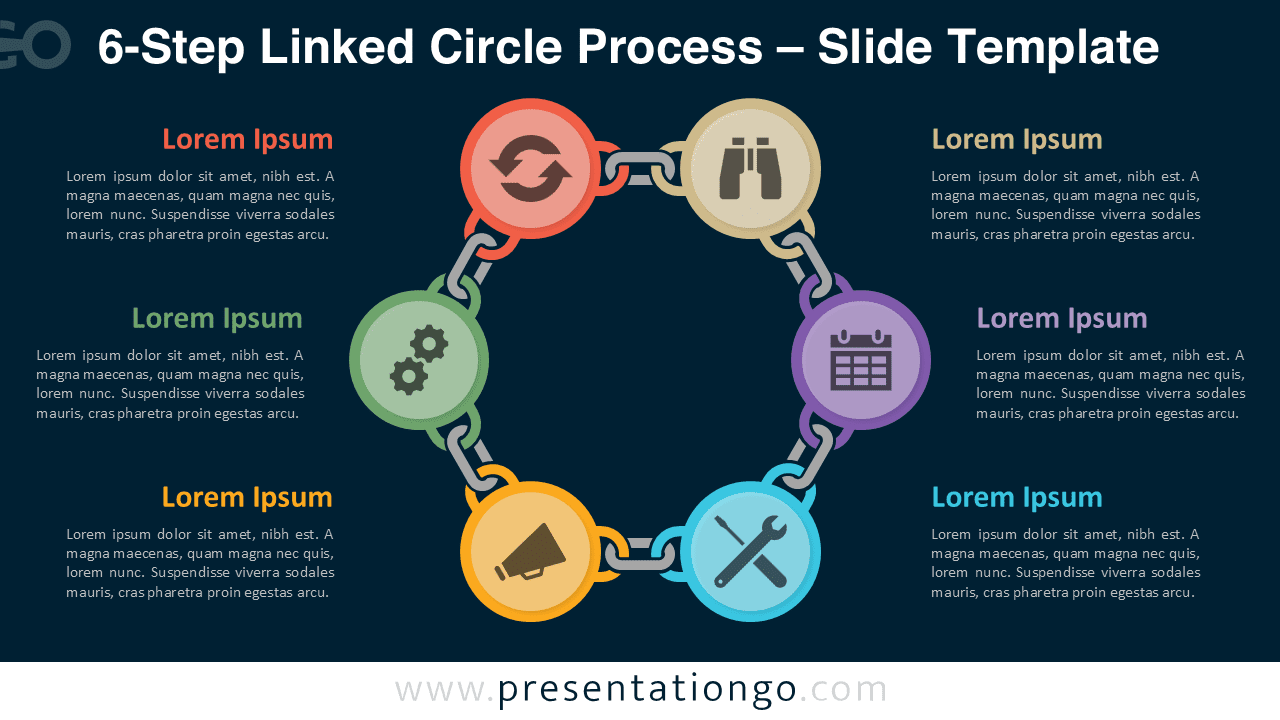
If your presentation requires a different number of steps, explore the complete Linked Circle Process collection, including 2-step, 3-step, 5-step, and a 6-step diagram.
Frequently Asked Questions (FAQ)
Yes. The icons act as editable placeholders. You can recolor, replace, or swap them with your own visuals.
PowerPoint:
Right-click the icon and select Change Graphic → From Icons to choose a new built-in icon. You can also select Change Graphic → From a File to insert your own SVG or image. Once replaced, use Graphics Format → Graphics Fill to recolor the icon, and Align tools to center it inside the circle.
Google Slides:
Right-click the icon and choose Replace image, then select Upload from computer, Drive, or another source. After replacing the icon, use the toolbar Fill color options (for SVG icons) and the Arrange → Center on page tools to align it correctly within the shape.