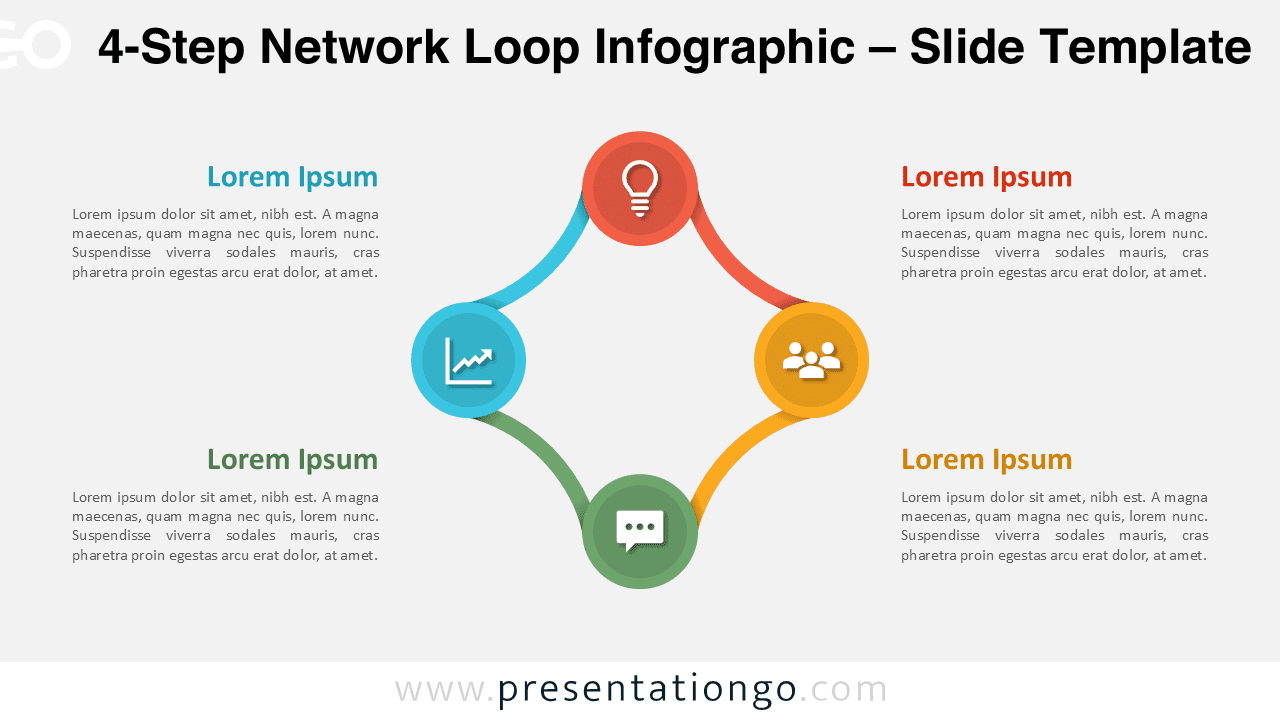
Explain your four-step process with the 4-Step Network Loop Infographic. Each node connects in a smooth circular chain, ideal for showing relationships, workflows, or recurring processes in PowerPoint and Google Slides.
Template Preview
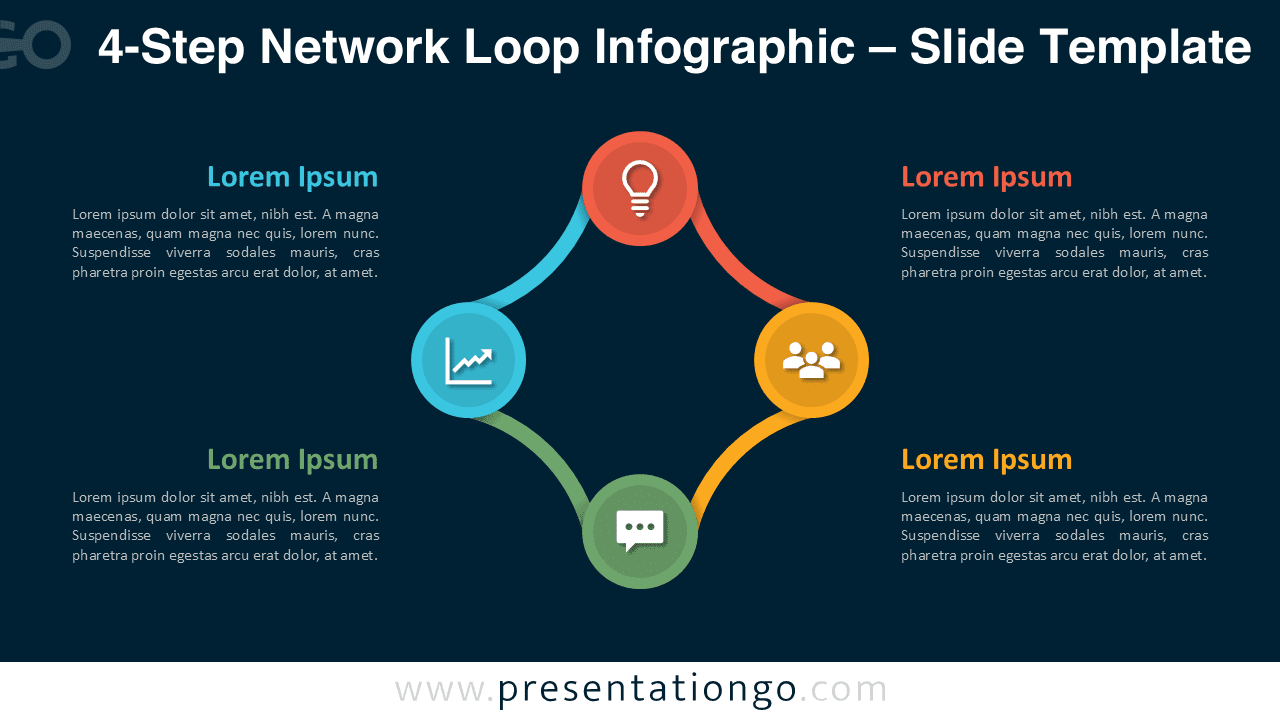
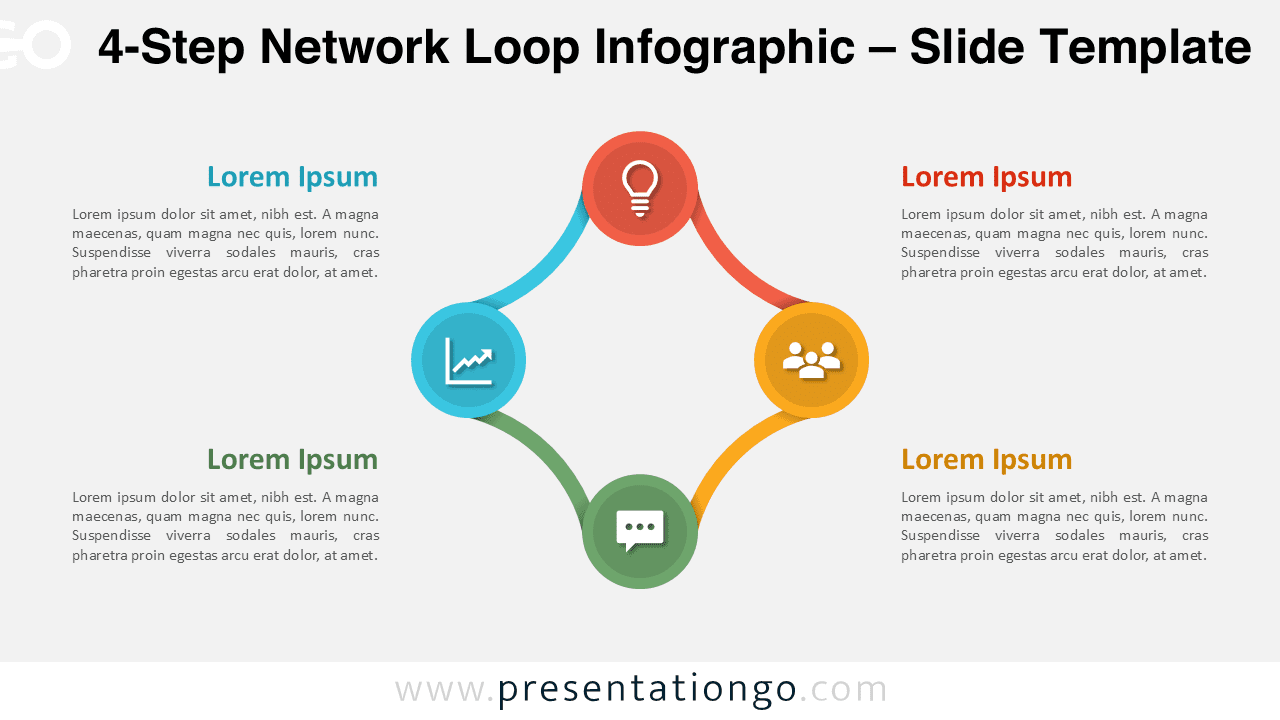

Features & Customization
- Includes 2 slides: light and dark backgrounds
- Four connected nodes forming a continuous loop
- Editable text, colors, and icons
- Widescreen 16:9 format compatible with PowerPoint and Google Slides
- Vector shapes ensure clarity and easy customization
Design Overview
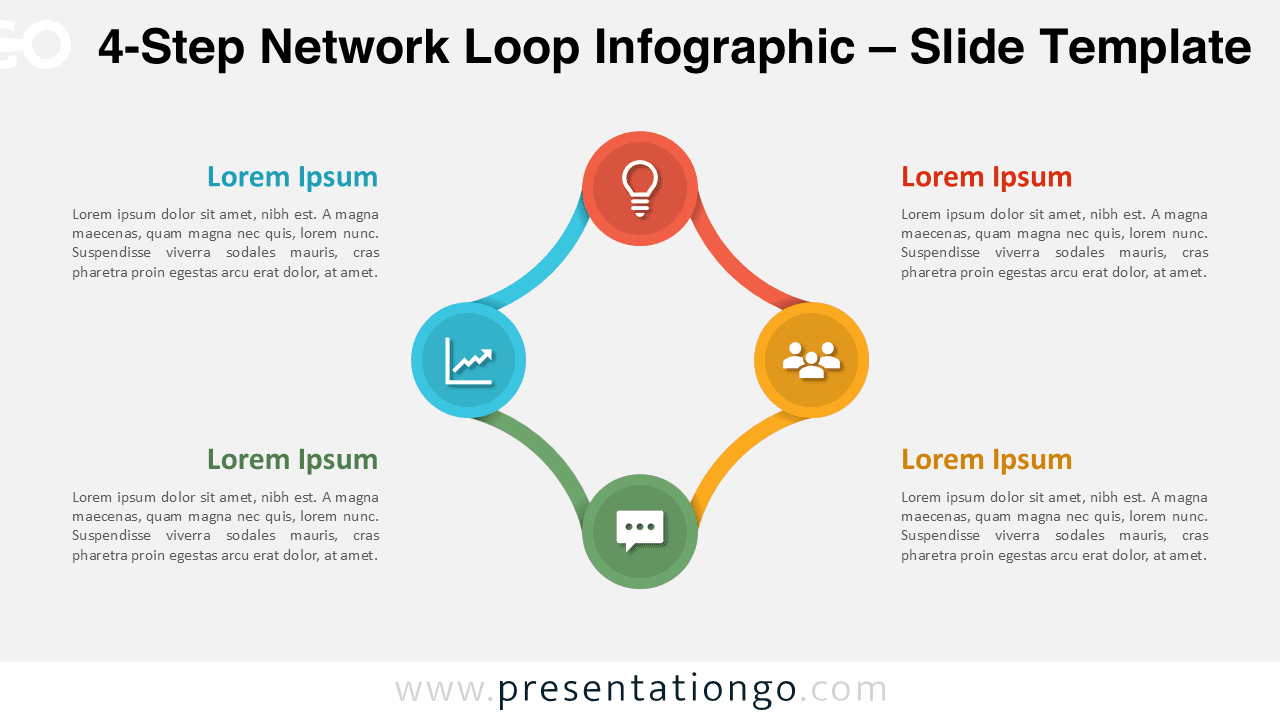
This 4-Step Network Loop Infographic features a harmonious circular arrangement of four connected nodes. Each circular point is evenly spaced along a perfect ring, creating a smooth rotational flow around the center. Vibrant colors and fine connector lines emphasize continuity and unity between the four stages. Text placeholders are positioned near each node for logical readability and clean composition. With balanced geometry and symmetrical design, this layout delivers a professional and dynamic look for process or teamwork visuals.
Practical Applications
- Four-phase business workflows
- Team collaboration diagrams
- Continuous improvement models
- Organizational or communication loops
How to Edit
- Open the file in PowerPoint or Google Slides.
- Replace icons and text with your own content.
- Change node colors to match your visual theme.
- Duplicate slides to create alternate color styles.
Summary
This editable 4-step loop infographic visually connects your ideas in a circular flow, perfect for teamwork, process visualization, and presentation storytelling.
Complete Collection
Part of the Network Loop Infographic Series: 3-Step, 4-Step, 5-Step, and 6-Step versions available for PowerPoint and Google Slides.


Frequently Asked Questions (FAQ)
You can swap the placeholder icons with any icon set or images. Resize freely; vector elements remain sharp.
In PowerPoint, right-click any icon, choose “Format Shape,” and change color or replace it. In Google Slides, use “Format options” to recolor or swap the icon directly.