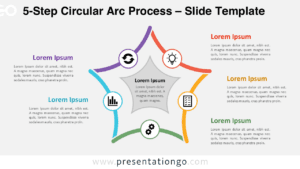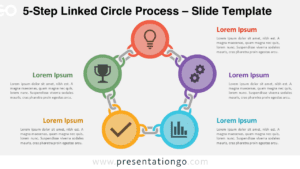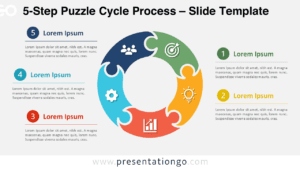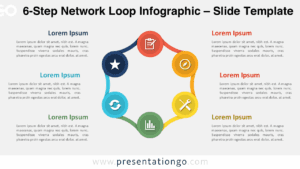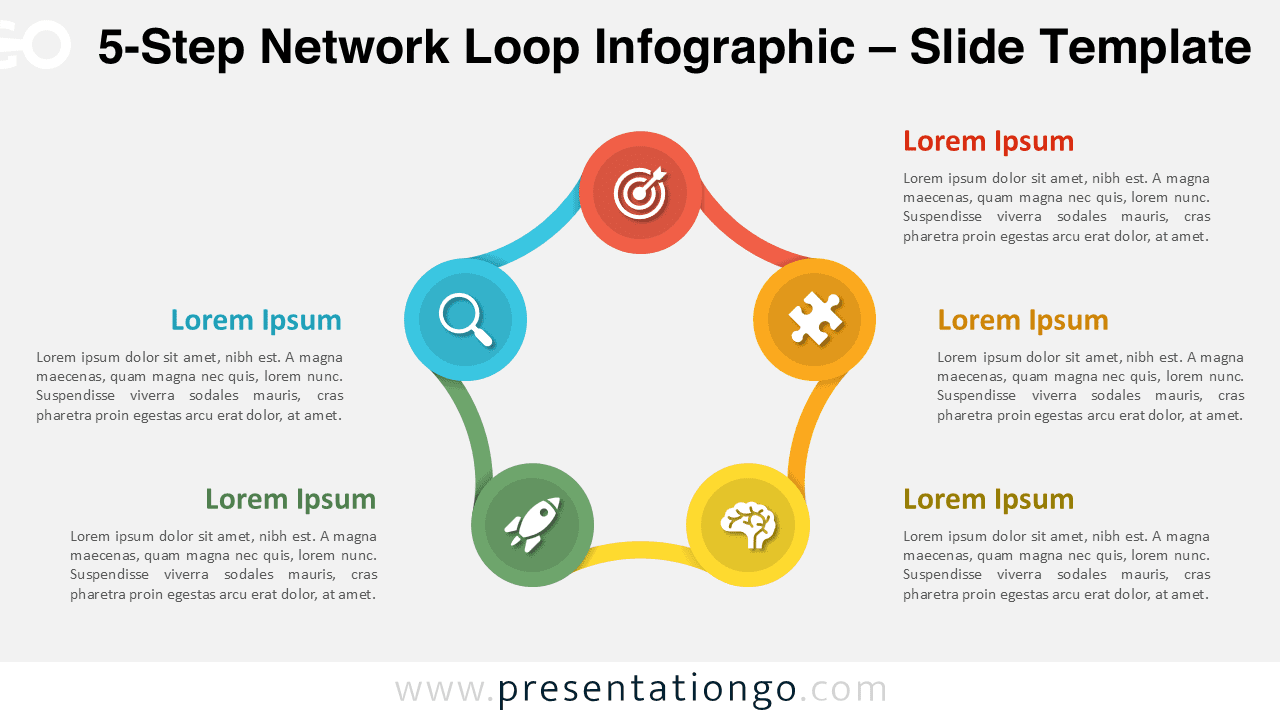
Showcase five connected stages with the 5-Step Network Loop Infographic. Each node links in a continuous cycle, ideal for teamwork, planning, or development visuals in PowerPoint and Google Slides.
Template Preview
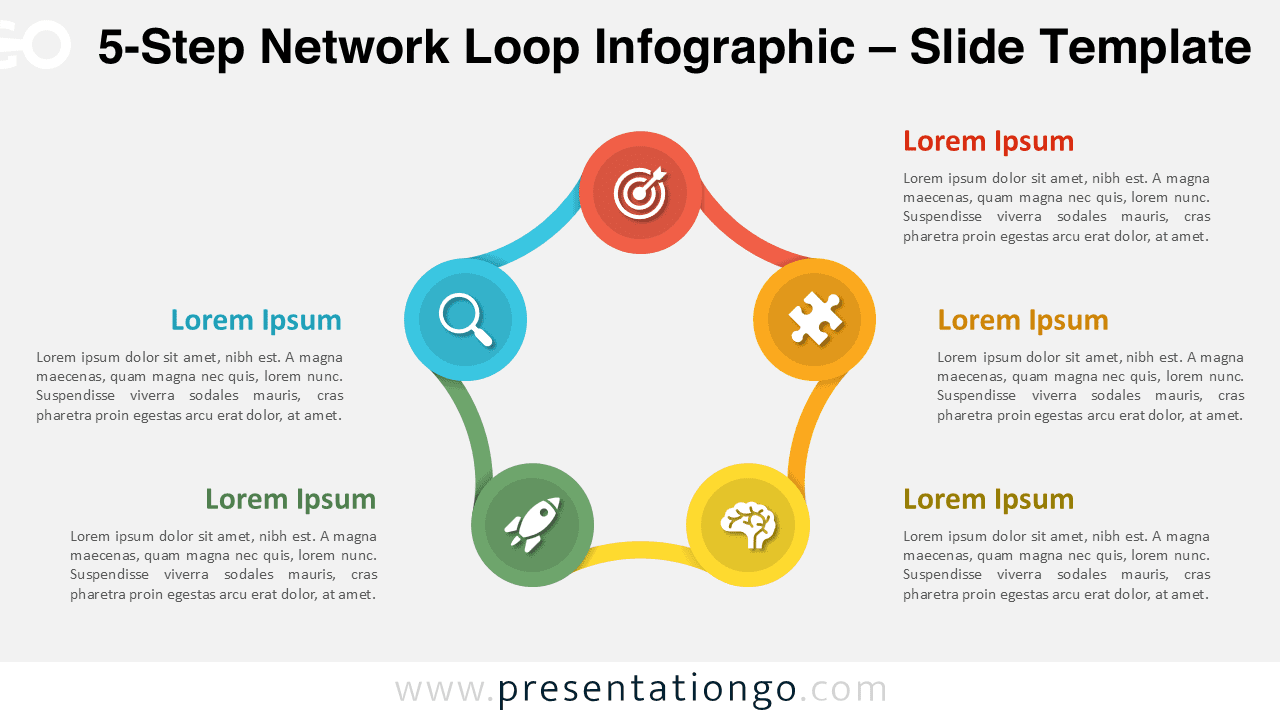
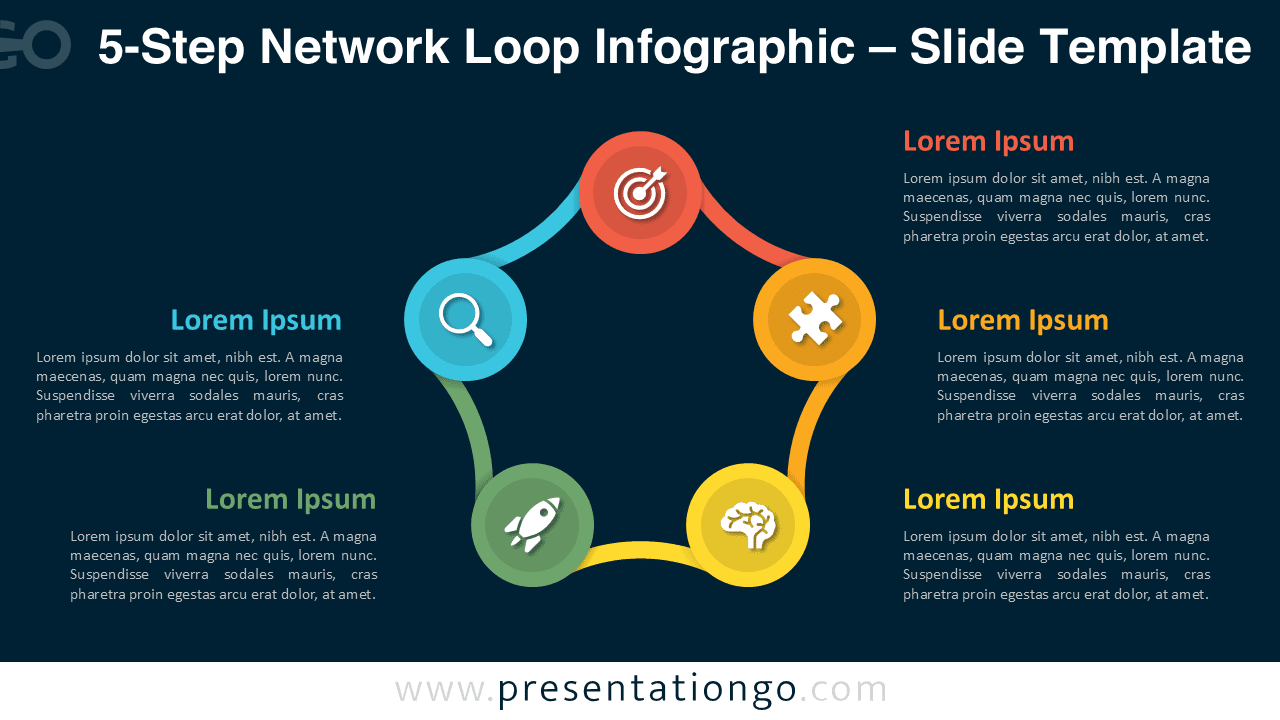


Features & Customization
- Includes 2 slides: light and dark backgrounds
- Five interlinked circular nodes
- Editable colors, fonts, and shapes
- 16:9 widescreen format for PowerPoint and Google Slides
- Fully vector-based design for easy scaling
Design Overview
The 5-Step Network Loop Infographic presents a refined circular network with five evenly distributed nodes joined by curved connectors. Each step’s bright color creates a rhythmic sequence that guides the viewer’s eye smoothly along the loop. The shapes are fully editable, maintaining consistent spacing and visual proportion across the diagram. Central white space keeps the layout uncluttered, while rounded paths and gradients add a modern, fluid aesthetic. The design conveys collaboration, evolution, and continuity with clear visual flow.
Practical Applications
- Five-step workflows or business models
- Marketing or project lifecycle diagrams
- Team collaboration processes
- Product or customer journey maps
How to Edit
- Open the template in PowerPoint or Google Slides.
- Replace icons, text, and adjust color scheme.
- Apply subtle animations to emphasize sequence.
Summary
A versatile 5-step loop infographic that highlights relationships and progress with clarity and symmetry. Fully editable for PowerPoint and Google Slides users.
Complete Collection
Also available in 3-Step, 4-Step, and 6-Step versions as part of the Network Loop Infographic Series.


Frequently Asked Questions (FAQ)
You can swap the placeholder icons with any icon set or images. Resize freely; vector elements remain sharp.
In PowerPoint, right-click any icon, choose “Format Shape,” and change color or replace it. In Google Slides, use “Format options” to recolor or swap the icon directly.