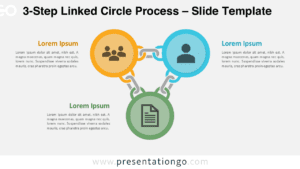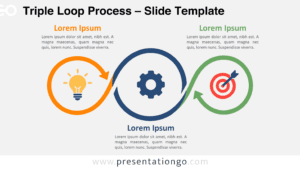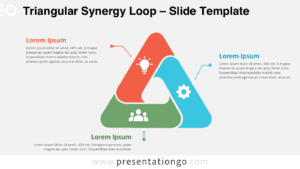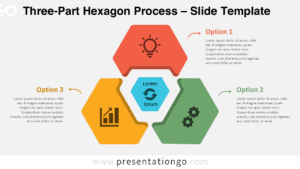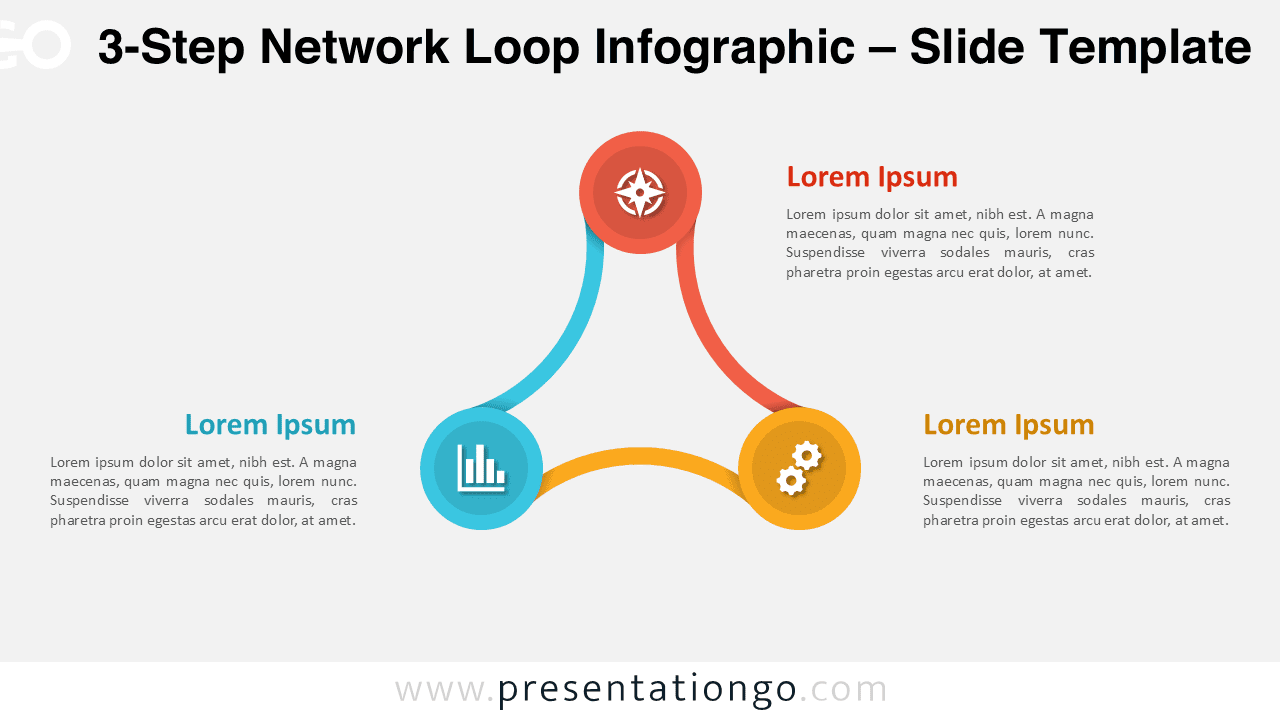
Present your process with the 3-Step Network Loop Infographic. This diagram shows three color-coded nodes connected by smooth arc-shaped links. Use it in PowerPoint and Google Slides to explain cycles, collaboration, or circular workflows.
Template Preview


Features & Customization
- Includes 2 slides per variant: light and dark backgrounds
- Arc-shaped links connect each step for continuous flow
- Fully editable shapes, colors, text, and icons
- Widescreen 16:9 format for PowerPoint and Google Slides
- Vector-based elements scale cleanly without loss
Design Overview
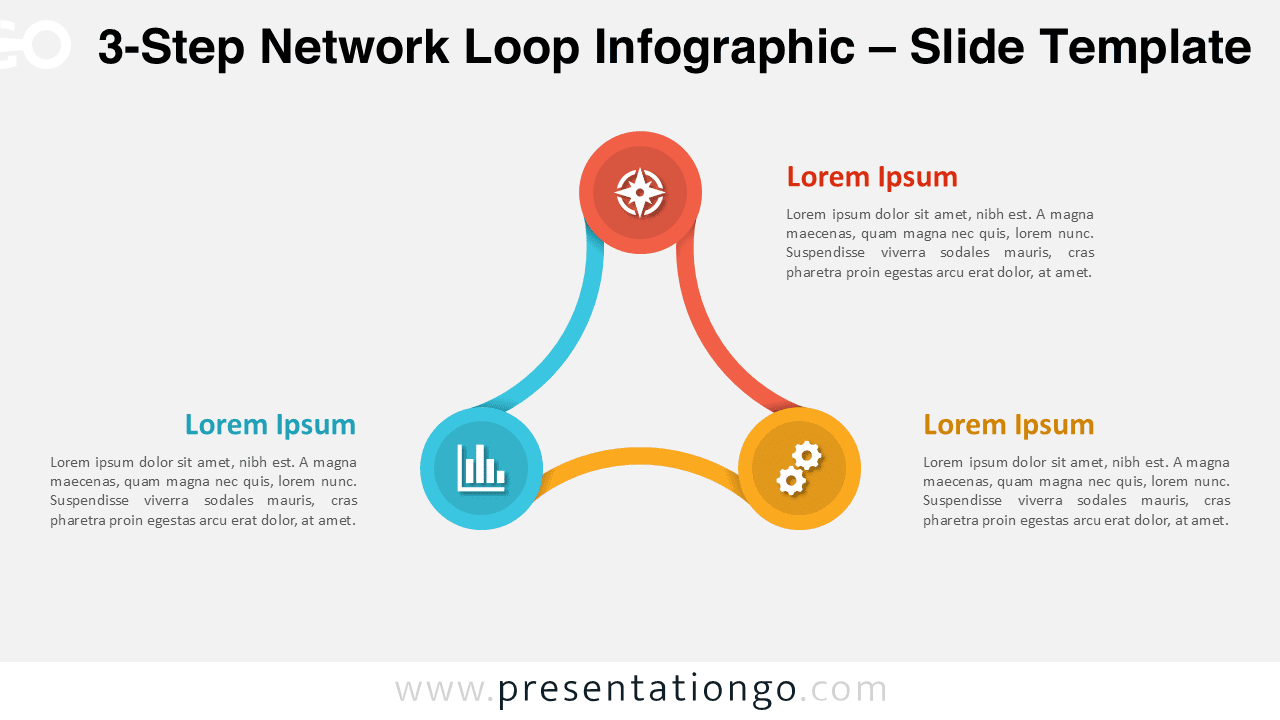
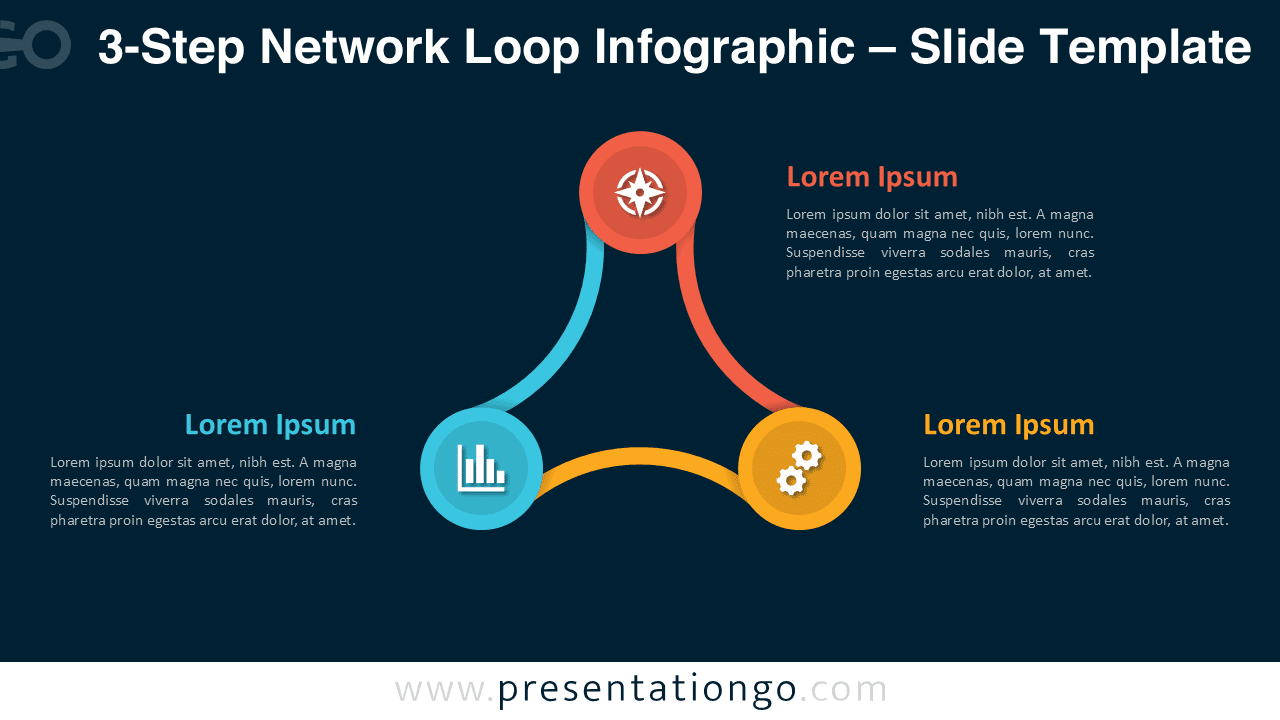
The layout forms a triangular loop with three circular nodes. Each node carries an icon and color, while curved arcs create a fluid connection between steps. The surrounding text areas keep content legible and balanced.
The light background offers clarity and a minimalist look. The dark background boosts contrast and focus on the loop. Consistent spacing and rounded shapes reinforce unity and motion.
Practical Applications
- Three-phase workflows or project cycles
- Roles and responsibilities in small teams
- Feedback loops and continuous improvement
- Relationship mapping between three elements
How to Edit
- Open the file in PowerPoint or Google Slides.
- Replace placeholder text and icons with your content.
- Adjust colors and line weights to match your brand.
- Duplicate the slide to create alternative versions.
Summary
This 3-step loop uses arc-shaped links to communicate flow and interdependence. It is intuitive, editable, and perfect for concise process storytelling.
Complete Collection
This diagram belongs to the Network Loop Infographic Series. Variants include 3-Step, 4-Step, 5-Step, and 6-Step versions, each provided in light and dark backgrounds.


Frequently Asked Questions (FAQ)
You can swap the placeholder icons with any icon set or images. Resize freely; vector elements remain sharp.
In PowerPoint, right-click any icon, choose “Format Shape,” and change color or replace it. In Google Slides, use “Format options” to recolor or swap the icon directly.