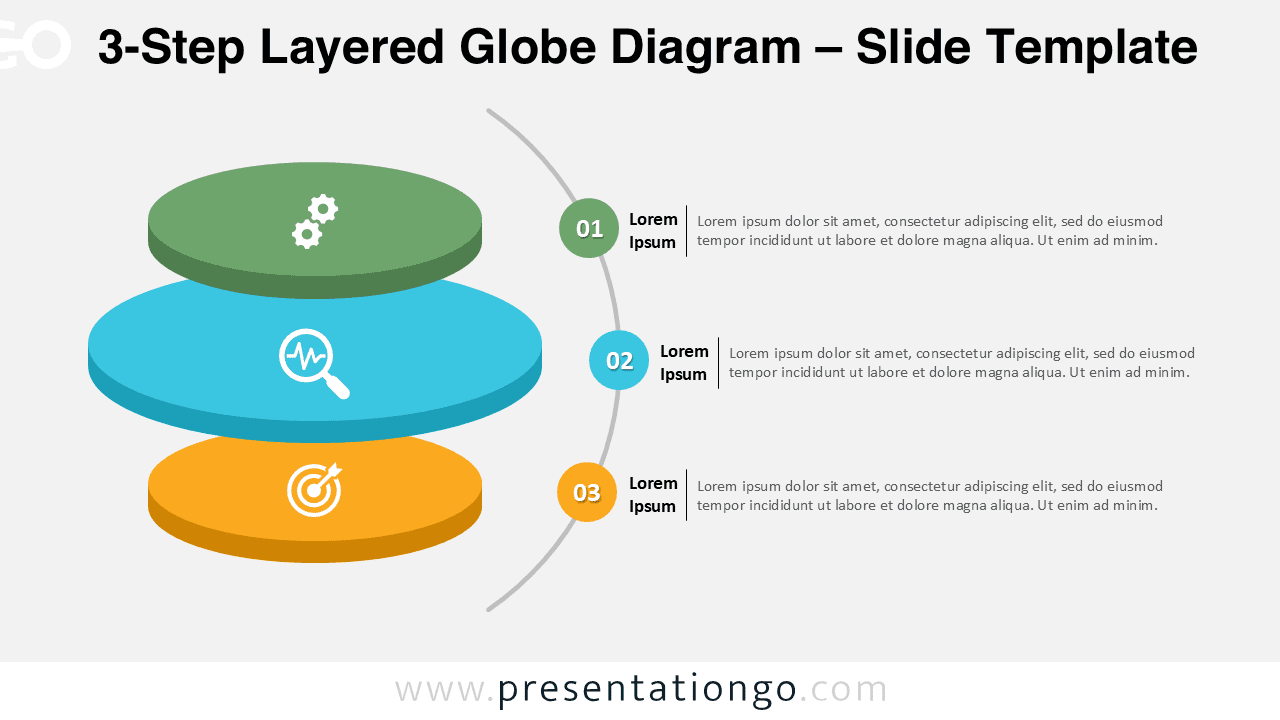
The 3-Step Layered Globe Diagram is a creative visual for illustrating global processes, hierarchical stages, or circular workflows. This editable infographic is available for PowerPoint and Google Slides, offering a clear 3D layered sphere design that represents three distinct levels or steps.
Diagram Preview
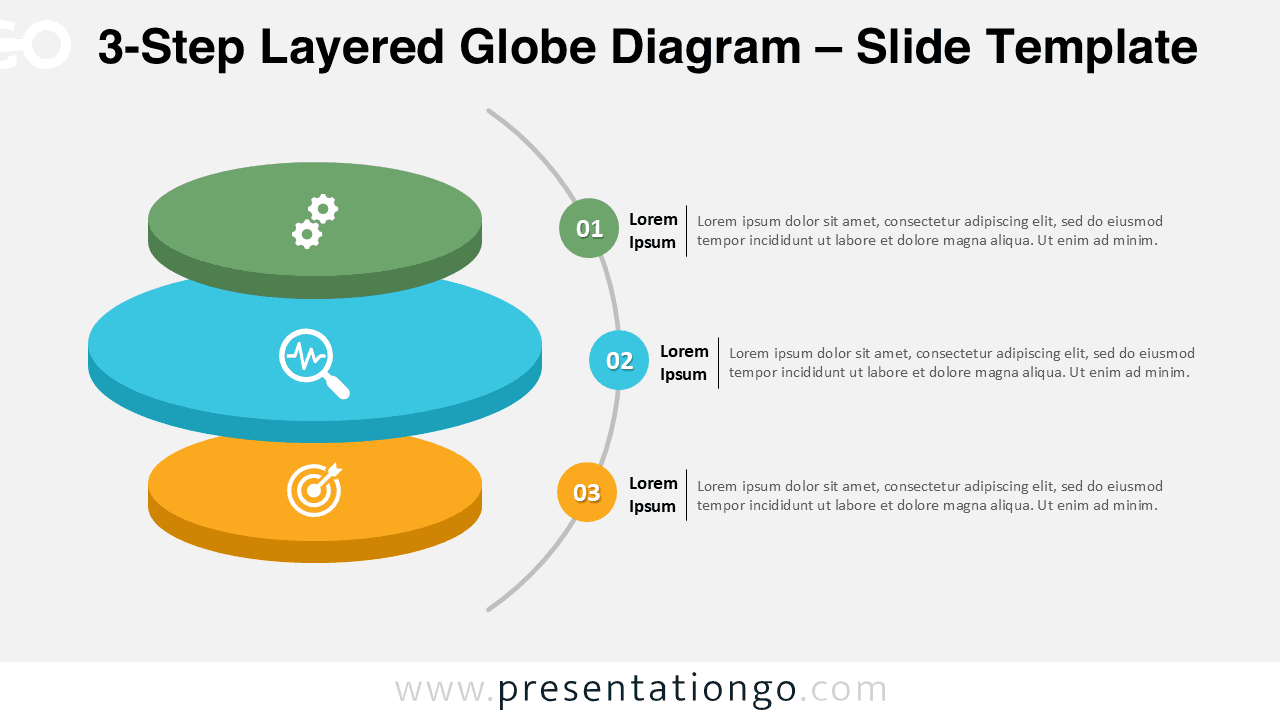
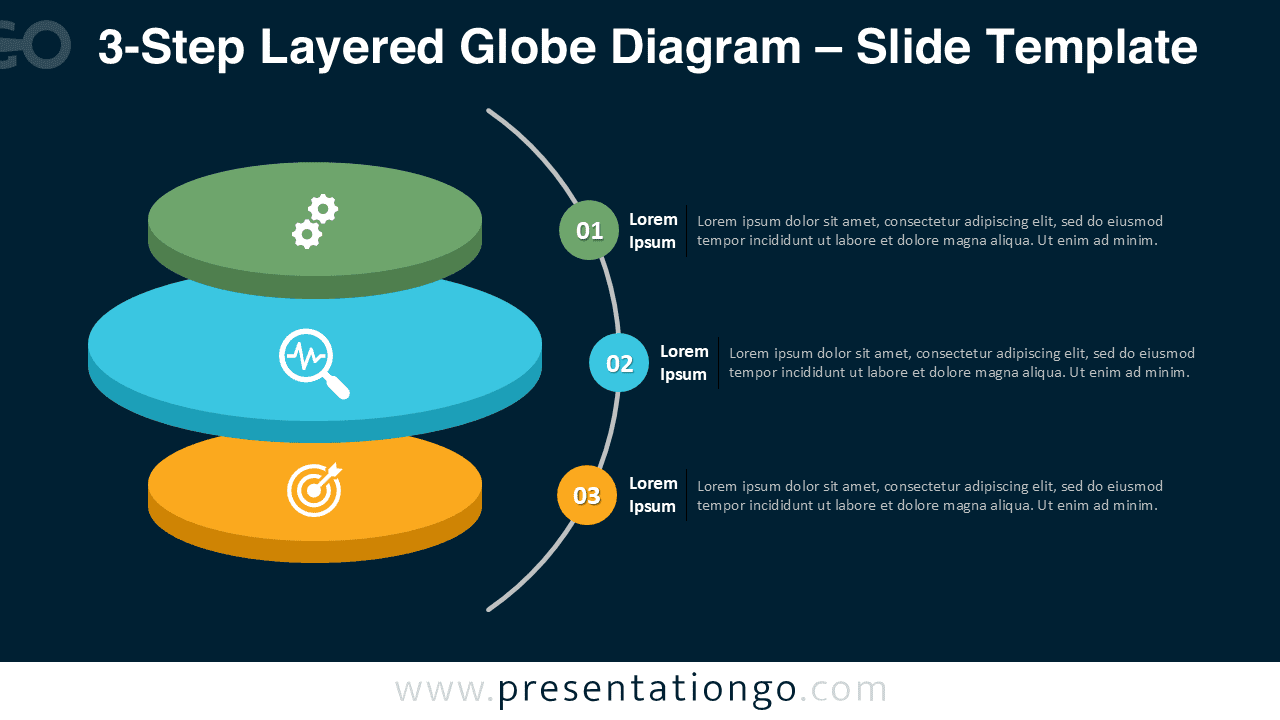


Diagram Features and Customization Options
- Includes 2 slides with 1 unique 3-step layered globe design
- Available in both light and dark background versions
- Fully editable shapes and colors for PowerPoint and Google Slides
- 3D layered spherical shapes representing process stages
- Clean layout with global-inspired circular symmetry
Design and Layout Overview
This diagram combines 3D layered discs into a spherical globe layout. Each layer symbolizes a stage in your process, linked with minimal curved connectors for clarity.
The colors—green, blue, and orange—create a modern and balanced palette. Both light and dark backgrounds are included, ensuring adaptability across different presentation themes.
Practical Applications
- Global business process visualization
- Hierarchical or layered data presentations
- Marketing or organizational strategy diagrams
- Educational process breakdowns
- Corporate reporting or timeline visualization
How to Edit
- Open the file in PowerPoint or Google Slides.
- Replace placeholder text with your own content.
- Adjust layer colors and icons to match your branding.
- Switch between light and dark backgrounds as needed.
- Export or share your completed presentation easily.
Summary
The 3-Step Layered Globe Diagram is an elegant 3D process visual ideal for business, education, or strategy presentations. Its global form and layered symmetry make complex ideas simple and engaging.
Frequently Asked Questions (FAQ)
Yes, both text boxes and icons are fully editable.
In PowerPoint, right-click the icon → Format Shape to recolor or resize. In Google Slides, select the icon → Format Options to adjust color, rotation, or shadow. You can also replace icons from built-in or imported libraries.