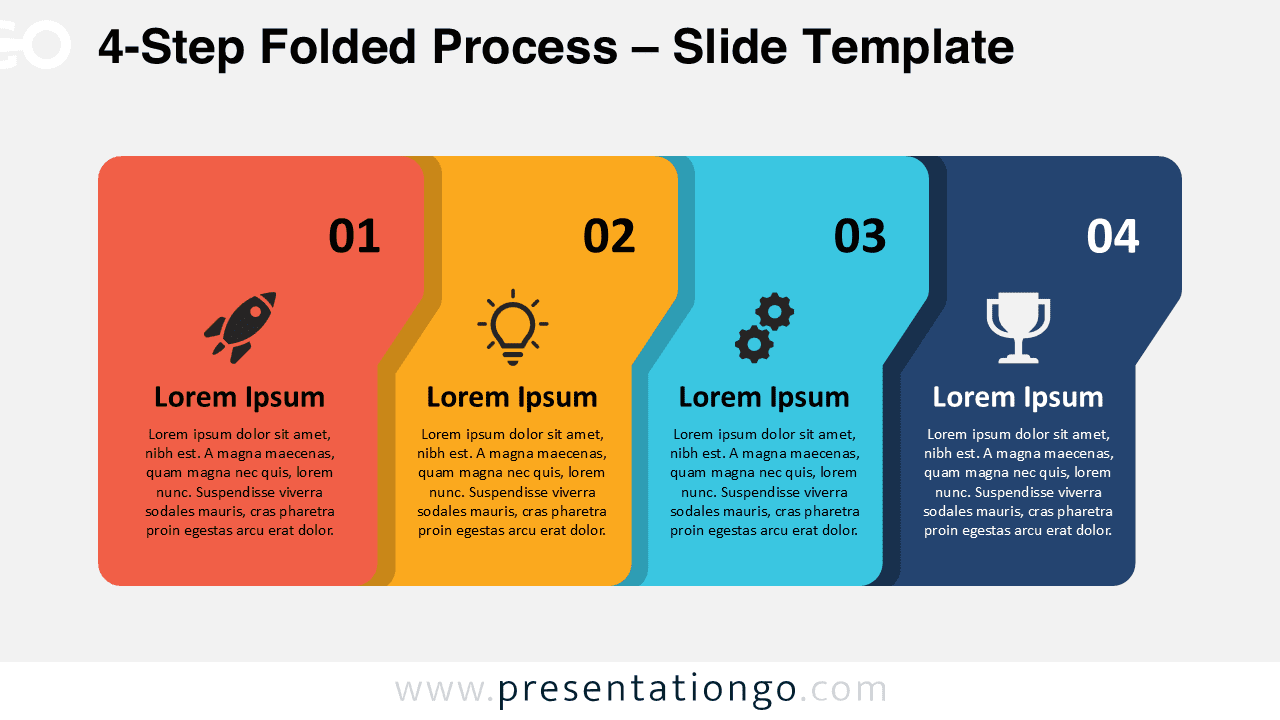
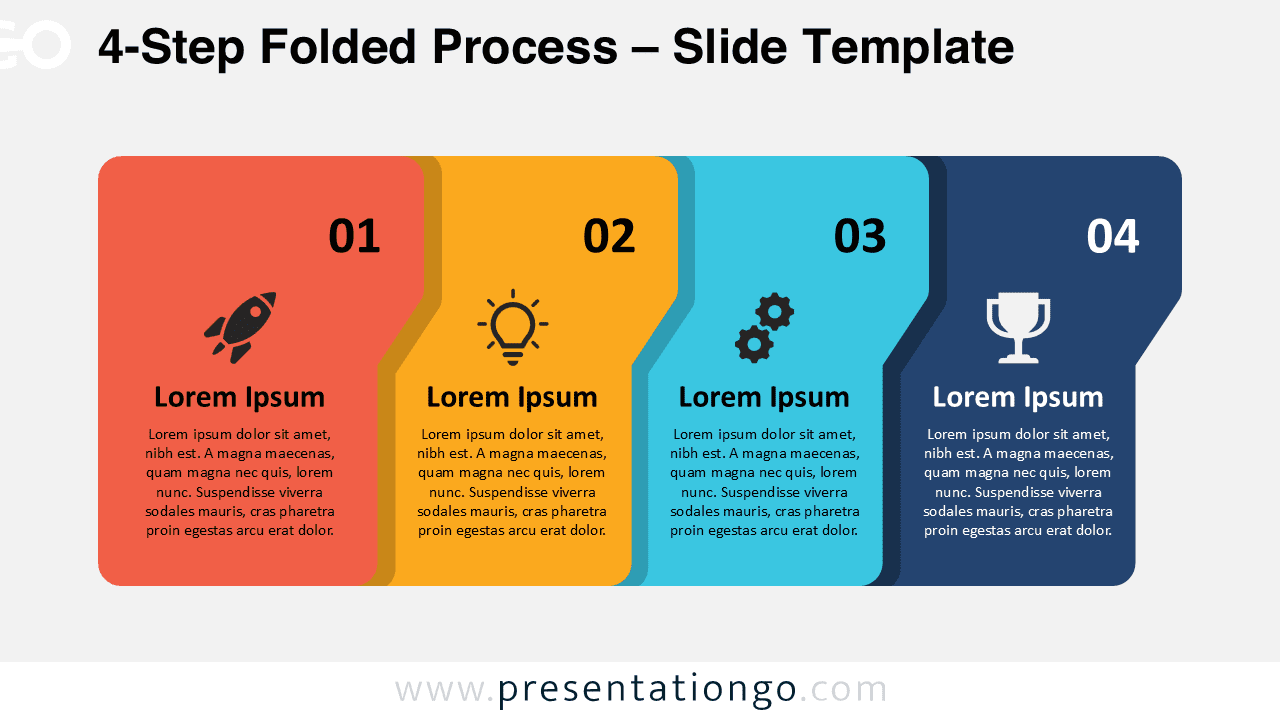
The 4-Step Folded Process is a clean and versatile infographic for PowerPoint and Google Slides. Use it to display four steps, stages, or comparative categories in a clear, colorful, and professional way. Each folded block contains icons and text placeholders to guide your audience through your process or idea.
Template Preview


Features and Customization
- Includes 2 slides with 1 unique design in light and dark backgrounds
- Editable icons, colors, and text placeholders
- Fully customizable for PowerPoint and Google Slides
- Flat vector shapes and modern folded layout
- Perfect visual balance and color contrast
Design Overview
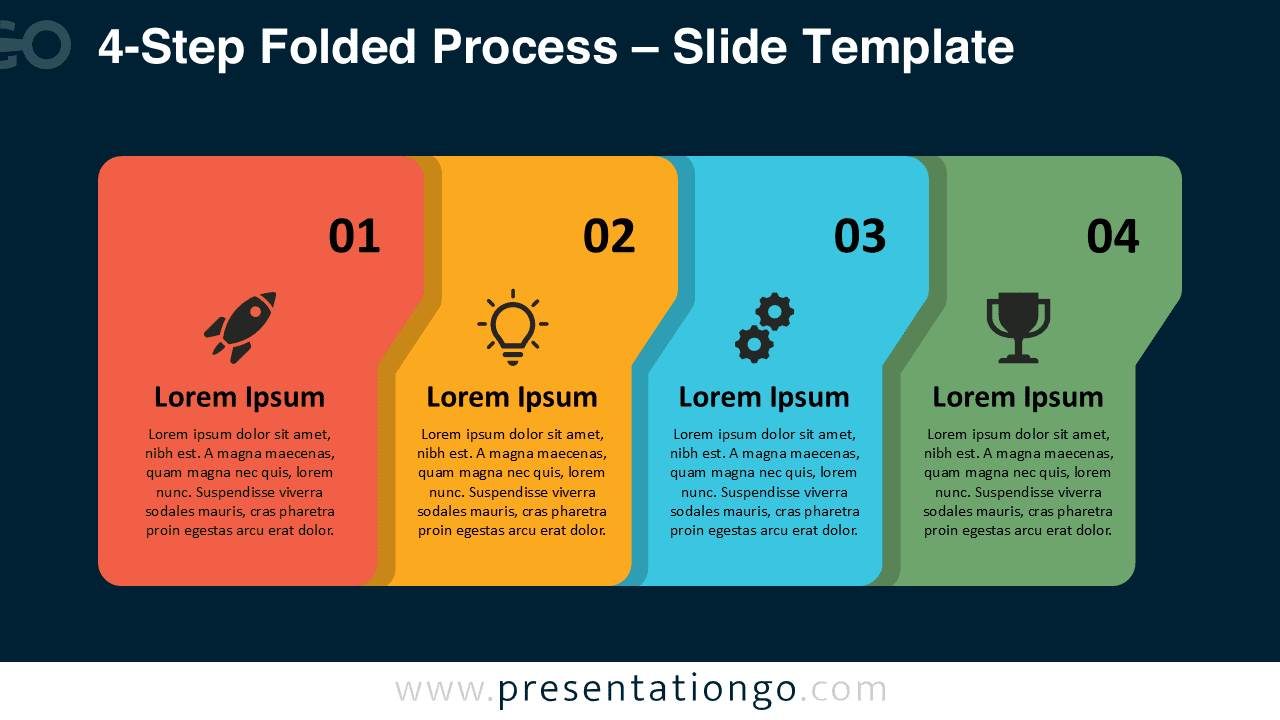
This diagram features four folded blocks aligned horizontally to form a sequence. Each shape includes a number and a matching icon — a rocket, lightbulb, gears, and trophy — representing progress, ideas, action, and success. The combination of warm and cool tones brings both contrast and unity to the slide. Its geometric layout and 3D fold effect make the design dynamic yet minimal.
Practical Applications
- Show process steps or workflow phases
- Compare four business categories or performance indicators
- Highlight project stages or development cycles
- Summarize progress milestones or achievements
How to Edit
- Open the file in PowerPoint or Google Slides.
- Replace placeholder text with your own content.
- Adjust icon styles or colors to match your theme.
- Switch between light or dark versions depending on your background preference.
Summary
The 4-Step Folded Process template provides a modern, readable, and flexible way to illustrate your ideas. Ideal for professional presentations that require clarity and visual appeal.
Frequently Asked Questions (FAQ)
Absolutely. Icons are editable vector shapes and can be swapped or recolored.
Simply right-click on any icon, select “Change Graphic,” and choose the source (for example, from Icons, Stock Images, or This Device). You can easily replace it with a new icon from the built-in Office library or your own files.