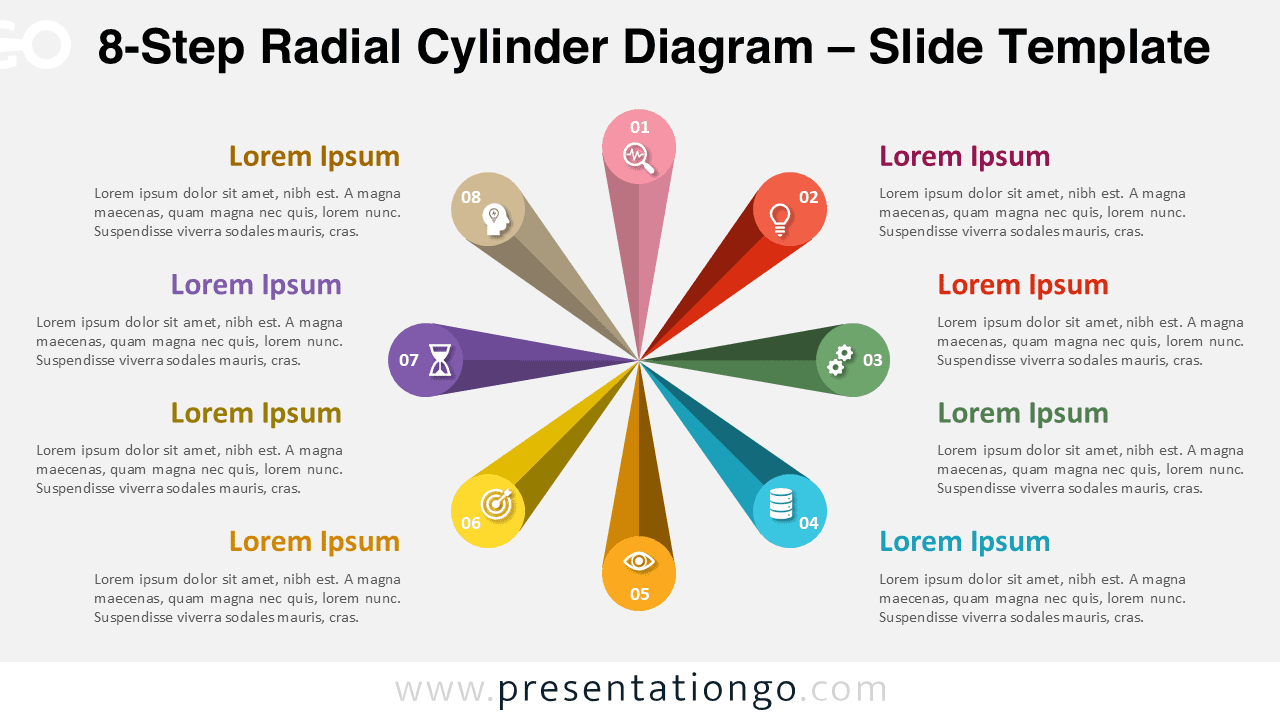
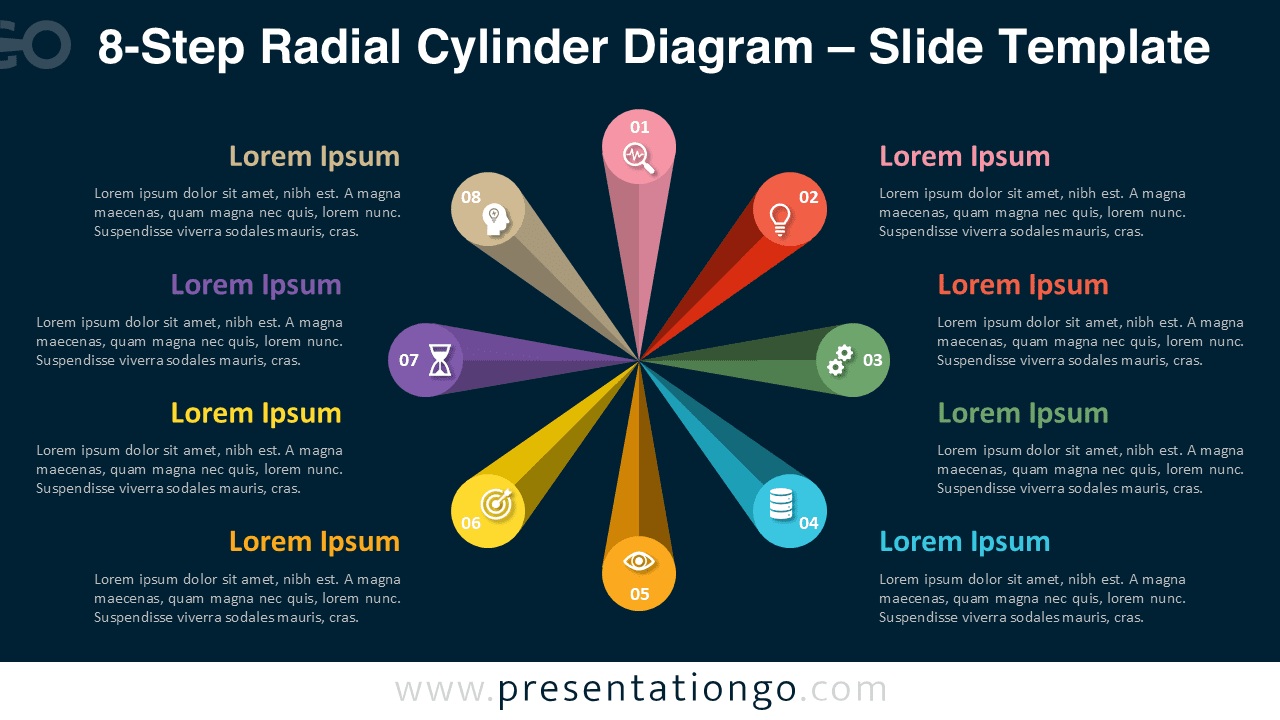
Showcase complex processes or systems using the 8-Step Radial Cylinder Diagram. Eight 3D cylinders radiate symmetrically from the center, symbolizing balance and continuity across multiple stages or categories.
Template Preview


Features and Customization Options
- 2 slides (light and dark backgrounds)
- 8-step radial 3D cylinder layout
- Editable icons, colors, and text fields
- Compatible with PowerPoint and Google Slides
- 16:9 widescreen format
Design Overview
This elegant circular diagram features eight evenly spaced 3D cylinders around a shared hub. Each segment highlights one process step with vivid color and clear labeling. The 3D perspective ensures depth and dimension while maintaining visual simplicity.
Practical Applications
- Eight-stage circular processes or systems
- Business strategy and workflow visualization
- Educational, research, or management presentations
- Balanced frameworks or decision models
How to Edit
- Open in PowerPoint or Google Slides.
- Edit text and replace icons with your preferred graphics.
- Adjust color gradients or shading effects.
- Customize layout through the Slide Master for consistent formatting.
The Complete Radial Cylinder Diagram Collection
The Radial Cylinder Diagram Collection includes 5-, 6-, 7-, and 8-step templates. Each diagram shares the same 3D circular concept, designed to adapt easily to any workflow length.


Summary
The 8-Step Radial Cylinder Diagram offers maximum flexibility and structure for complex workflows. It’s a perfect visual tool for PowerPoint and Google Slides presentations.
Frequently Asked Questions (FAQ)
Yes, all shapes are fully editable. You can modify fills, gradients, or outlines in both PowerPoint and Google Slides.
In PowerPoint, right-click the icon, choose “Change Graphic” → “From Icons” to replace it.
In Google Slides, delete the existing icon and insert a new one via Insert → Image → Icons or Upload.
Adjust size and color to match your slide design.