The Alternating Arrow Flow PowerPoint Diagram helps you present a six-step process with movement, structure, and clarity. It uses a continuous horizontal path with alternating arrows to guide your audience through each stage. You can use it in PowerPoint and Google Slides to explain workflows, launch plans, project phases, or strategic milestones. The layout keeps each step distinct while maintaining a clear connection between all parts of the process.
Diagram Preview
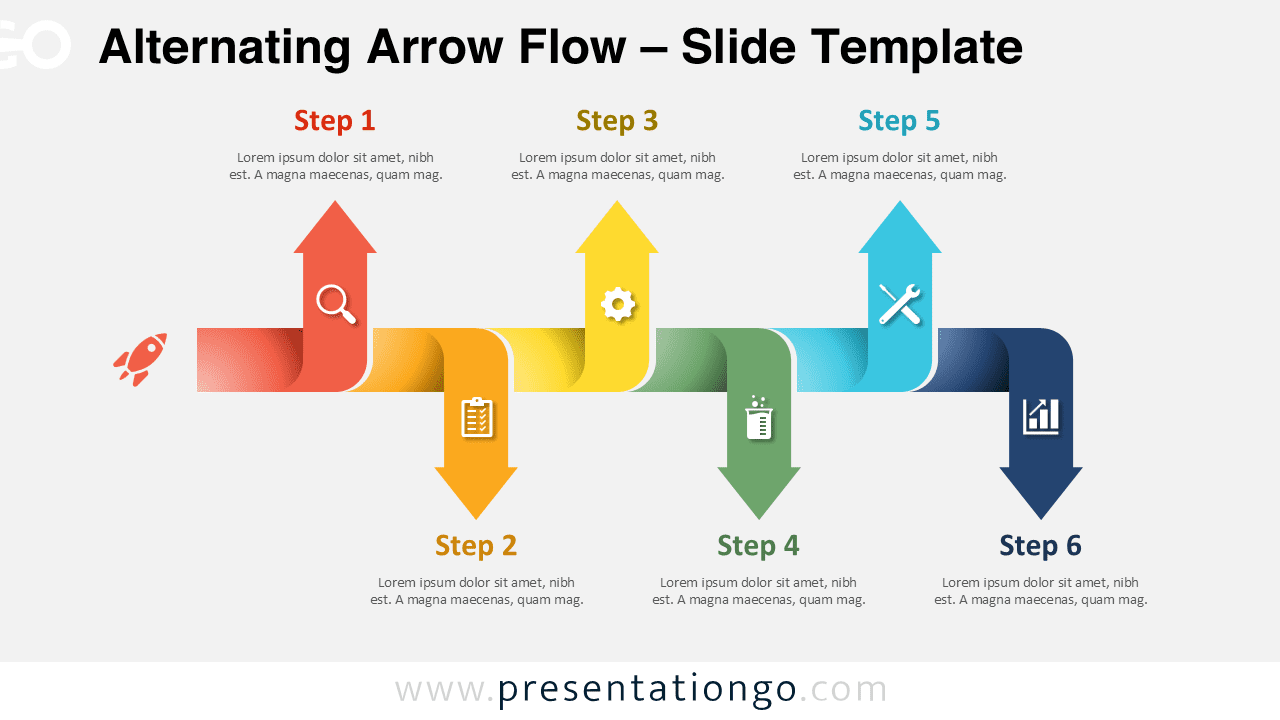
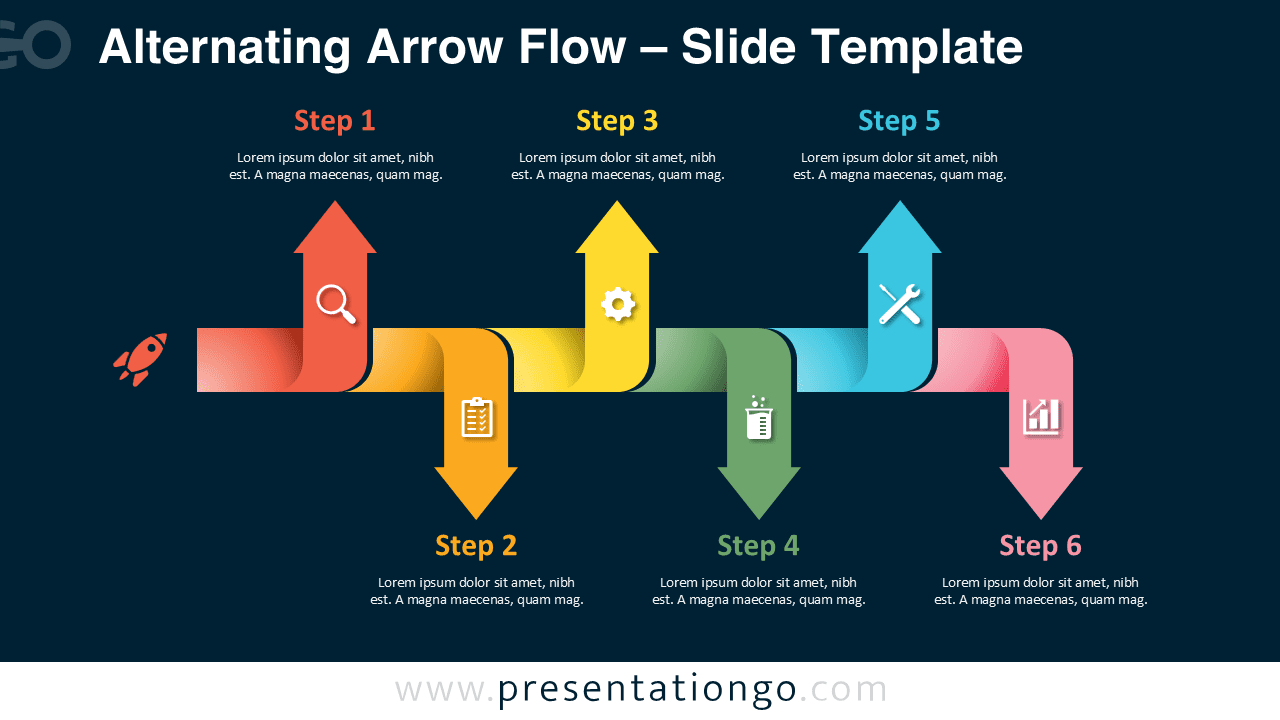
Diagram Features and Customization Options
This diagram includes six editable arrow segments, six text areas, and six icon placeholders. The icons come from the Office icon library, so you can easily modify them in PowerPoint. You can resize them, replace them, adjust their style, or choose other icons from the same library. In Google Slides, you can also replace the placeholders with your own visuals or imported graphics.
- Fully editable shapes, arrows, text, and icon placeholders.
- Designed for PowerPoint and compatible with Google Slides.
- Six-step structure for clear process storytelling.
- Alternating arrow direction to show progression and rhythm.
- Reusable layout for business, education, marketing, and planning.
Design and Structure
The Alternating Arrow Flow PowerPoint Diagram uses a horizontal ribbon format that moves from left to right. Each arrow points either upward or downward, creating a balanced sequence. This structure helps you show progression without using a plain timeline. Each step includes a headline, short body text, and a small icon placeholder. The icons reinforce meaning, while the arrows show direction and order.
The layout gives each stage enough space for concise explanations. It works best when you want to present a process with six connected but separate actions. You can keep the sample labels or replace them with your own stage names. The editable format also lets you adapt the diagram to your brand, topic, or presentation style.
Practical Applications
Use this diagram when you need to explain a sequence that moves through several stages. It suits business presentations, training materials, marketing plans, consulting decks, and classroom lessons. The alternating arrows help viewers follow the process naturally from the first step to the final outcome.
- Present a six-step project workflow.
- Explain a product launch sequence.
- Map a customer journey or onboarding path.
- Show milestones in a strategic roadmap.
- Break down a training or learning process.
- Summarize operational steps in a clear format.
Summary
The Alternating Arrow Flow PowerPoint Diagram gives you a practical way to present six connected stages. Its editable arrows, text placeholders, and Office library icons make customization simple. Use it to turn complex processes into a clear visual path for PowerPoint and Google Slides presentations.