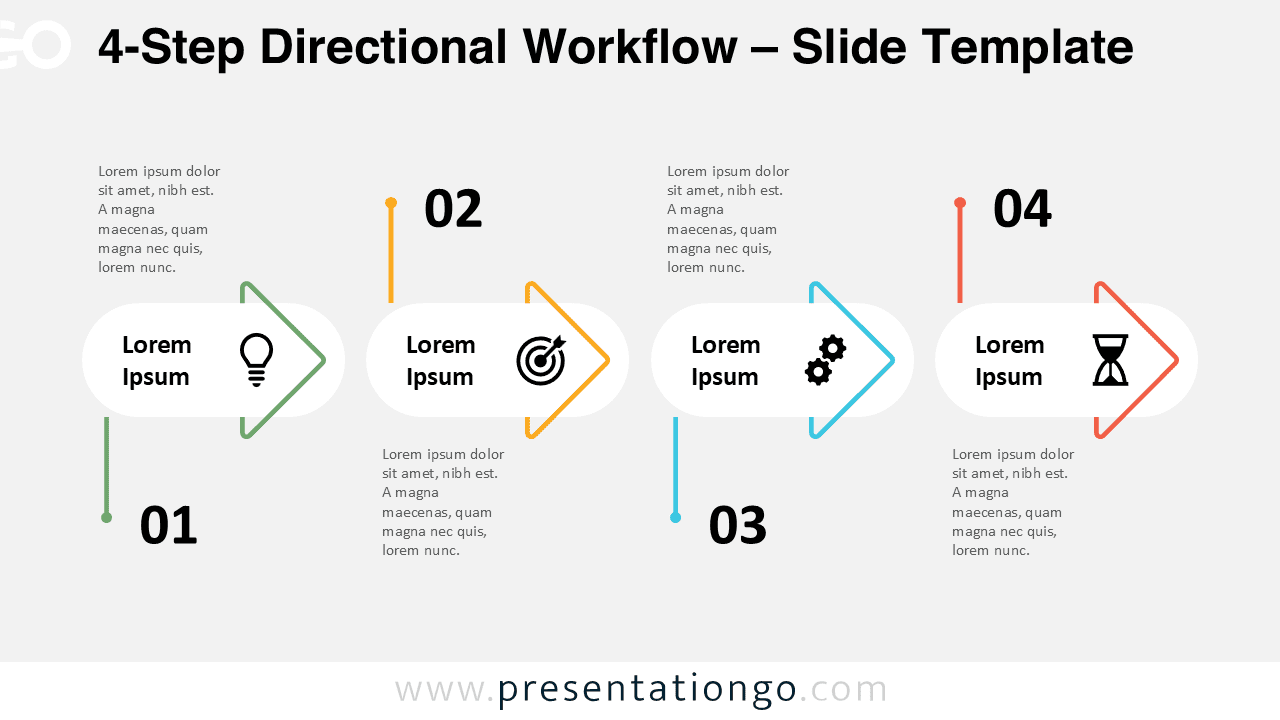
The 4-Step Directional Workflow diagram offers a modern way to present a sequence or multi-phase process in PowerPoint and Google Slides. Its clean design uses outlined arrows, colorful accents, and clear icons to help audiences quickly understand each stage of your message. Because all elements are fully editable, you can adapt the layout to suit your project, lesson, or business presentation.
Diagram Preview
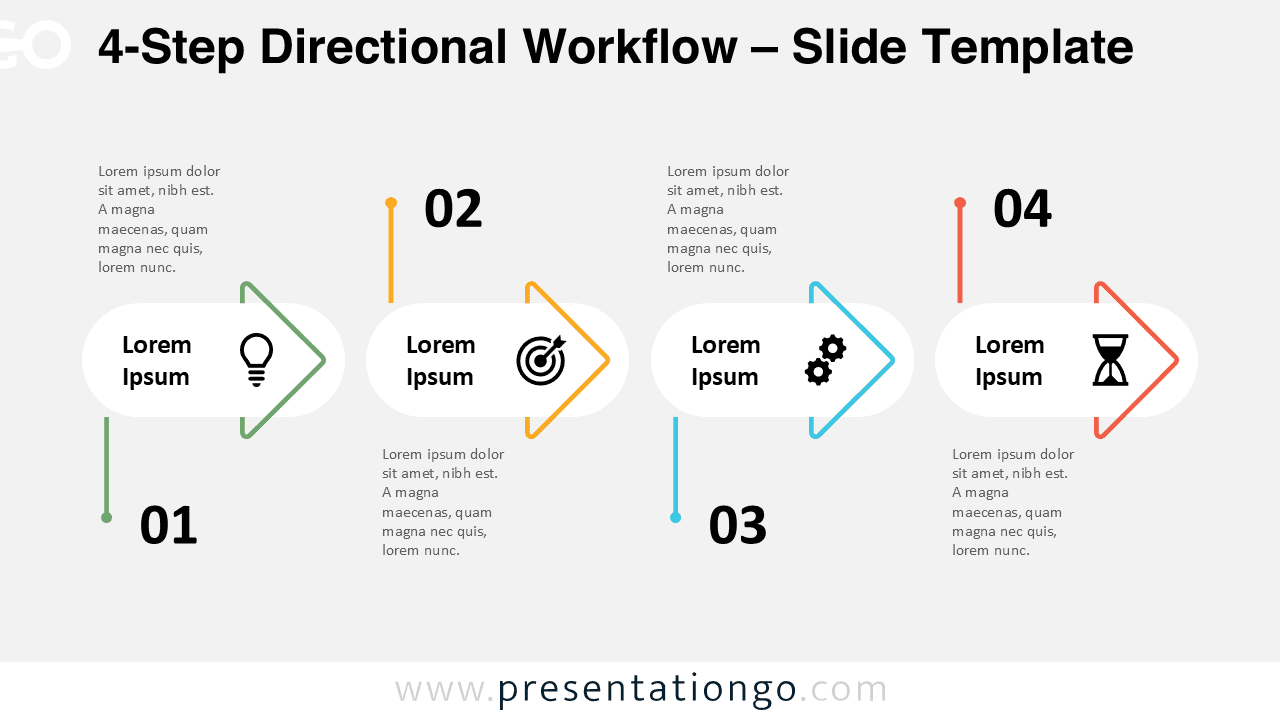
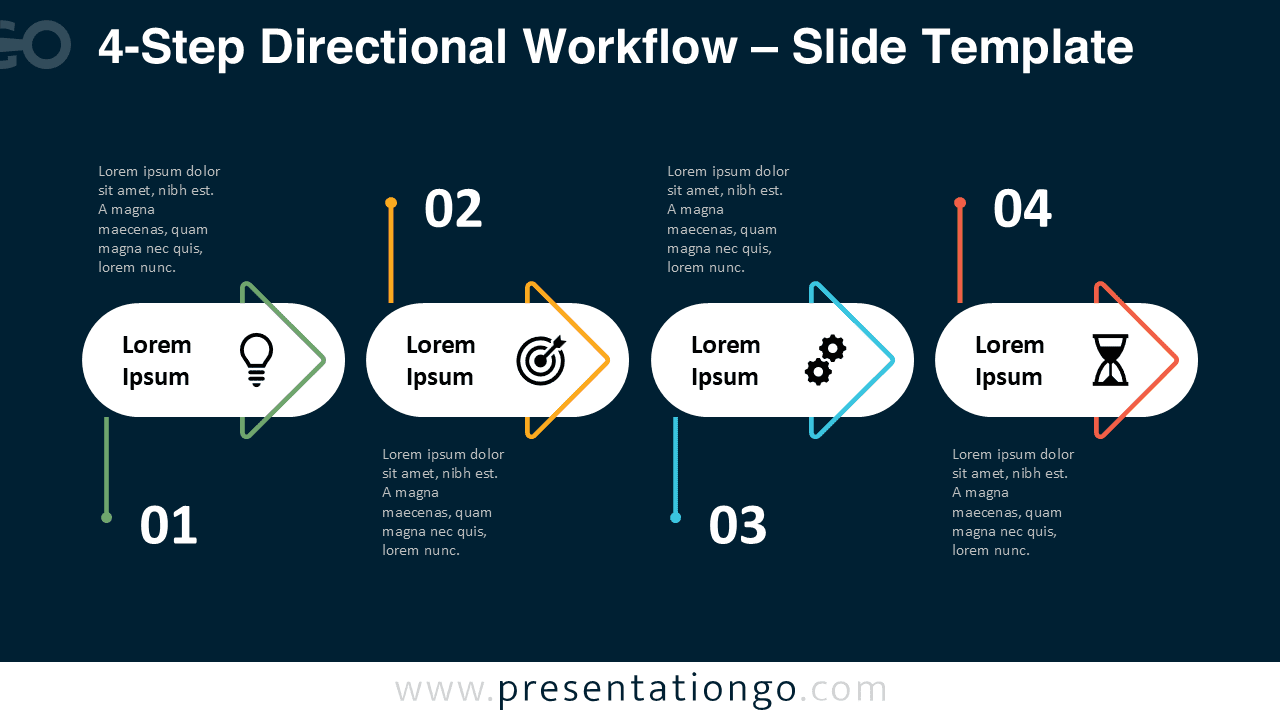


Diagram Features and Customization Options
- Fully editable shapes, colors, and text placeholders
- Modern outline arrow design for clear directional flow
- Four distinct steps with matching color coding
- Includes editable icon placeholders for each stage
- Easy to resize without loss of quality
- Available for both PowerPoint and Google Slides
Design and Structure
This diagram uses rounded white containers paired with thin outlined arrows that point to the right, creating a smooth sense of progression. Each step has a matching color accent and vertical connector, which helps the audience follow the sequence without effort. Icons placed inside each step reinforce meaning and add visual interest. You can update the icons, change the color palette, or adjust the text to reflect your content and branding.
The clean layout works well on light or dark backgrounds. Both versions maintain strong readability thanks to high contrast and balanced spacing. This directional design provides a professional and approachable style suitable for many types of presentations.
Practical Applications
- Explaining four-phase processes or workflows
- Presenting project stages or milestones
- Showing step-by-step instructional content
- Highlighting strategy, planning, or development phases
- Illustrating marketing funnels or customer journeys
Summary
The 4-Step Directional Workflow diagram is a flexible and visually clear tool for presenting any four-part process. With its modern arrows, icons, and clean color-coded styling, it helps you communicate ideas in a structured and memorable way. Whether you build business reports, educational lessons, or strategic plans, this diagram offers a simple and professional visual solution for PowerPoint and Google Slides.
Frequently Asked Questions (FAQ)
To change an icon, first select the existing one and delete it if needed. In PowerPoint, go to Insert → Icons or Insert → Pictures to add a new symbol or image, then adjust its color and size. In Google Slides, use Insert → Image or Insert → Icons (if available) to insert your replacement. Position and resize the new icon to match the layout, and apply your preferred color if the icon is a vector format.