The 6-Cell Honeycomb Hub Diagram is a PowerPoint and Google Slides presentation resource designed to organize six related elements around a central concept using a compact hexagonal layout.
Diagram Preview
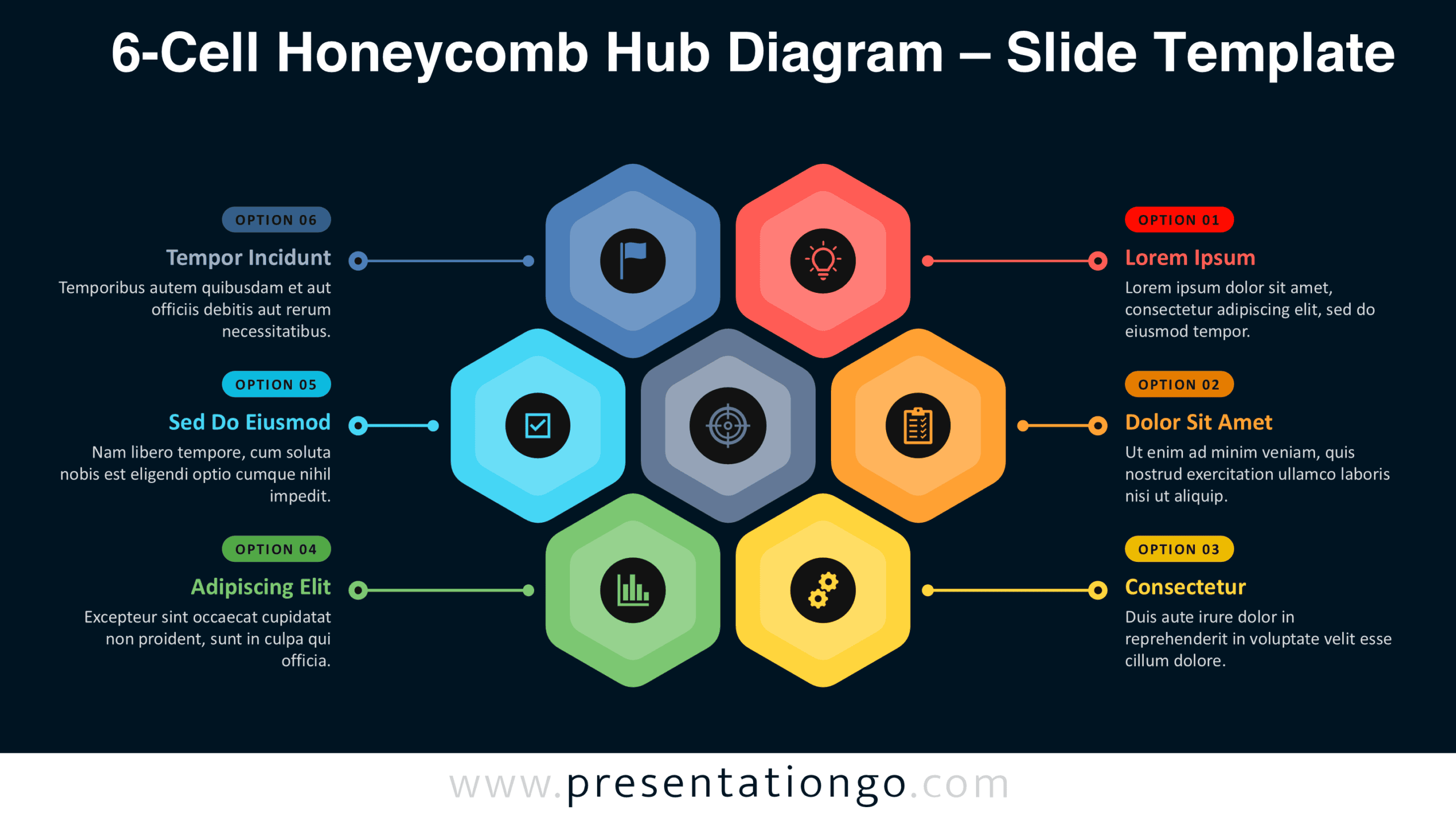
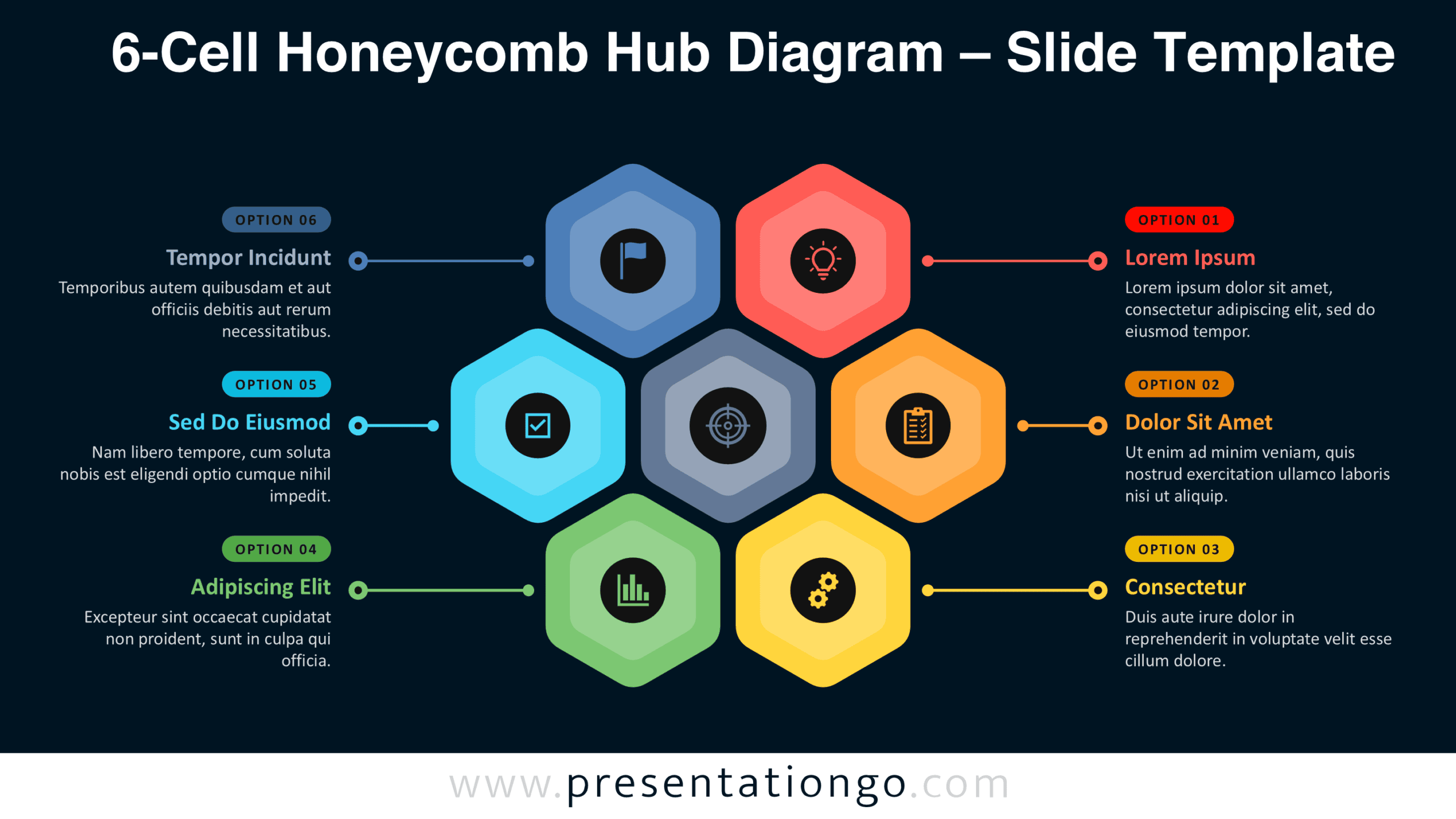
The preview shows the same honeycomb composition on Light and Dark backgrounds, with six numbered options, a central hexagonal hub, and three explanatory callouts positioned on each side.


Features and Customization Options
- Slides: 2 slide views with Light and Dark backgrounds
- Customization: Six labeled option areas with text placeholders
- Graphics: Hexagonal cells with illustrative icon placeholders
- Format: 16:9 widescreen
- Compatibility: Presented for Microsoft PowerPoint and Google Slides
Design and Structure
The 6-Cell Honeycomb Hub Diagram features seven large hexagonal cells arranged in a compact, interlocking cluster. One hexagon occupies the central position, while six surrounding cells form the outer honeycomb structure. The arrangement creates a clear visual hierarchy between the main concept and its associated elements. Each cell contains a smaller inset hexagon and a circular illustrative icon placeholder. Consistent proportions, uniform spacing, and repeated geometric shapes help establish a cohesive design. The outer cells sit in staggered rows, creating the familiar honeycomb pattern without requiring a conventional circular arrangement. This structure keeps the center visually prominent while giving the six surrounding components comparable importance.
Six horizontal connector lines extend outward from the surrounding hexagons to corresponding explanatory callouts. Three callouts appear on the right and three on the left, producing a balanced composition. Each text area includes a numbered option label, a short heading, and a supporting description. The numbering begins with Option 01 at the upper right, continues downward through Option 03, and then moves across the left side from Option 04 to Option 06. The connectors help readers associate each surrounding cell with its explanation without crossing other elements. Clear separation between labels, headings, and body text supports quick scanning. The resulting layout accommodates both a central overview and individual details within a single presentation slide.
Practical Applications
- Strategic planning: Place a primary objective in the central hub and organize six supporting priorities around it, using the callouts to explain each priority.
- Business model presentations: Introduce a core business concept alongside six related components, with separate text areas for their roles and contributions.
- Product comparisons: Present six product features or evaluation criteria around a shared product concept, keeping the descriptions distinct and easy to compare.
- Project management: Organize six workstreams around a central project goal, using numbered headings to summarize deliverables or responsibilities.
- Educational presentations: Explain a central subject through six connected concepts, giving each concept its own dedicated description.
- Team coordination: Show six departments or functional areas surrounding a shared objective while highlighting their relationships within a unified structure.
Summary
This honeycomb hub layout provides a structured way to connect six distinct ideas to one central theme while preserving space for clear, individual explanations.