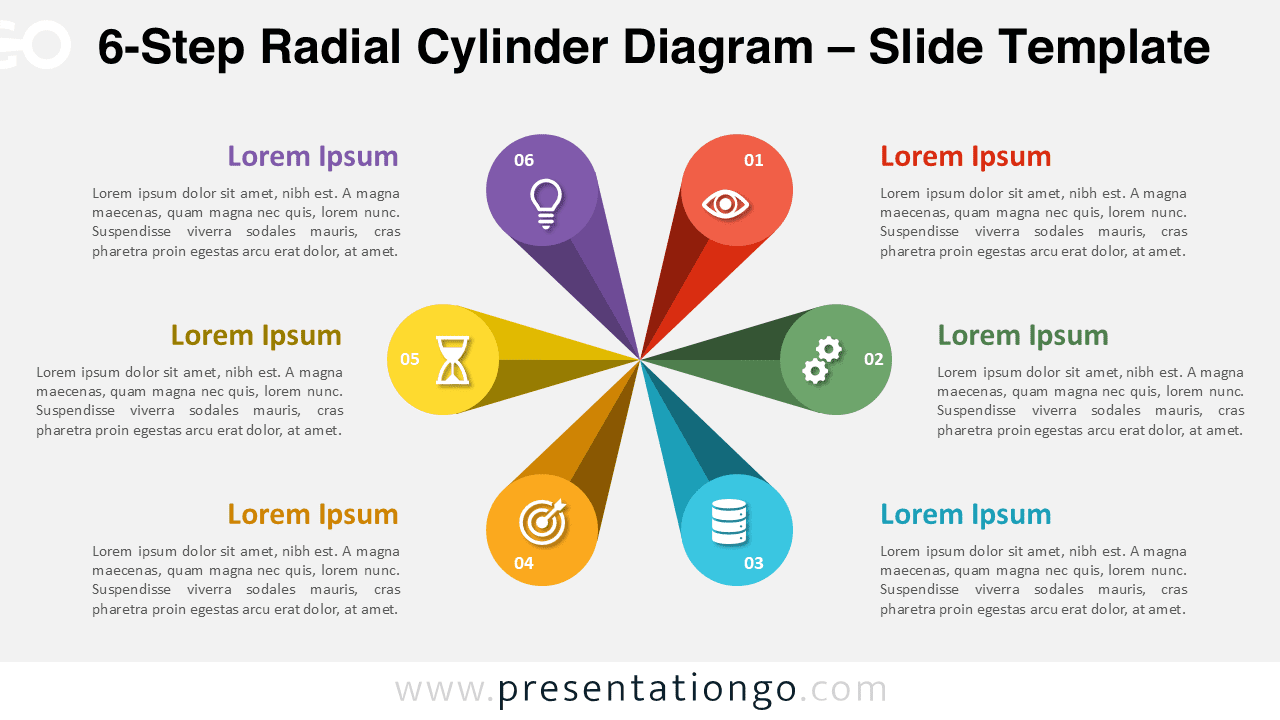
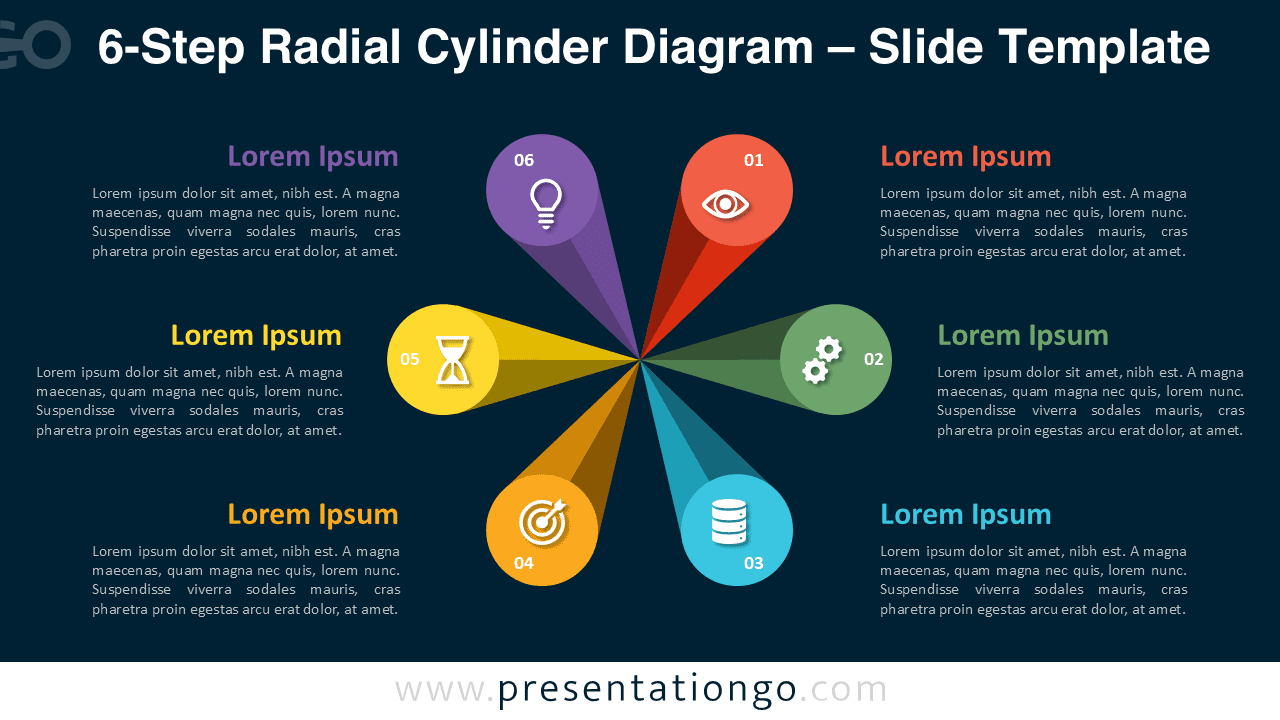
The 6-Step Radial Cylinder Diagram for PowerPoint and Google Slides helps you showcase six stages of a circular process in a stunning 3D perspective. Each cylinder radiates from the center, creating a visually balanced and dimensional layout ideal for workflows, systems, and cycles.
Template Preview


Features and Customization Options
- Includes 2 slides (1 light + 1 dark background)
- Unique 6-step radial cylinder design
- Editable shapes, colors, and text placeholders
- Fully compatible with PowerPoint and Google Slides
- 16:9 widescreen format for modern displays
Design Overview
This 3D circular diagram arranges six colorful cylinders around a shared center. Each cylinder represents one phase or key idea, using smooth gradients and iconography to enhance readability. The clean geometry and dimensional depth bring visual energy to otherwise static process charts.
Practical Applications
- Six-stage business process visualization
- Cycle diagrams in marketing or operations
- Educational or strategy presentations
- Data storytelling or circular frameworks
How to Edit
- Open the file in PowerPoint or Google Slides.
- Replace the sample text and icons with your content.
- Customize cylinder colors, gradients, and shadows.
- Use Slide Master to adjust fonts or theme colors.
The Complete Radial Cylinder Diagram Collection
This diagram is part of the Radial Cylinder Diagram Series, which includes 5-, 6-, 7-, and 8-step variants. Each maintains the same visual harmony and dimensional 3D layout while expanding the number of steps for your presentation needs.


Summary
The 6-Step Radial Cylinder Diagram presents six balanced stages in a vivid 3D circular flow. Ideal for professionals who want clarity and visual depth in PowerPoint and Google Slides.
Frequently Asked Questions (FAQ)
Yes, all shapes are fully editable. You can modify fills, gradients, or outlines in both PowerPoint and Google Slides.
In PowerPoint, right-click the icon, choose “Change Graphic” → “From Icons” to replace it.
In Google Slides, delete the existing icon and insert a new one via Insert → Image → Icons or Upload.
Adjust size and color to match your slide design.