The 4-Step Arrow Process Diagram is a free PowerPoint and Google Slides infographic for presenting four consecutive stages. It combines directional arrows, individual content panels, and illustrative icons to explain how one action leads to another. Use this layout to organize a process into four connected parts without losing the details of each step.
Diagram Preview
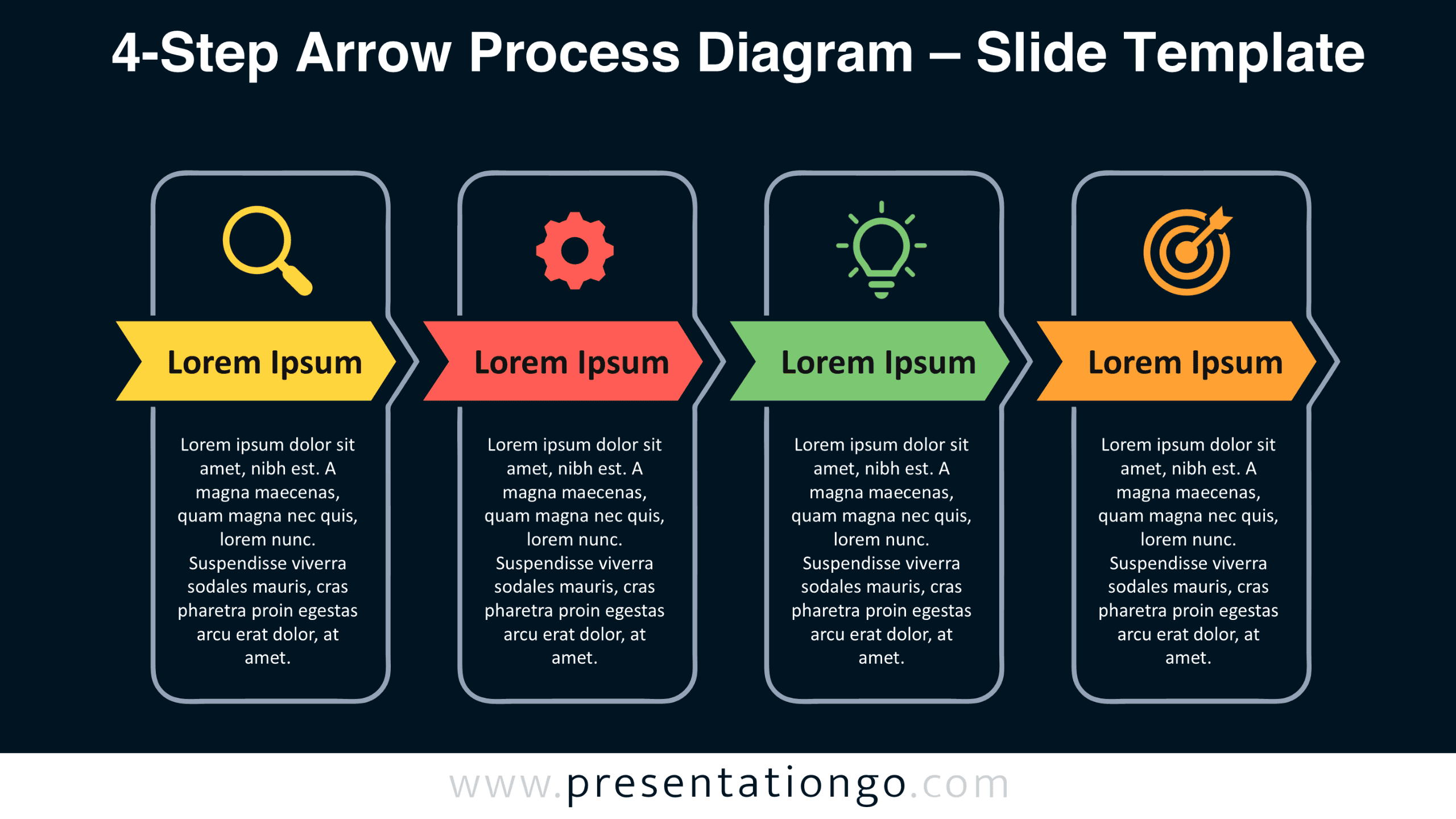
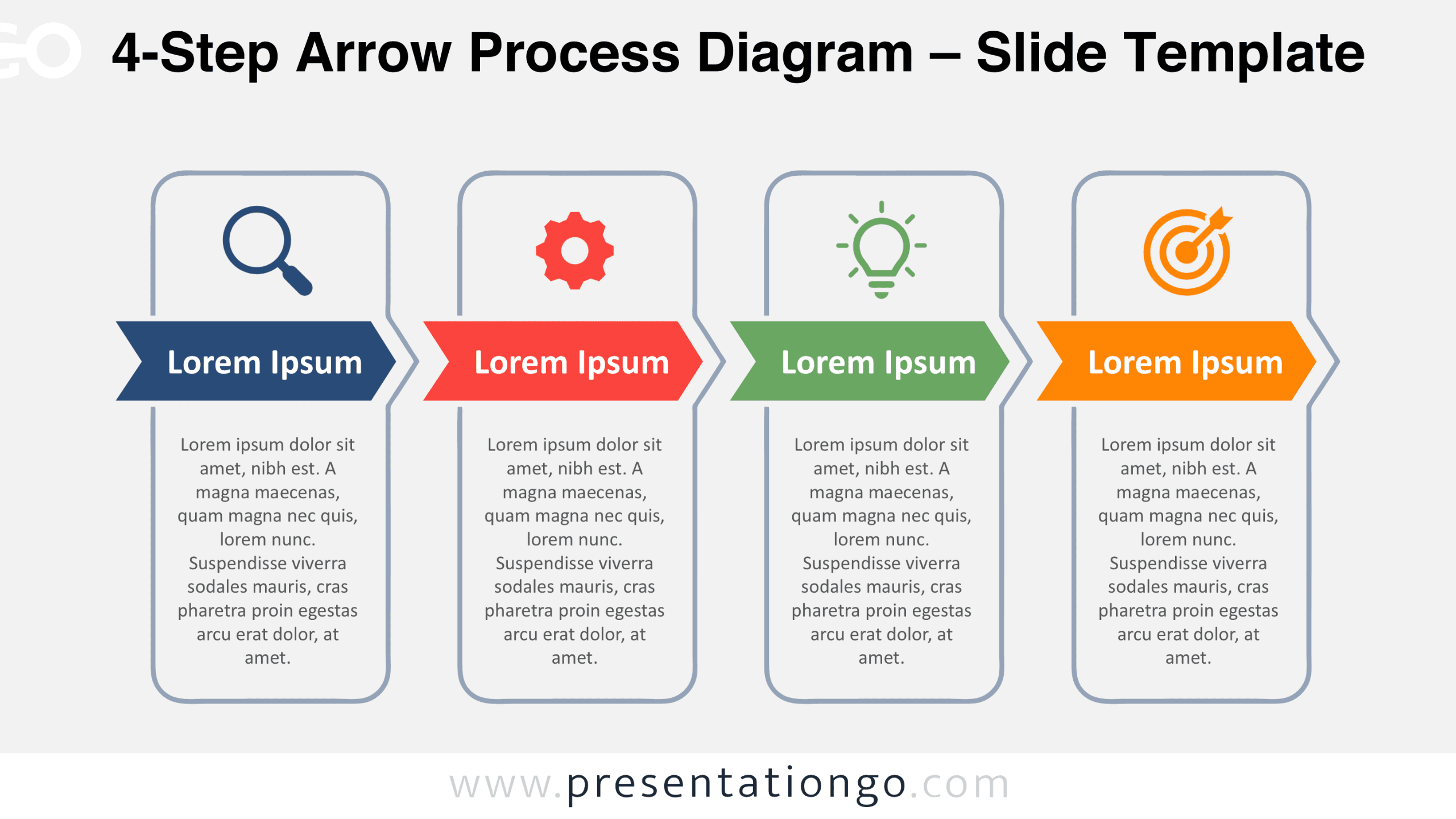
The diagram comes in two slide versions, each showing the same four-stage arrangement. Preview both designs below to examine the overall layout, icon placement, and relationship between the directional labels and supporting text.
Features and Customization Options
- Compatible with Microsoft PowerPoint and Google Slides.
- Fully editable 4-step arrow process diagram.
- Editable text, shapes, and icon placeholders.
- Adjustable arrow ribbons, panel dimensions, and typography.
- Icons are from the Office library, included for illustration purposes only, and easily modifiable.
- Includes both light and dark background versions.
Design and Structure
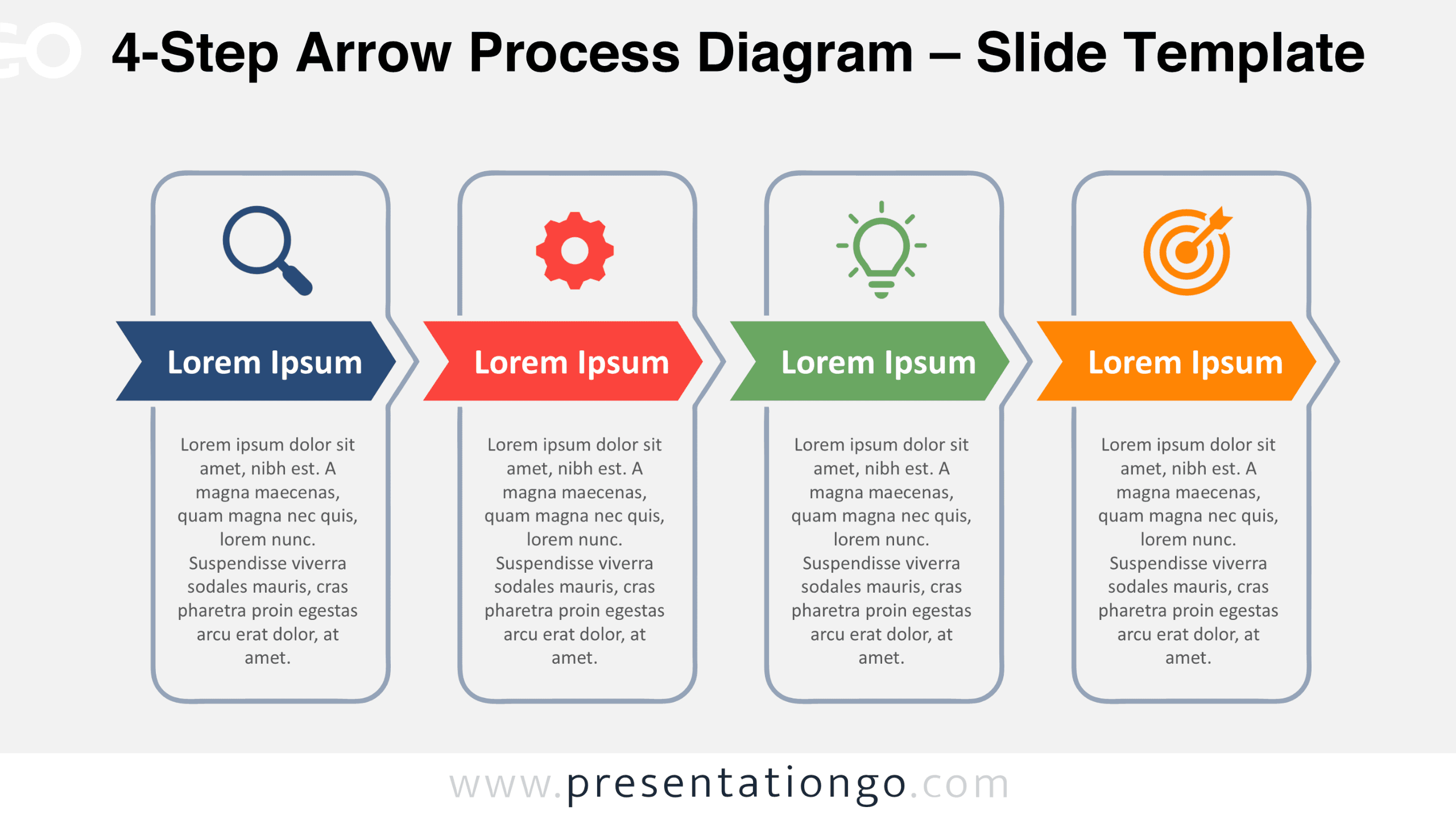
The 4-Step Arrow Process Diagram uses four tall, rounded rectangular panels arranged in a horizontal row. Each panel follows an identical three-part organization. An icon sits in the upper section, an arrow-shaped ribbon crosses the middle, and a text area occupies the lower section. The arrows extend beyond their respective panels, creating a continuous directional rhythm across the slide. Their pointed ends communicate forward movement, while their notched tails reinforce the connection between consecutive stages. This arrangement establishes a consistent reading order from the first panel to the fourth.
Thin panel outlines define the boundaries of each stage without separating the overall composition into unrelated blocks. The four illustrative symbols represent searching, configuration, ideas, and objectives. Each ribbon accommodates a short heading, while the lower section provides enough room for a brief explanation. Centered text aligns each description with its corresponding symbol and label. Equal panel widths, repeated spacing, and consistent icon placement maintain visual balance across the composition. The layout also separates stage identification from supporting information, helping readers distinguish the main sequence from its individual details.
Practical Applications
- Break down a customer onboarding journey into registration, setup, activation, and follow-up.
- Present a product launch plan covering research, development, testing, and release.
- Explain an internal approval procedure from request submission to final authorization.
- Organize a training program into assessment, instruction, practice, and evaluation.
- Map a recruitment process through screening, interviews, selection, and onboarding.
- Outline an improvement cycle involving investigation, planning, implementation, and measurement.
- Show a sales qualification sequence from prospect discovery to proposal submission.
Summary
The 4-Step Arrow Process Diagram brings sequential actions together in one organized presentation graphic. Its recurring panel structure connects stage headings, visual references, and explanatory content. It offers a practical starting point for communicating four-part procedures, operational plans, and other structured sequences in PowerPoint and Google Slides.