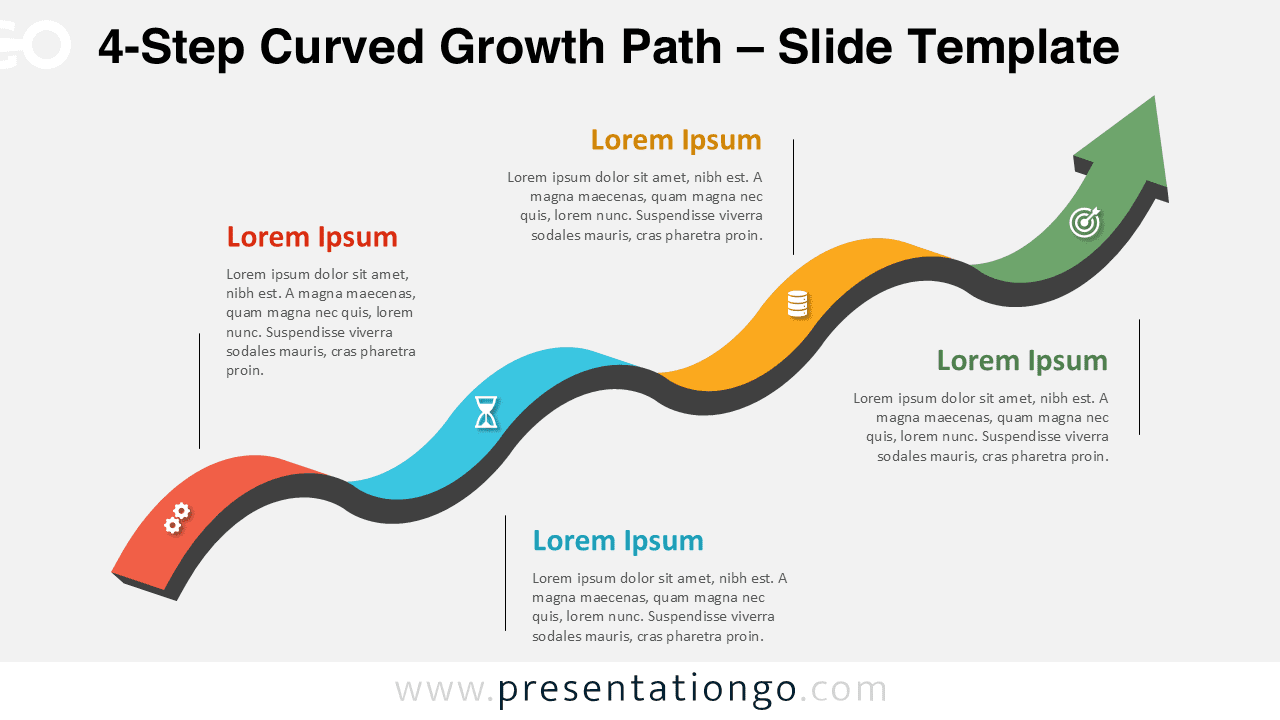
The 4-Step Curved Growth Path diagram provides a polished way to present detailed multi-stage processes in PowerPoint and Google Slides. Its smooth curved layout leads viewers through four clear stages before reaching an upward green arrow that symbolizes progress or achievement. This version is ideal for workflows, structured strategies, and complete journeys that require more explanation than simpler layouts allow.
Diagram Preview
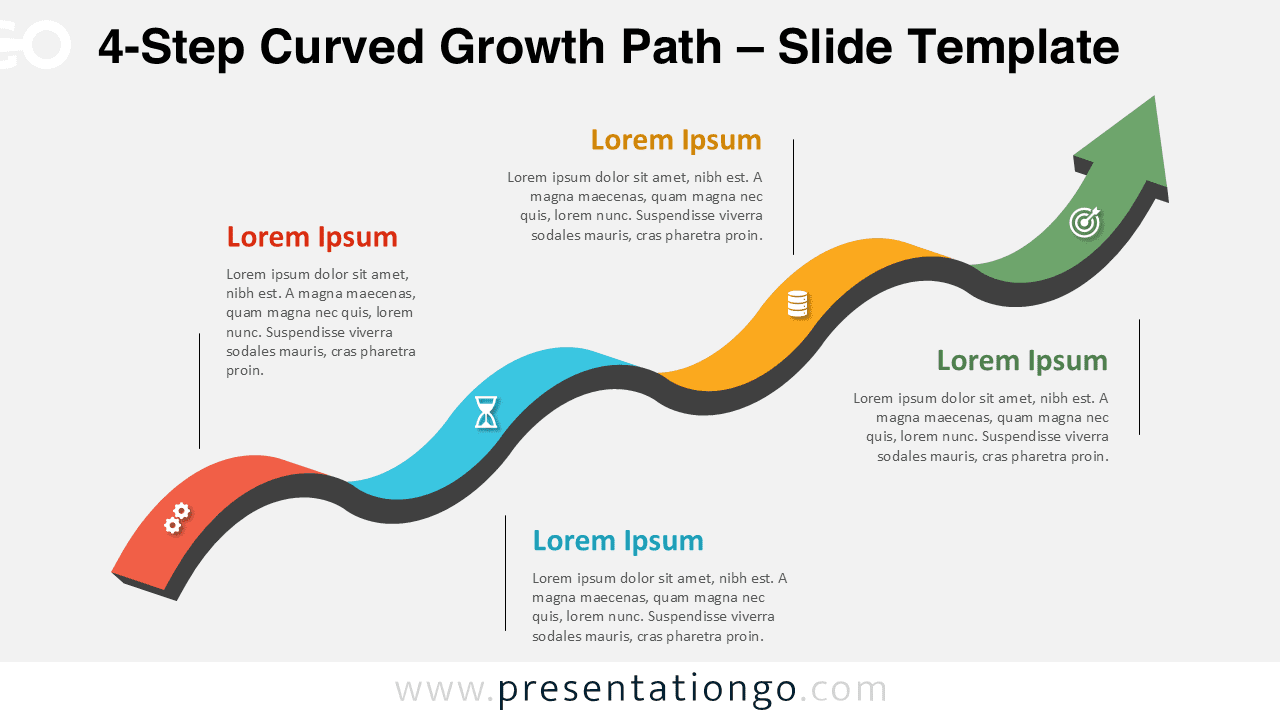
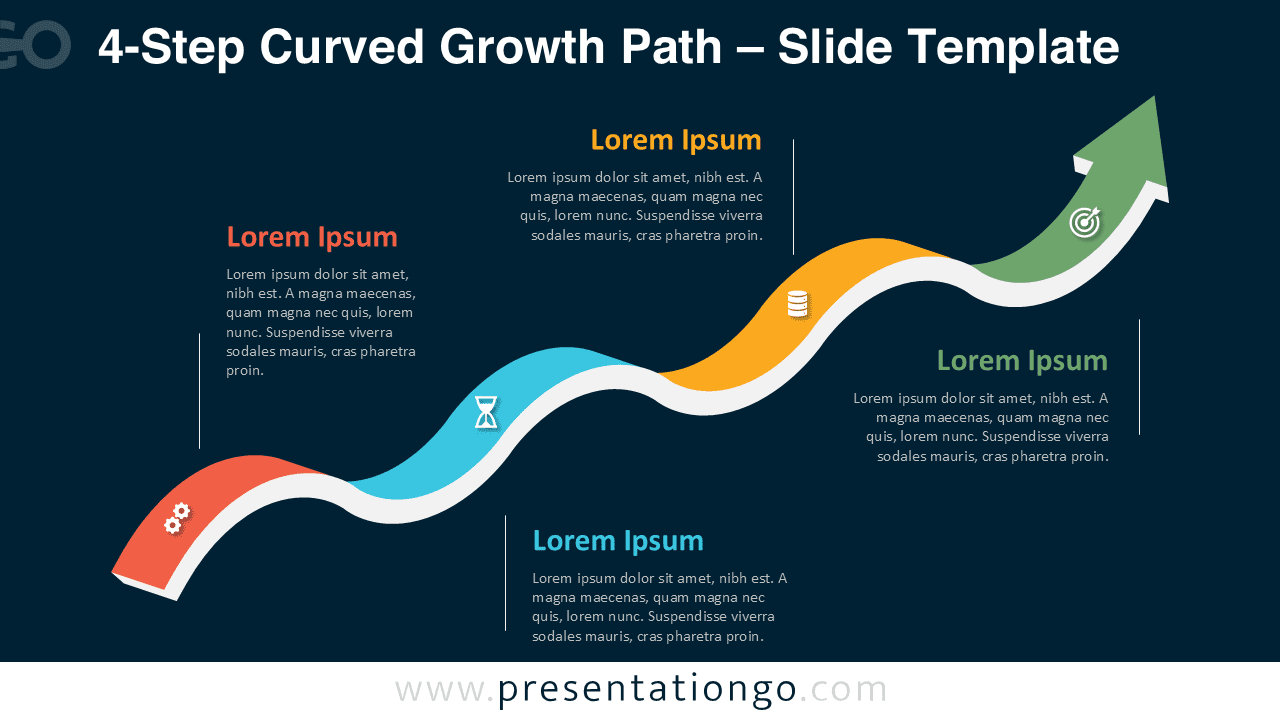


Diagram Features and Customization Options
- Fully editable shapes compatible with PowerPoint and Google Slides
- Four-step curved ribbon flow ending in a rising arrow
- Includes editable icon placeholders for each stage
- Customizable colors, labels, and shapes
- Light and dark background versions included
- Optimized for 16:9 widescreen presentations
Design and Structure
This diagram uses a multi-stage curved ribbon to illustrate a structured journey toward a final goal. Each section features a distinct color—red, blue, yellow, and green—to differentiate steps and guide the viewer’s eye. The dark underside of the curve creates depth and makes the design visually striking on both light and dark backgrounds. Each step includes space for titles and descriptive text to clearly explain your stages.
Practical Applications
- Four-phase processes or workflows
- Detailed project stages or development cycles
- Structured roadmaps or multi-step strategies
- Training modules with sequential content
- Marketing funnels or customer journey explanations
Summary
With its four distinct stages, colorful layout, and curved upward motion, the 4-Step Curved Growth Path diagram is ideal for presenting structured and comprehensive processes. The combination of icons, smooth flow, and upward arrow makes it a strong visual choice for demonstrating growth, progress, and achievement in PowerPoint and Google Slides.
Frequently Asked Questions (FAQ)
Changing icons is simple in both PowerPoint and Google Slides.
In PowerPoint, select the icon, press Delete, then go to Insert → Icons or insert your own image. You can also recolor native icons using the Graphics Fill options.
In Google Slides, select the icon and delete it, then choose Insert → Image or Insert → Icons (if available) to add a replacement. Resize or recolor your new icon as needed.