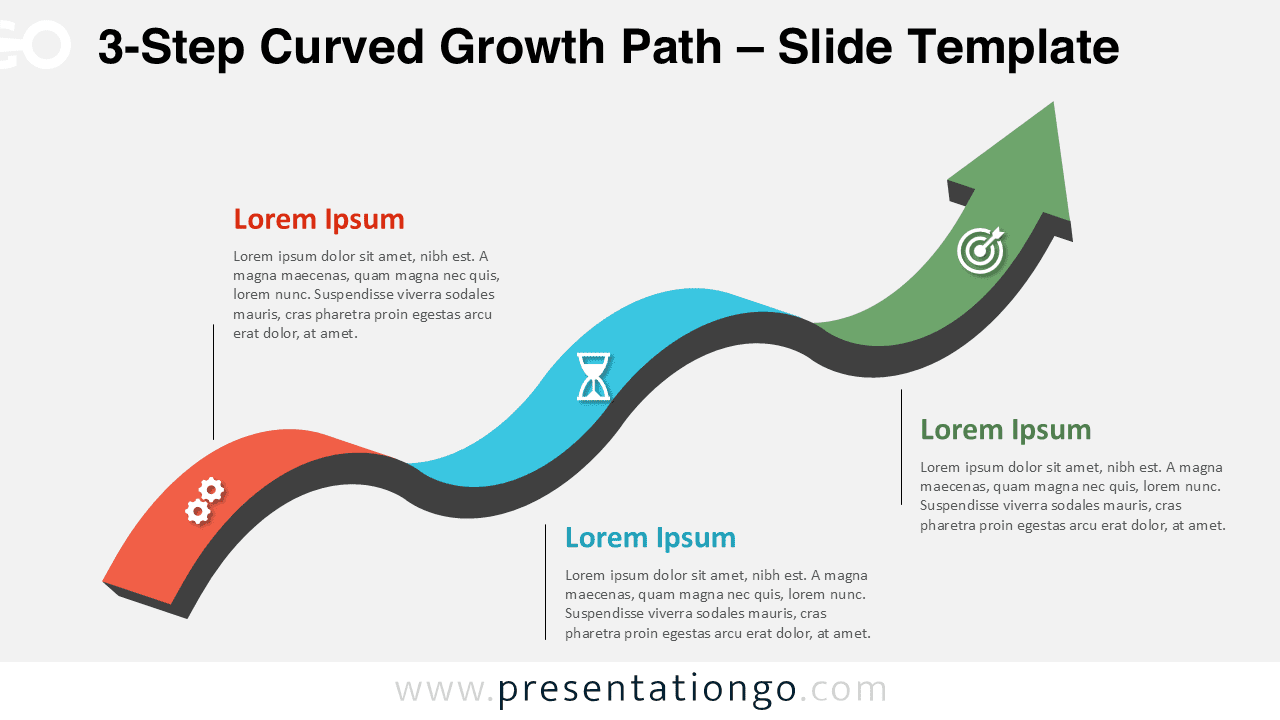
The 3-Step Curved Growth Path diagram offers a clean and modern way to visualize a three-stage process in both PowerPoint and Google Slides. Its flowing curved structure creates a natural progression from one stage to the next, ending with a rising arrow that highlights growth or successful completion. This makes the diagram perfect for processes that require multiple milestones while still maintaining clarity and simplicity.
Diagram Preview
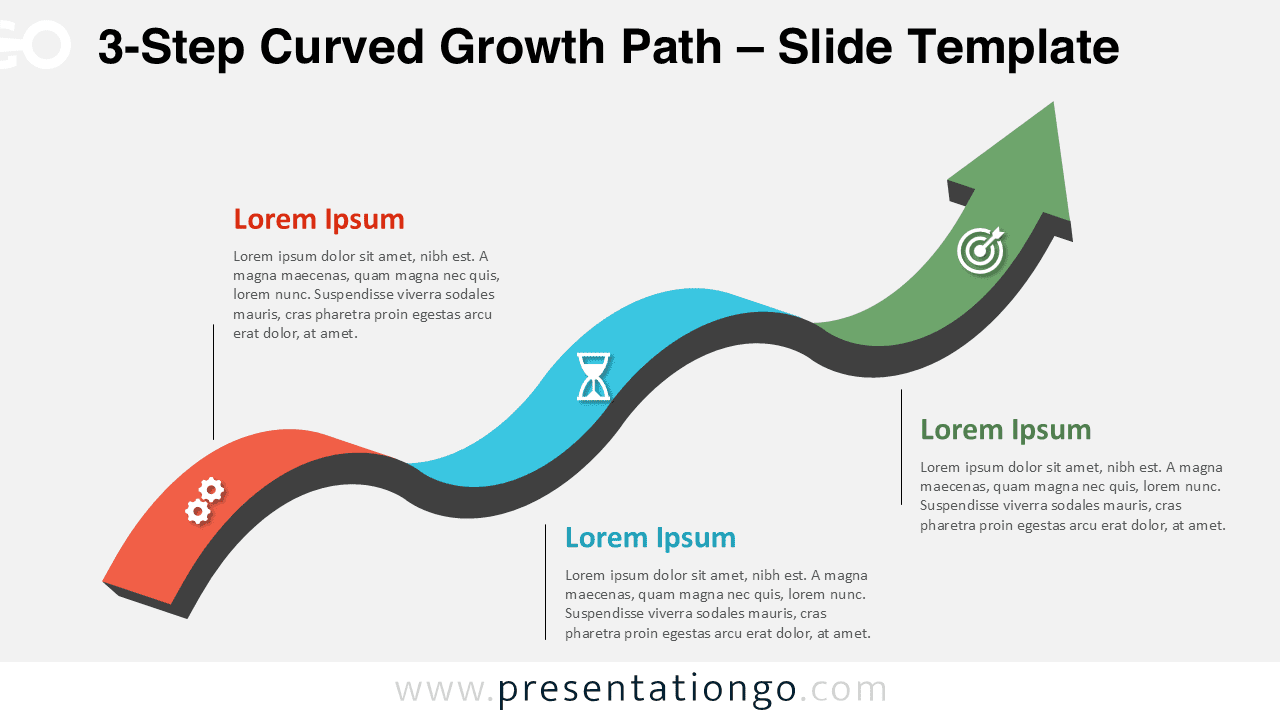
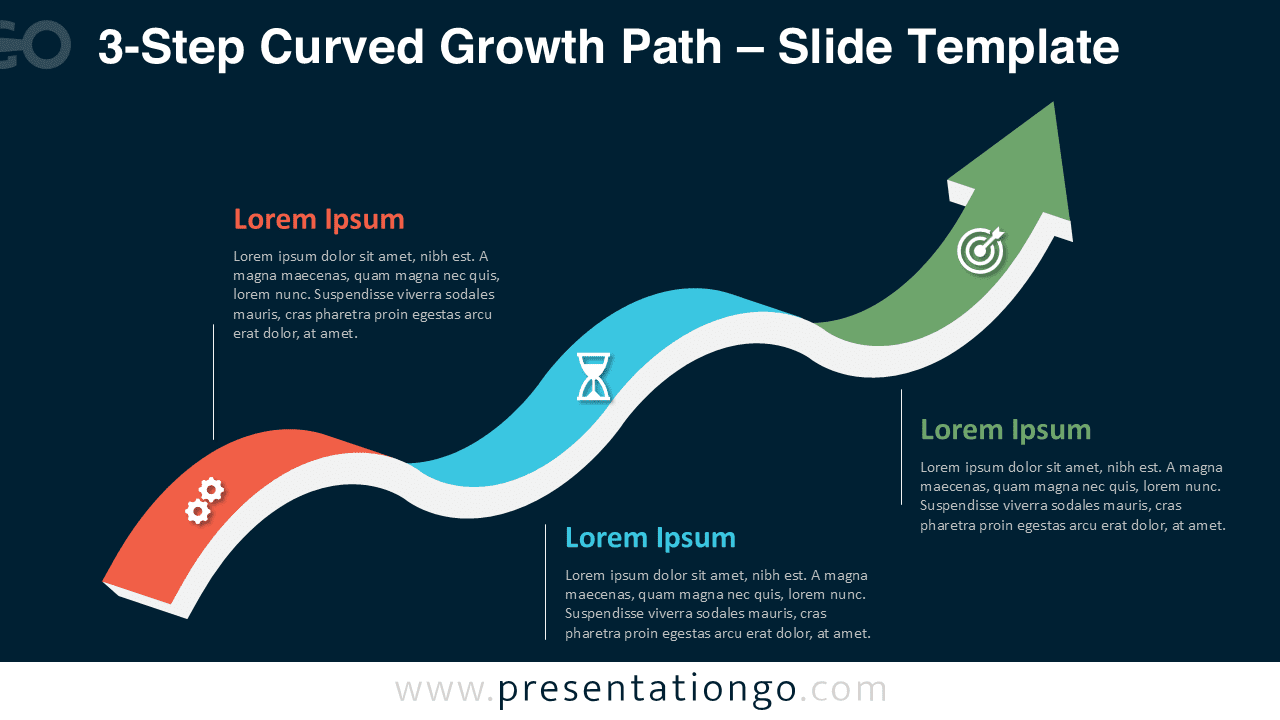


Diagram Features and Customization Options
- Fully editable shapes in PowerPoint and Google Slides
- Three-step curved ribbon ending in an upward arrow
- Includes editable icon placeholders for each step
- Light and dark background versions provided
- Designed for 16:9 widescreen presentations
- Customizable colors, text, and shapes
Design and Structure
This diagram uses a smooth curved ribbon that creates a visually engaging progression through three steps. The segments are colored red, blue, and green, with each section paired with a corresponding icon. The icons help reinforce meaning of each step. The dark spine beneath the curve adds depth and contrast, helping the path stand out in both light and dark themes. Each step includes clear spaces for titles and descriptive text, making the layout easy to adapt to your message.
Practical Applications
- Three-step workflows or timelines
- Customer or user journeys
- Marketing or business processes
- Project stages or progress tracking
- Educational sequences or training steps
Summary
With its dynamic curvature, three clear stages, and engaging icons, the 3-Step Curved Growth Path diagram is a versatile illustration for visual communication. Whether you need to explain a sequence with multiple milestones or present a short roadmap, this design helps deliver your message in a clean and compelling format for PowerPoint and Google Slides.
Frequently Asked Questions (FAQ)
Changing icons is simple in both PowerPoint and Google Slides.
In PowerPoint, select the icon, press Delete, then go to Insert → Icons or insert your own image. You can also recolor native icons using the Graphics Fill options.
In Google Slides, select the icon and delete it, then choose Insert → Image or Insert → Icons (if available) to add a replacement. Resize or recolor your new icon as needed.