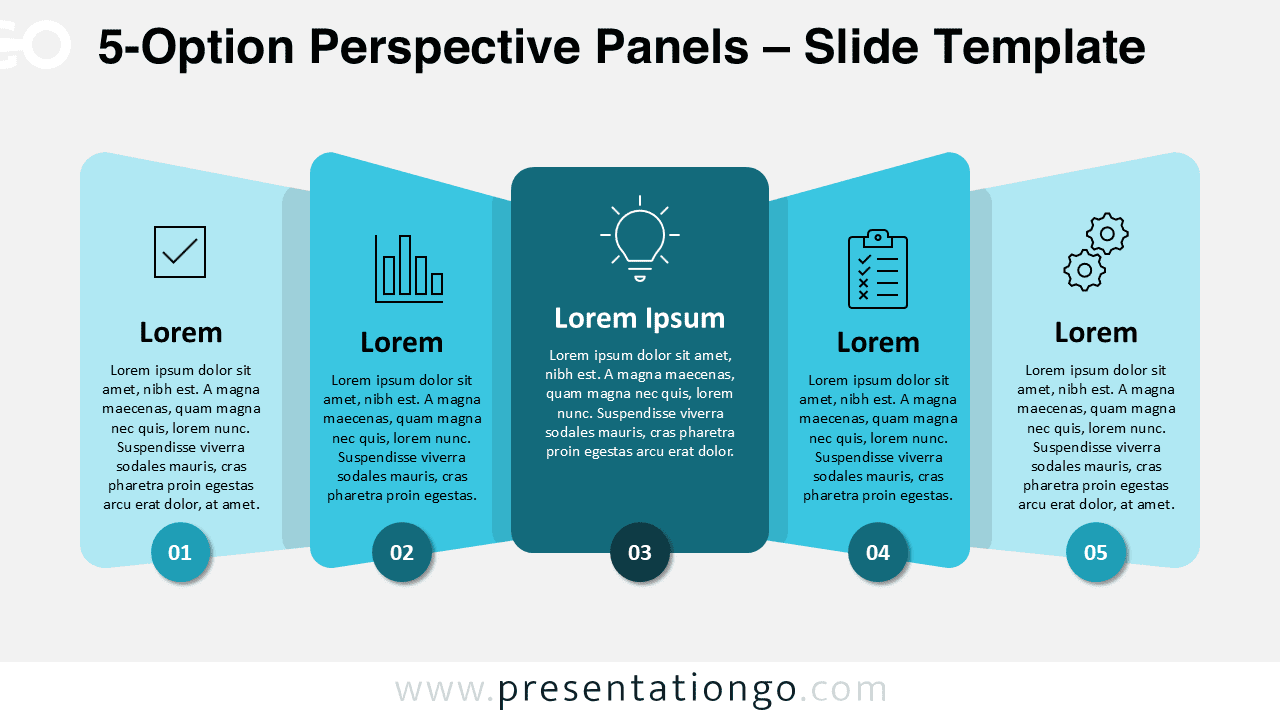
Showcase up to five ideas or features in a structured way with this 5-Option Perspective Panels template for PowerPoint and Google Slides. Its layered perspective layout highlights five options or stages around a central panel, creating a clear and visually engaging presentation flow.
Diagram Preview


Features and Customization Options
- Includes 4 slides: light and dark backgrounds, colorful and monochromatic diagrams
- Fully editable text, icons, and colors
- Available in widescreen (16:9) format for PowerPoint and Google Slides
- High-contrast palette and balanced layout
- Symmetrical design with perspective alignment
Design Overview
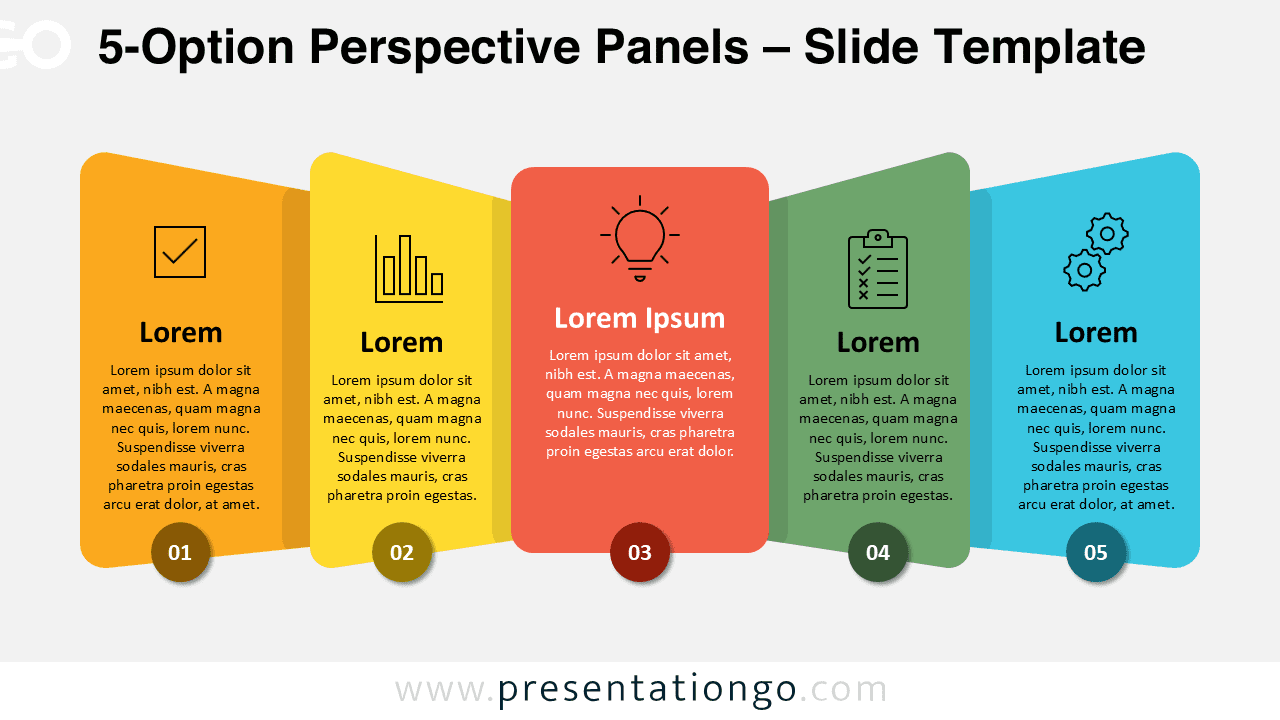
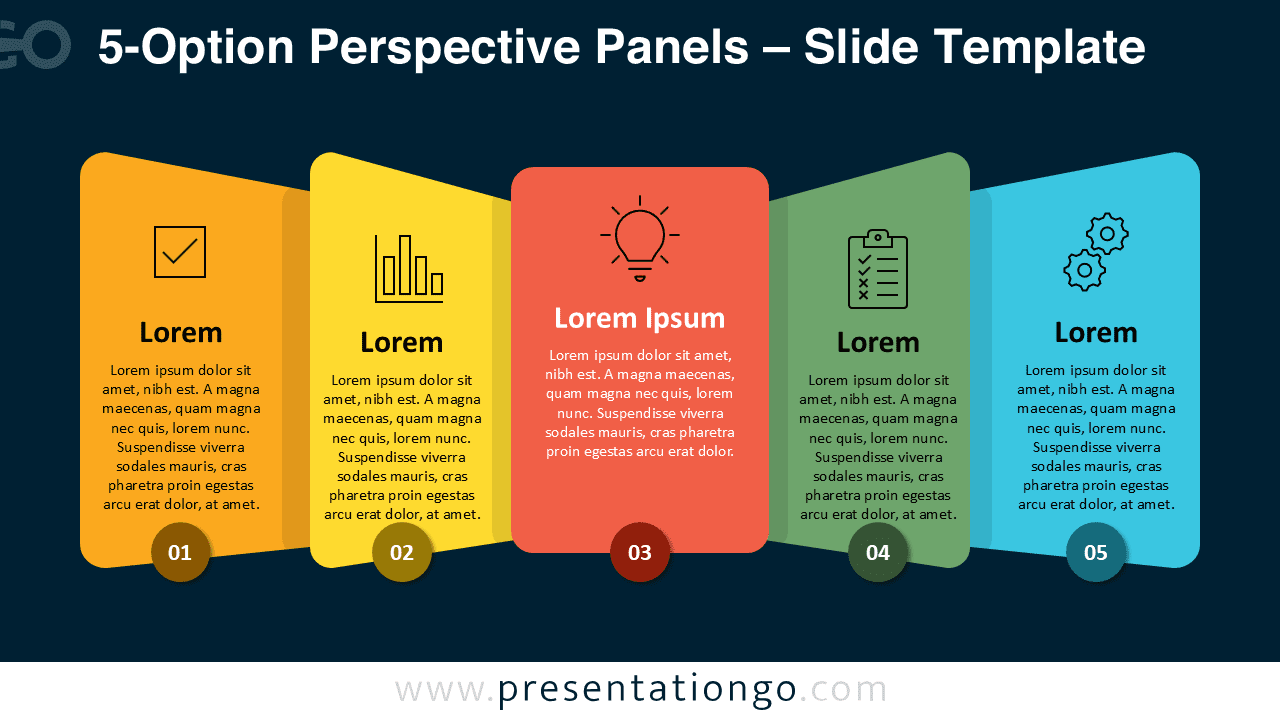
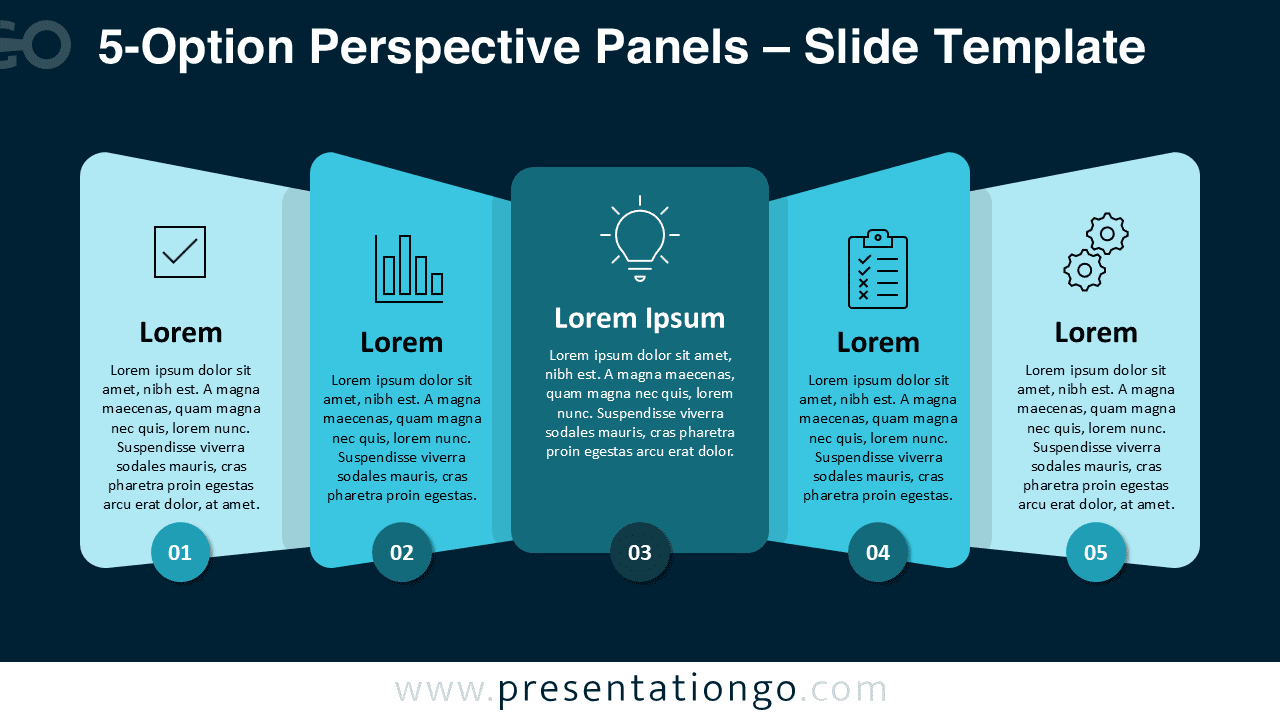
The 5-Option Perspective Panels template arranges five vertical panels in a geometric perspective around a central element. Each panel includes an outline icon, title, and number marker. Vivid accent colors such as coral, teal, and orange provide contrast against both light and dark versions, giving a dynamic and professional look.
Practical Applications
- Present five features, steps, or ideas side by side
- Compare products, plans, or strategies
- Show decision paths or multi-category frameworks
- Highlight a central concept surrounded by five related options
How to Edit
- Open the file in PowerPoint or Google Slides.
- Replace sample text and icons with your own content.
- Modify panel colors or font styles from the Slide Master.
- Duplicate panels to create more options if needed.
Summary
The 5-Option Perspective Panels template combines symmetry, clarity, and depth to communicate multiple ideas with style. Perfect for comparisons, workflows, or grouped categories.
Frequently Asked Questions (FAQ)
Yes. You can replace them with any outline or filled icons for your project theme.
To replace or adjust icons, select the shape and use the Insert → Icons option in PowerPoint or the Replace image feature in Google Slides.
You can resize, recolor, or change their position without affecting the panel layout.