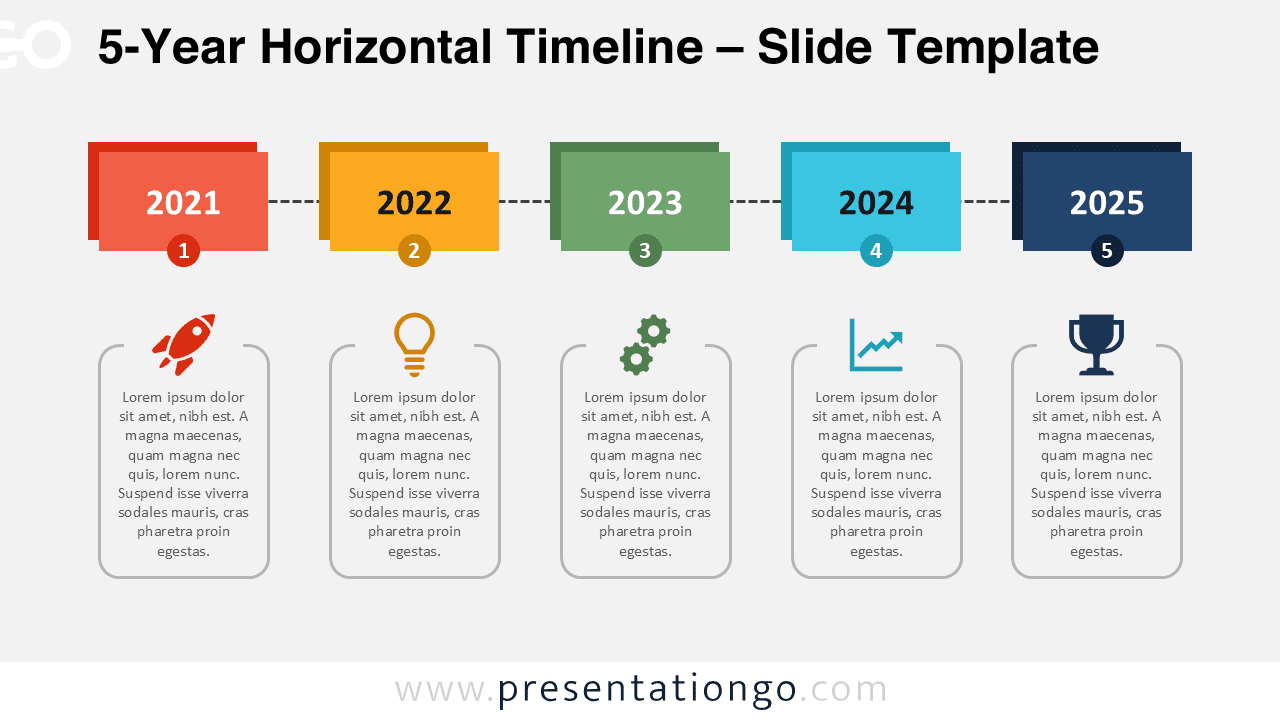
The 5-Year Horizontal Timeline template helps you present annual milestones and long-term goals in a clear, visual way. Perfect for PowerPoint and Google Slides, this diagram highlights key achievements or steps across five years, making it ideal for planning or reporting presentations.
Widescreen (16:9) Preview



Features and Customization Options
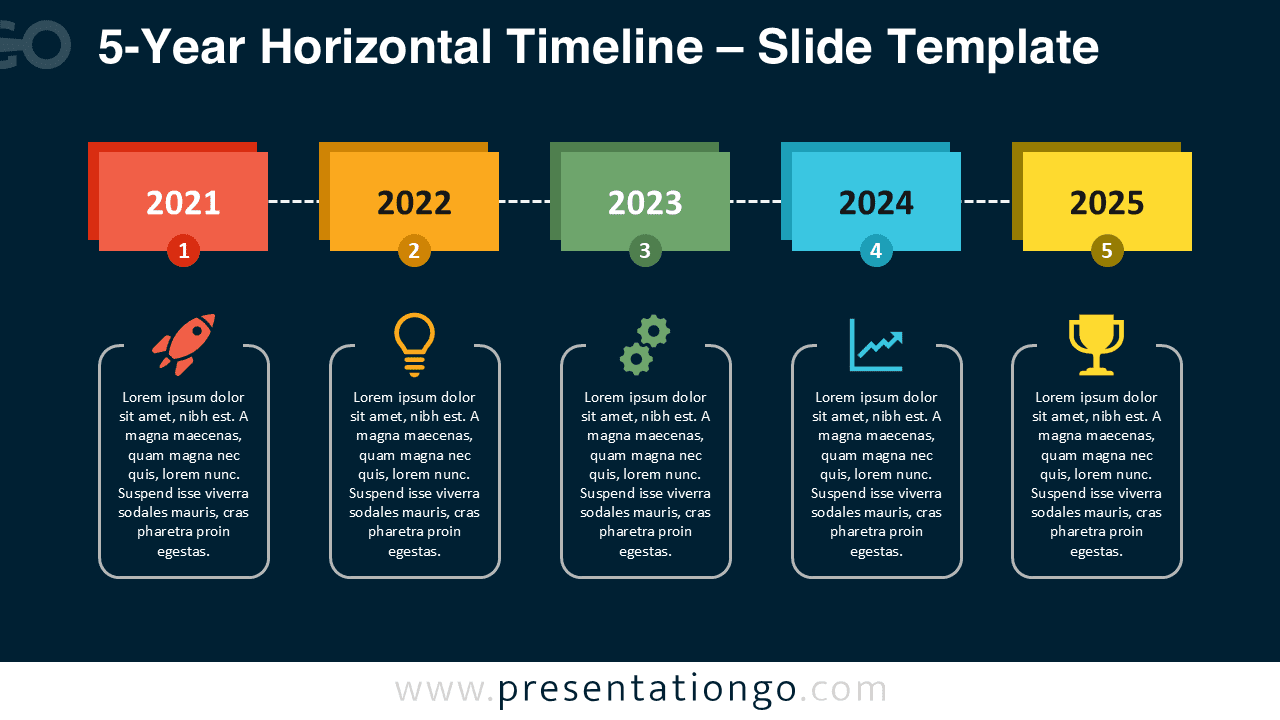
- Includes 2 slides with light and dark background versions
- Features 1 unique horizontal timeline design with 5 color-coded steps
- Editable text boxes and icons for easy customization
- Fully compatible with PowerPoint and Google Slides
- Ideal for project planning, reports, or progress tracking
Design Overview
This colorful horizontal layout combines five rectangular blocks connected by a dotted line. Each block represents a year, paired with an icon and text placeholder. The bright red, orange, green, cyan, and navy palette adds contrast and rhythm, while the simple linear composition ensures clarity. Both light and dark backgrounds enhance readability in any presentation style.
Practical Applications
- Display project milestones over five years
- Summarize annual goals or achievements
- Present business or strategic roadmaps
How to Edit
- Open the file in PowerPoint or Google Slides.
- Replace text and icons with your own content.
- Adjust colors and fonts from the Slide Master.
- Duplicate or remove elements to match your timeline length.
Summary
A clean, colorful, and easy-to-edit timeline to visualize five years of progress or planning. Perfect for professionals who need to communicate milestones with clarity.
Frequently Asked Questions (FAQ)
Yes. All shapes, text, and icons are fully editable in both PowerPoint and Google Slides.
Yes. You can easily add more years or milestones by duplicating and adjusting the shapes.
Simply right-click on any icon, select “Change Graphic,” and choose the source (for example, from Icons, Stock Images, or This Device). You can easily replace it with a new icon from the built-in Office library or your own files.