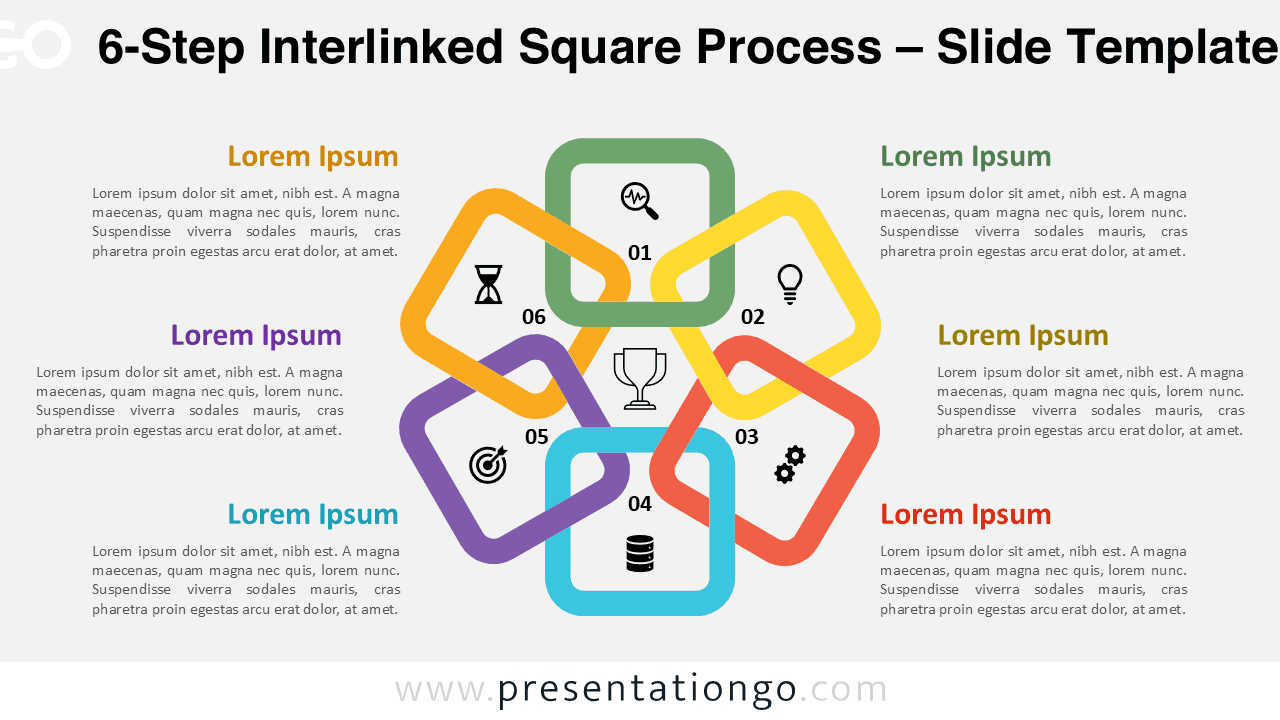
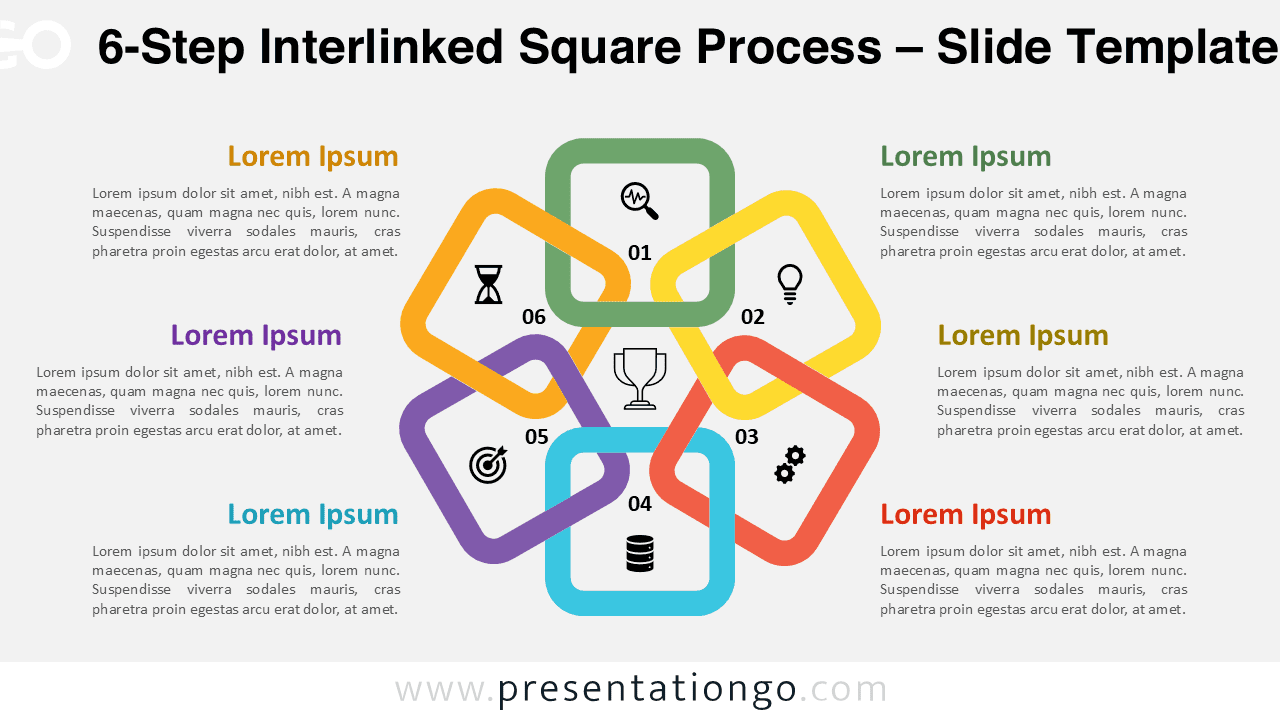
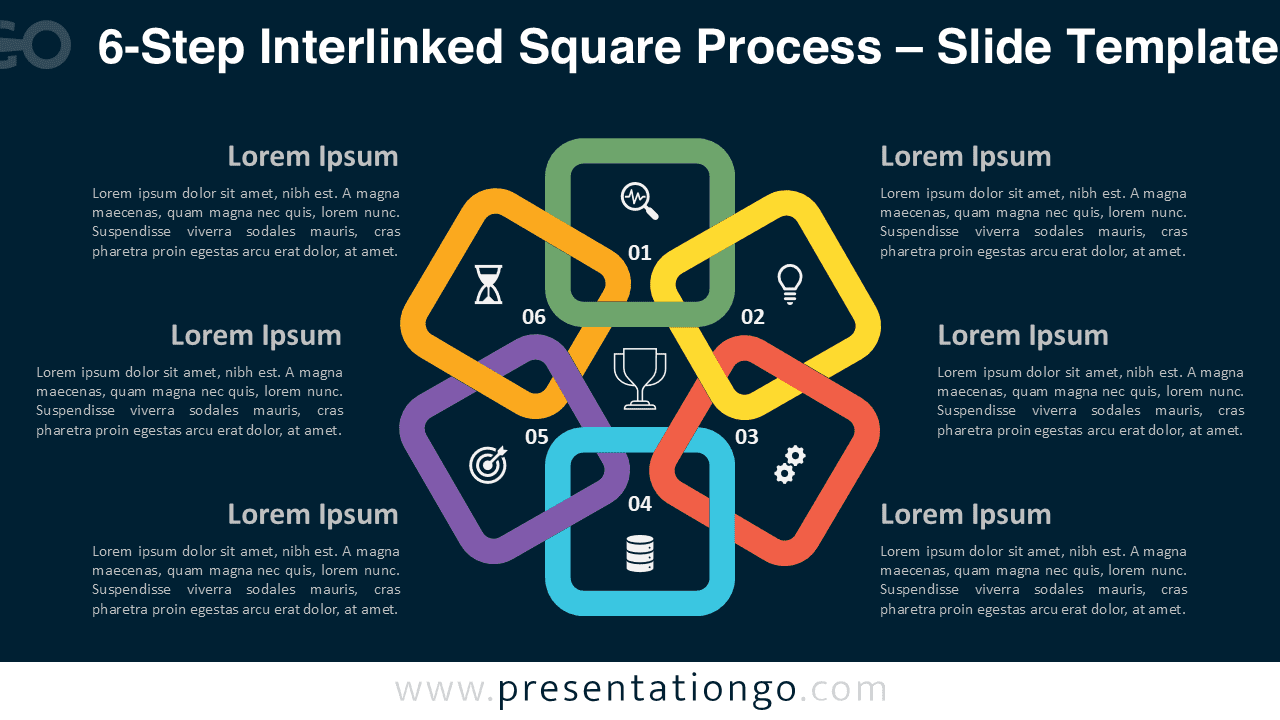
The 6-Step Interlinked Square Process diagram is a modern, circular layout made of six colorful overlapping squares that symbolize connected stages. Perfect for illustrating teamwork, flow, and continuous improvement, this PowerPoint and Google Slides graphic offers clarity and visual harmony for any presentation.
Widescreen (16:9) Preview


Features and Customization
- Includes 2 slides (light and dark versions)
- Editable shapes, icons, and color themes
- Easy to customize in PowerPoint and Google Slides
- Ideal for circular or sequential process visualization
- Consistent professional look for any purpose
Design Overview
Six interlinked rounded squares form a geometric chain around a central icon, representing unity and continuity. Each square uses a distinct color, providing visual clarity between stages. The design feels dynamic yet balanced—perfect for process steps, relationships, or cycles. Both light and dark backgrounds are included for flexibility.
Practical Applications
- Display six key stages or ideas
- Show process dependencies or circular flows
- Illustrate teamwork, planning, or workflow cycles
How to Edit
- Open the file in PowerPoint or Google Slides.
- Replace text and icons with your own content.
- Adjust colors and fonts from the Slide Master.
- Reorder or animate elements for better flow.
Summary
A vivid, geometric 6-step diagram built from connected squares to represent progress, cooperation, or repeated cycles. Ideal for professional and educational use.
Complete Collection
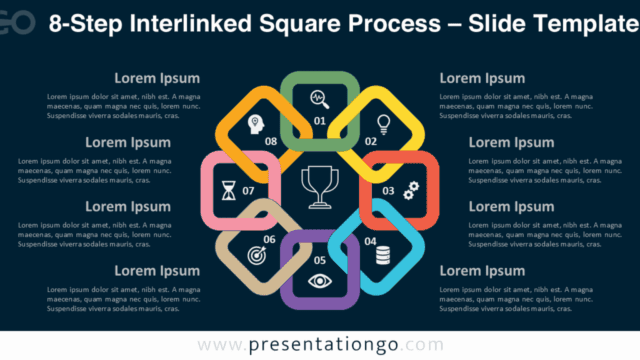
This design is part of the Interlinked Square Process series, also available in 5-, 7-, and 8-step versions.


Frequently Asked Questions (FAQ)
Yes, all shapes and colors are fully editable in PowerPoint and Google Slides.
Simply right-click on any icon, select “Change Graphic,” and choose the source (for example, from Icons, Stock Images, or This Device). You can easily replace it with a new icon from the built-in Office library or your own files.