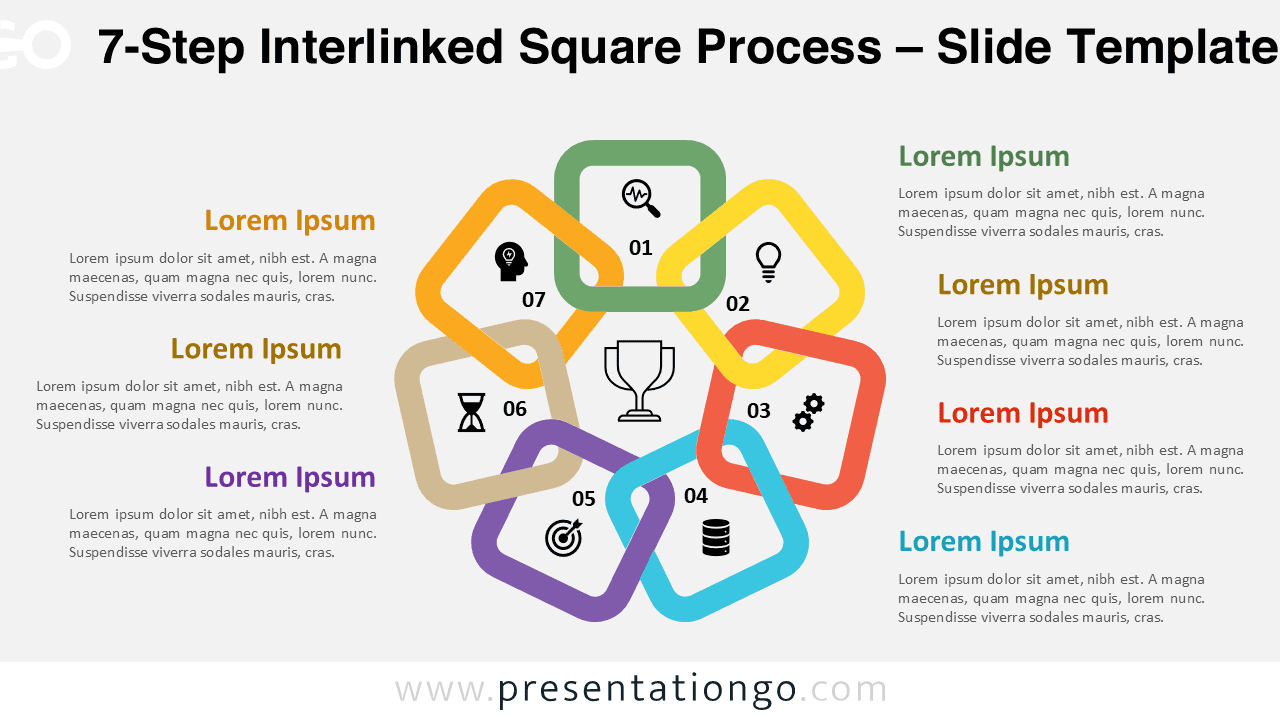
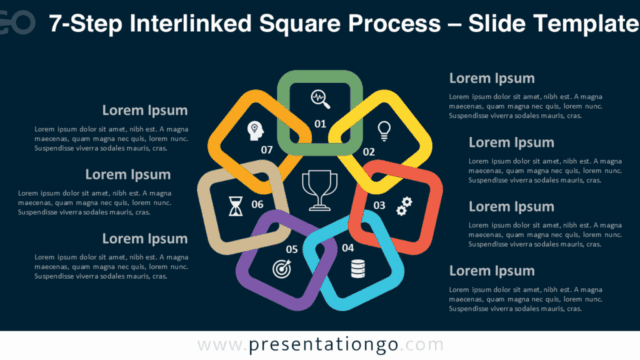
The 7-Step Interlinked Square Process diagram is a creative circular layout designed to showcase seven connected steps or actions. Its chain of overlapping squares symbolizes progress, cooperation, and continuous flow. Editable in PowerPoint and Google Slides, it’s perfect for illustrating workflows and interdependent tasks.
Widescreen (16:9) Preview


Features and Customization
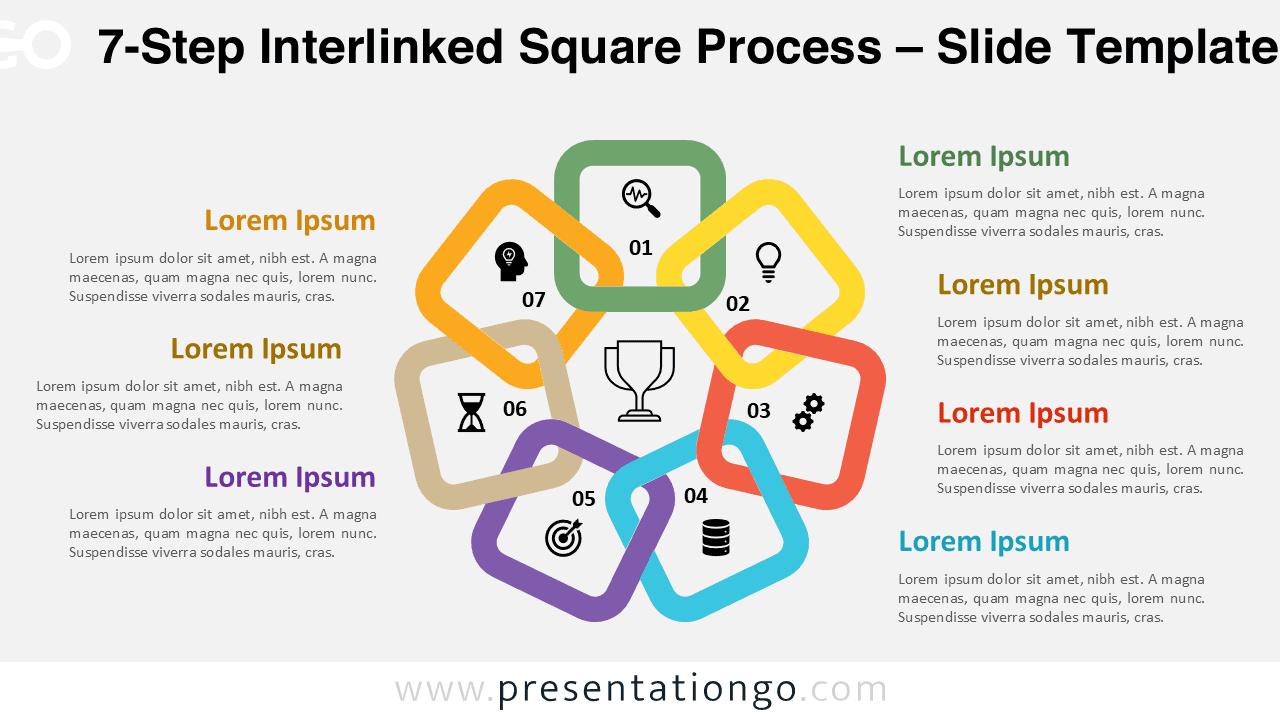
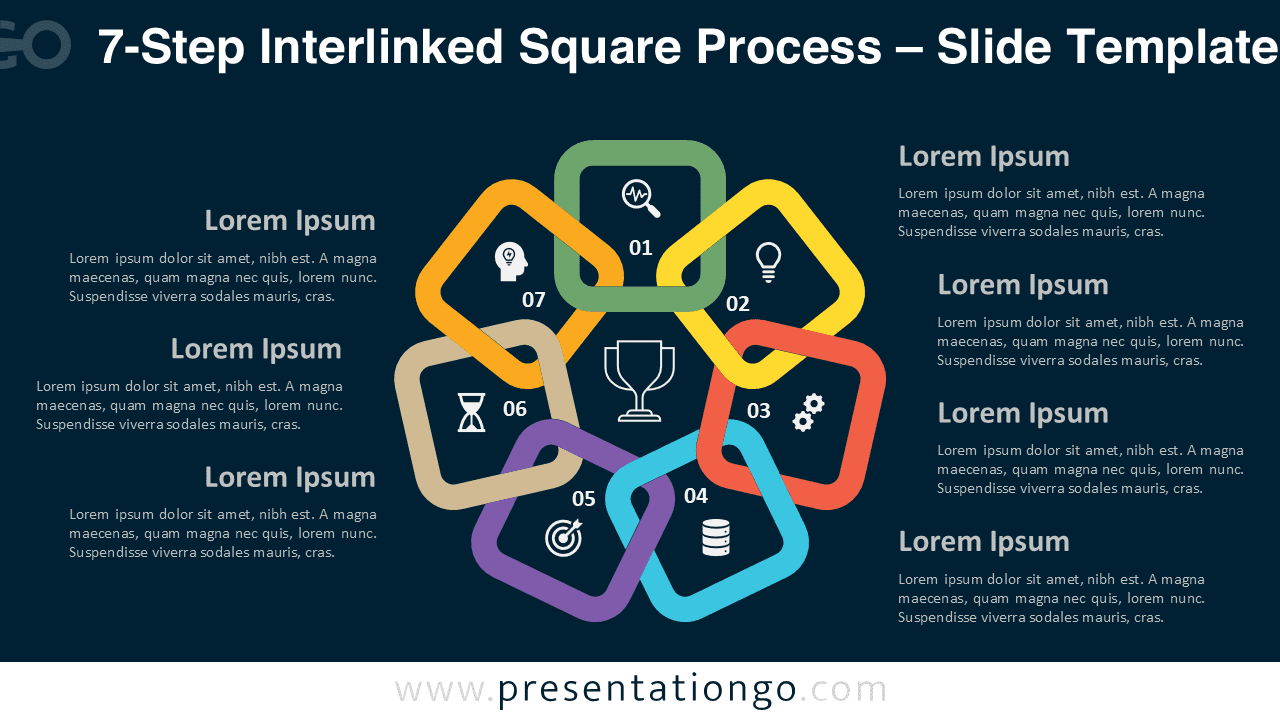
- Includes 2 slides: light and dark background versions
- All shapes, text, and icons are fully editable
- Simple to customize color palettes in PowerPoint or Google Slides
- Professional geometric layout with rounded squares
- Ideal for circular or sequential process presentations
Design Overview
Seven colorful squares form a smooth circular loop around a central point, giving a clear sense of flow and connection. Each square features an icon and number for easy interpretation. The design uses bright hues and balanced spacing to ensure readability on both light and dark backgrounds. It combines visual appeal with structured logic, perfect for professional presentations.
Practical Applications
- Represent seven linked phases in a project or process
- Show team collaboration or step dependencies
- Visualize continuous or cyclical improvement models
How to Edit
- Open in PowerPoint or Google Slides.
- Edit shapes, icons, and text directly.
- Use Slide Master to adjust fonts and color schemes.
- Add transitions or animations if desired.
Summary
This geometric 7-step diagram combines structure and creativity to help you explain complex processes with ease. Ideal for both corporate and academic use.
Complete Collection
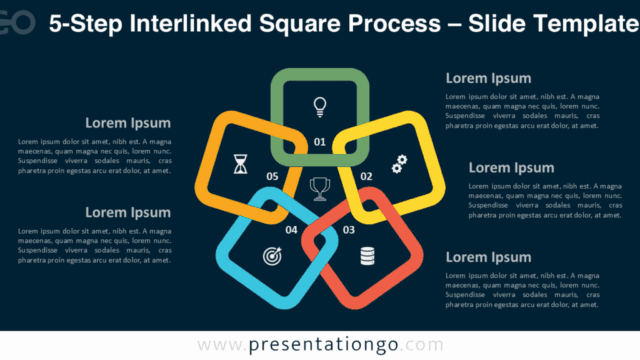
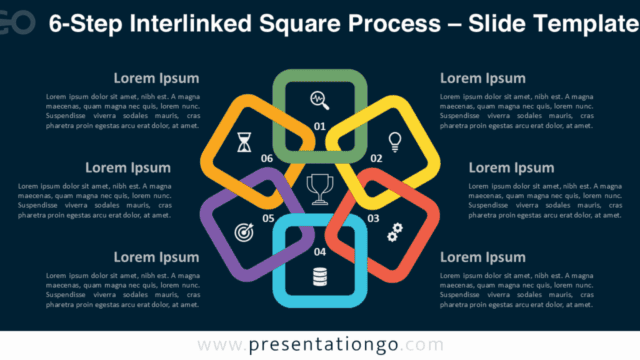
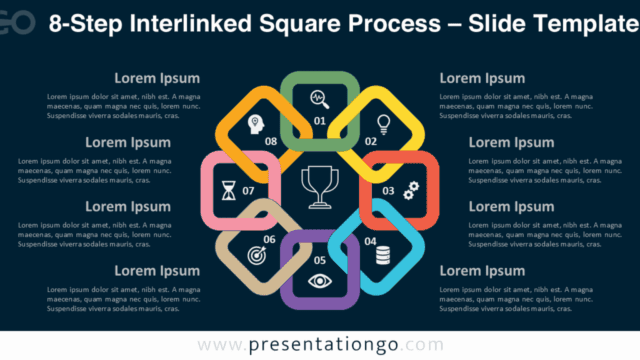
The Interlinked Square Process series also includes 5-, 6-, and 8-step versions for broader flexibility.


Frequently Asked Questions (FAQ)
Yes, all shapes and colors are fully editable in PowerPoint and Google Slides.
Simply right-click on any icon, select “Change Graphic,” and choose the source (for example, from Icons, Stock Images, or This Device). You can easily replace it with a new icon from the built-in Office library or your own files.