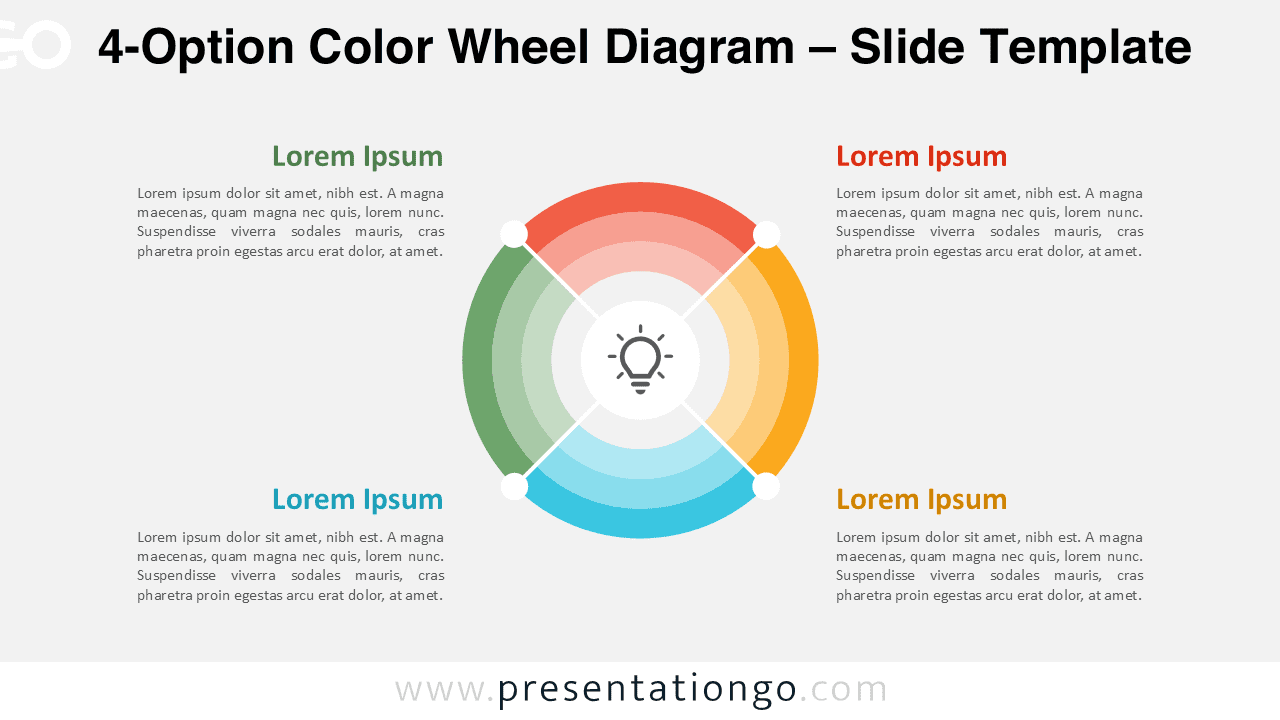
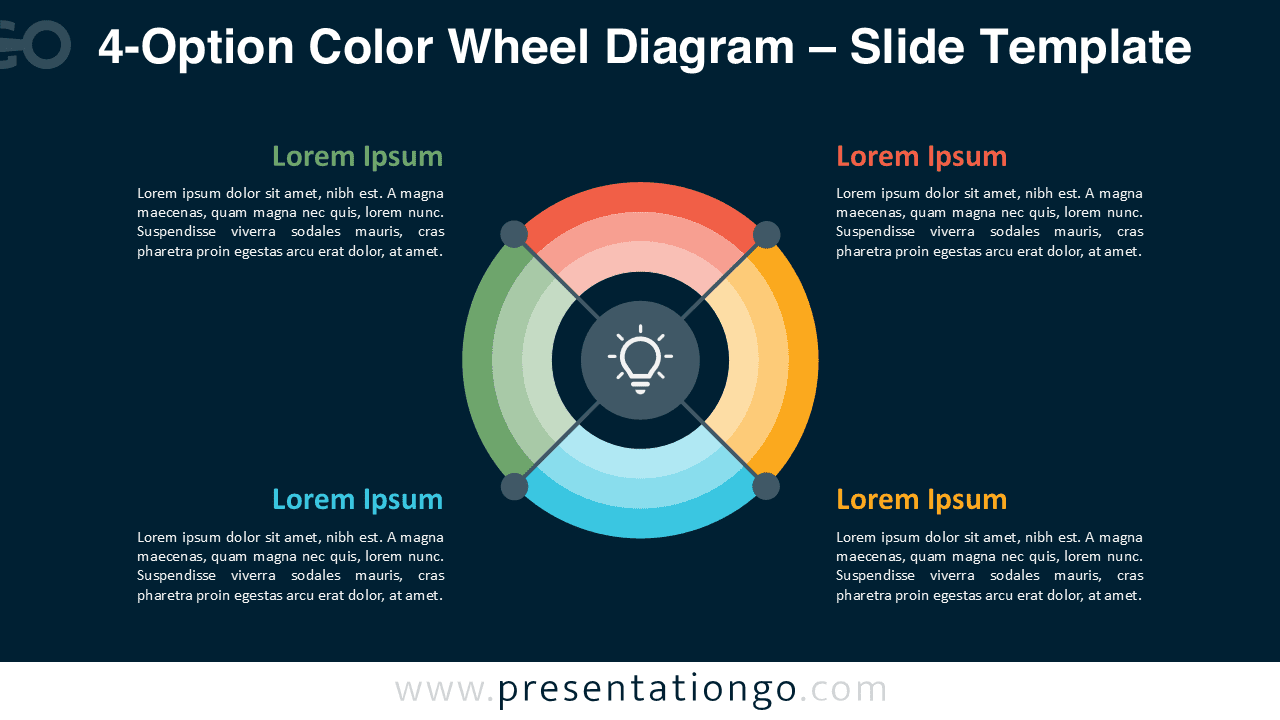
The 4-Option Color Wheel Diagram helps you present four stages, categories, or options in a clear circular format. It highlights a central idea and radiates four colored segments for instant comprehension. Available for PowerPoint and Google Slides.
Template Preview


Features & Customization
- Includes 2 slides with 1 unique 4-option design
- Comes in both light and dark background versions
- Editable shapes, text placeholders, and colors
- Widescreen 16:9, for PowerPoint and Google Slides
- Clean layout with consistent spacing and hierarchy
Design Overview
This radial diagram centers your key concept with a simple icon. Four evenly divided segments form a color wheel using warm and cool tones to separate options clearly. Lines connect each segment to text blocks, ensuring legibility across backgrounds.
Gradients add depth while maintaining a minimalist look. The light version feels open and airy; the dark version delivers contrast and intensity. Edit colors to match your brand and adjust labels to fit stages, roles, or KPIs.
Practical Applications
- Four-phase processes or continuous improvement cycles
- Category mapping, product options, or feature sets
- Roles and responsibilities or balanced scorecards
How to Edit
- Open the file in PowerPoint or Google Slides.
- Replace placeholder text and adjust labels for each option.
- Customize colors and fonts to your brand in Slide Master.
- Export light or dark version depending on your theme.
Summary
A modern, segmented wheel that clarifies four options at a glance. Ideal for processes, categories, and balanced models in business or education.
Frequently Asked Questions (FAQ)
Definitely—replace or recolor icons freely.
In PowerPoint, select the icon, right-click, and choose “Change Graphic → From Icons” or “From File” to insert a new one.
In Google Slides, delete the current icon, go to “Insert → Image” or “Insert → Shape → Icons” to add your own symbol.
Resize and recolor it to match your design.