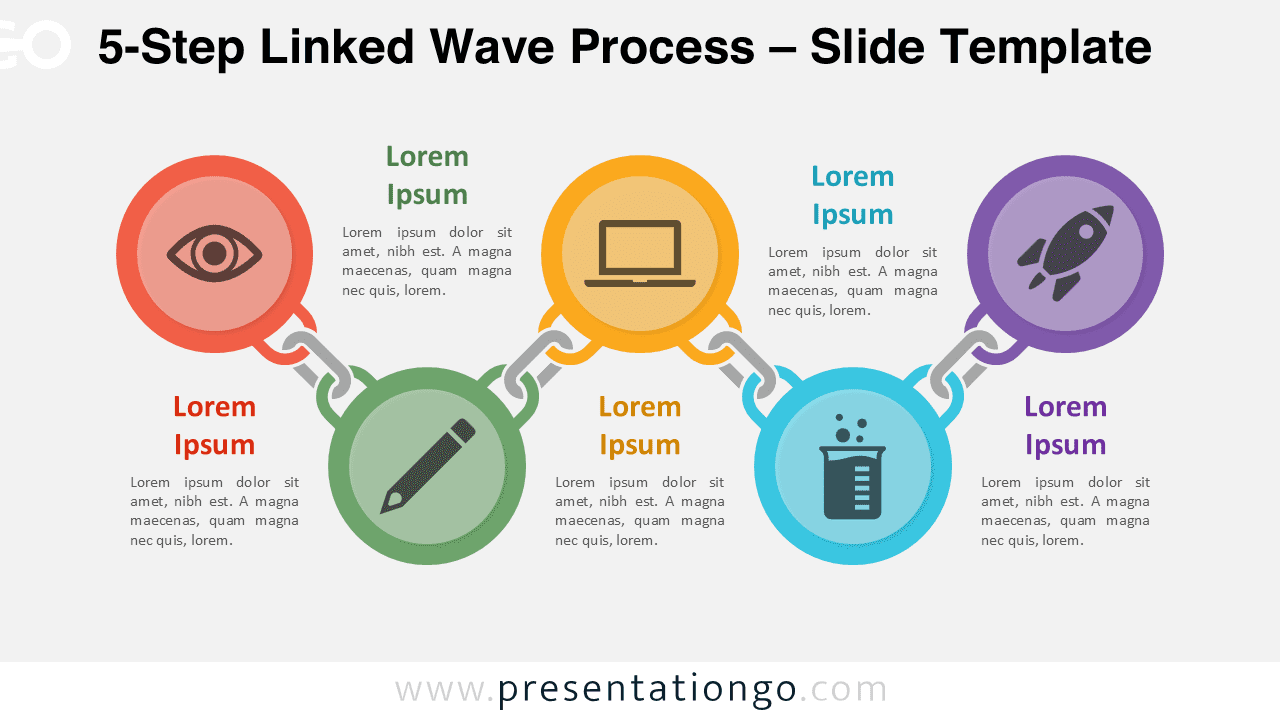
The 5-Step Linked Wave Process diagram is designed to present workflows that move forward with rhythm and progression rather than a strict circular loop.
This layout is a distinct variation within the broader Linked Circle Process series and offers an alternative visual approach for five-step explanations.
The wave-style arrangement introduces motion and direction, making it especially suitable for stories that emphasize momentum, evolution, or transformation.
Diagram Preview
Preview the 5-Step Linked Wave Process diagram for PowerPoint and Google Slides in the gallery below.
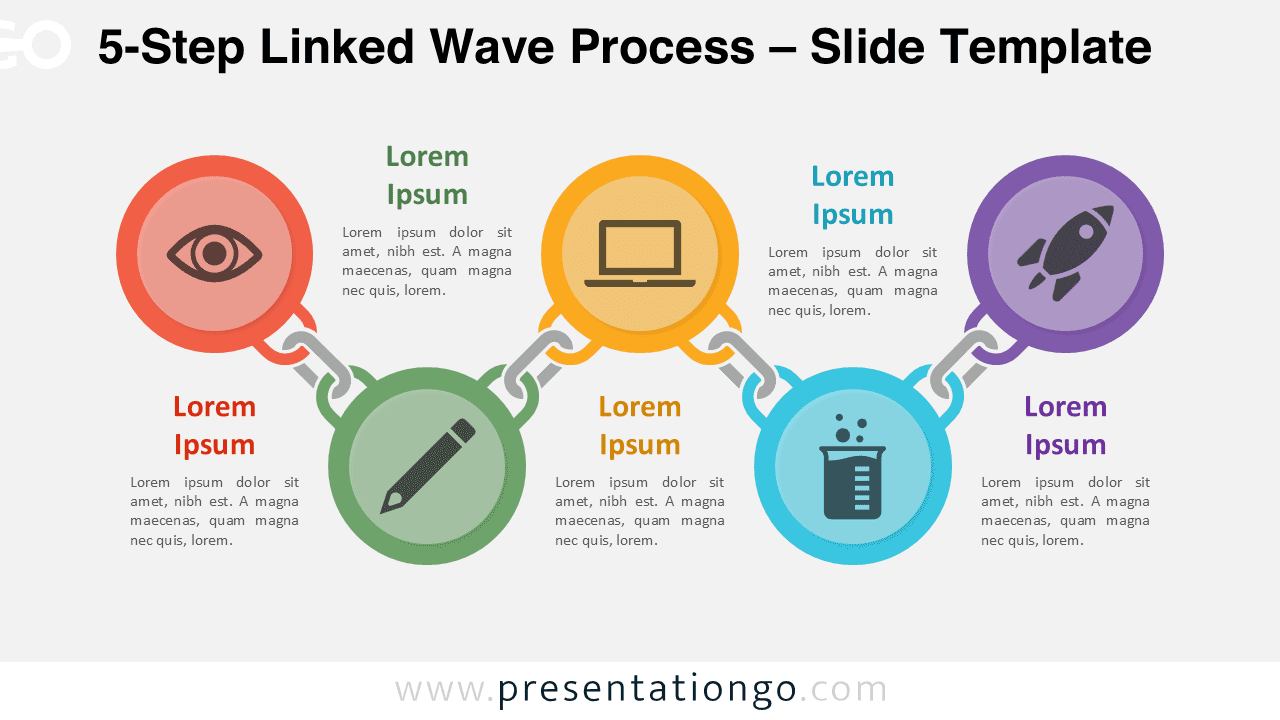
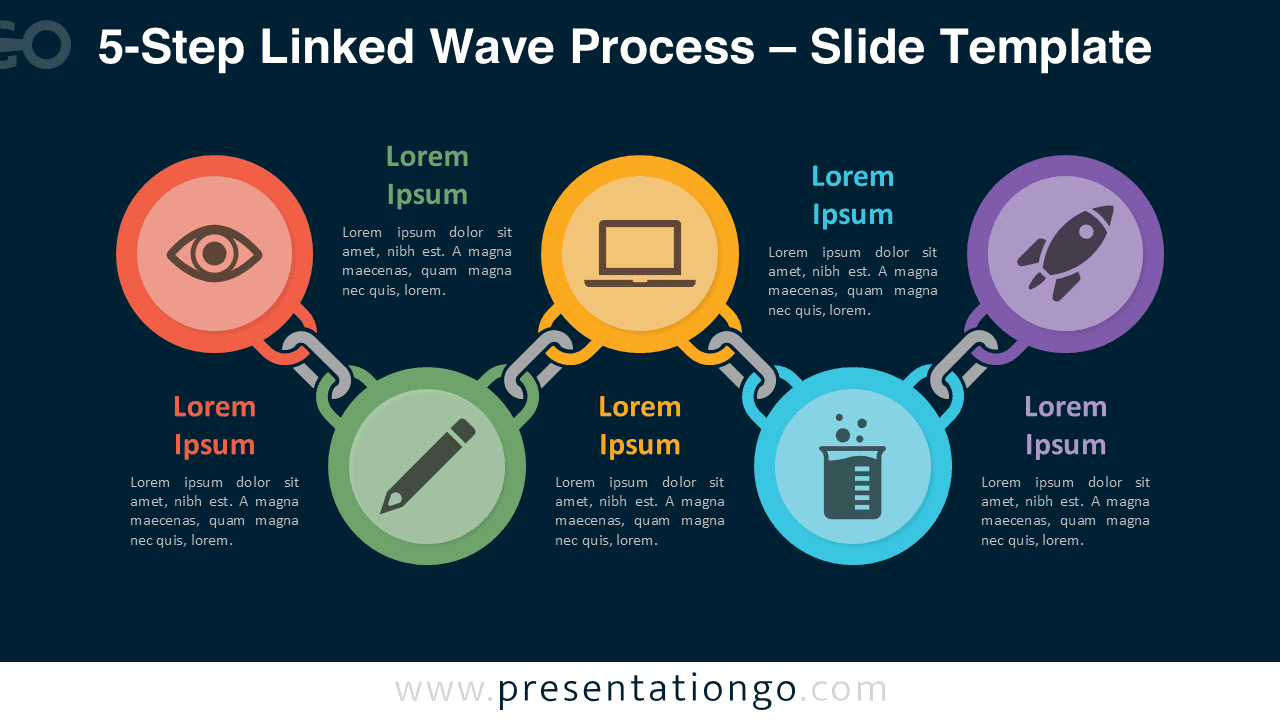


Diagram Features and Customization Options
- Five-step wave-style workflow structure emphasizing progression and flow
- Editable shapes, connectors, and text placeholders
- Includes editable icon placeholders for each stage
- Light and dark background versions available
- Fully compatible with PowerPoint and Google Slides
Design and Structure
This diagram uses five circular nodes arranged along a gentle wave path, connected by flowing links that guide the viewer smoothly across the process. Unlike a closed loop, the wave structure reinforces progression and forward movement.
Practical Applications
- Explain progressive workflows, growth stages, or transformation processes.
- Present product development phases or innovation pipelines.
- Visualize onboarding journeys or learning progressions.
- Support storytelling that emphasizes movement and evolution.
Summary
The 5-Step Linked Wave Process diagram provides a dynamic alternative to circular layouts while preserving clarity, structure, and visual consistency.
Frequently Asked Questions (FAQ)
Yes. The icons act as editable placeholders. You can recolor, replace, or swap them with your own visuals.
PowerPoint:
Right-click the icon and select Change Graphic → From Icons to choose a new built-in icon. You can also select Change Graphic → From a File to insert your own SVG or image. Once replaced, use Graphics Format → Graphics Fill to recolor the icon, and Align tools to center it inside the circle.
Google Slides:
Right-click the icon and choose Replace image, then select Upload from computer, Drive, or another source. After replacing the icon, use the toolbar Fill color options (for SVG icons) and the Arrange → Center on page tools to align it correctly within the shape.