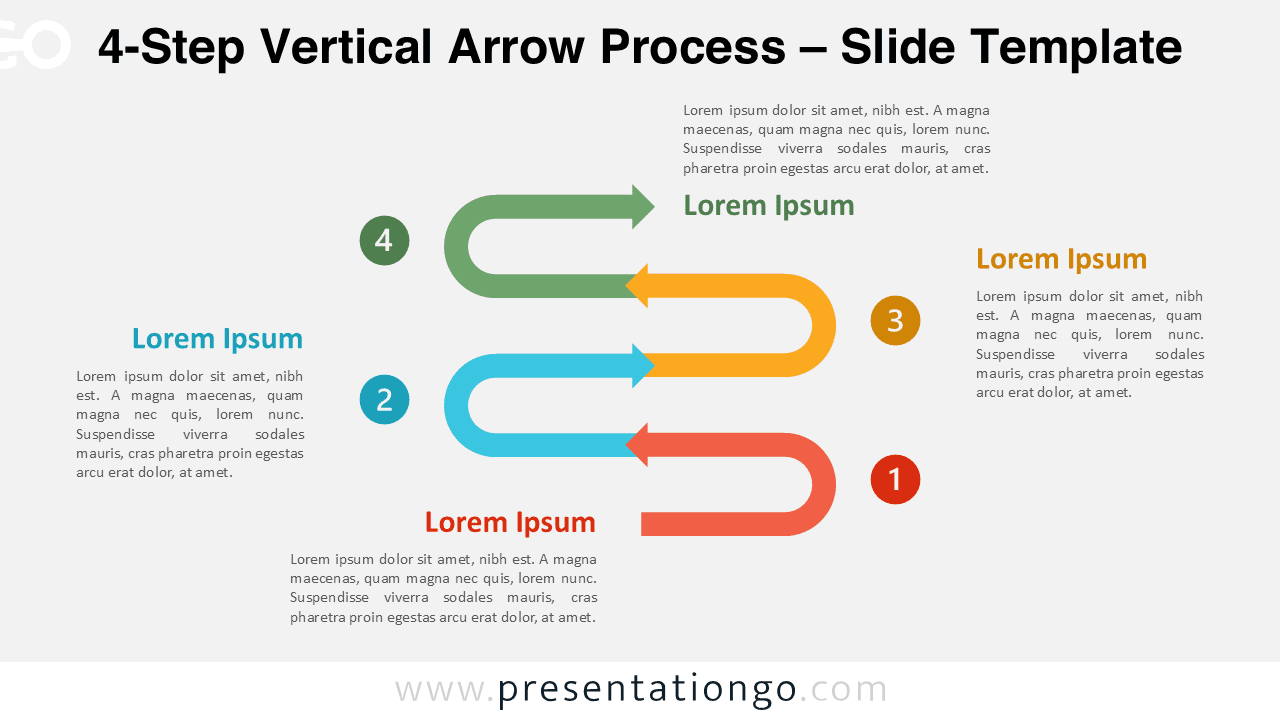
The 4-Step Vertical Arrow Process diagram is designed to present multi-stage workflows in a clear and organized way. It uses a vertical layout with alternating curved arrows that guide the audience through four connected steps. This diagram works seamlessly in PowerPoint and Google Slides and fits a wide range of professional presentations.
With four steps, this version is ideal for processes that require additional structure without becoming overwhelming. The vertical flow helps audiences follow each stage logically from top to bottom.
Diagram Preview
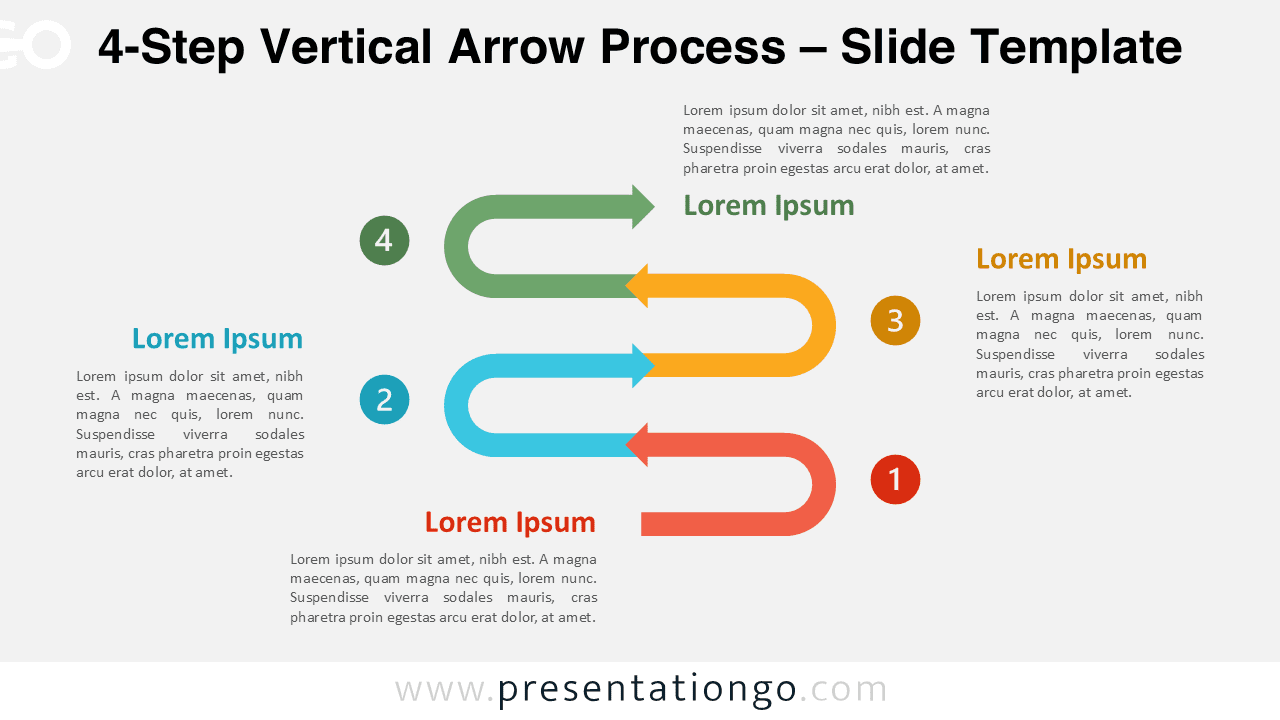
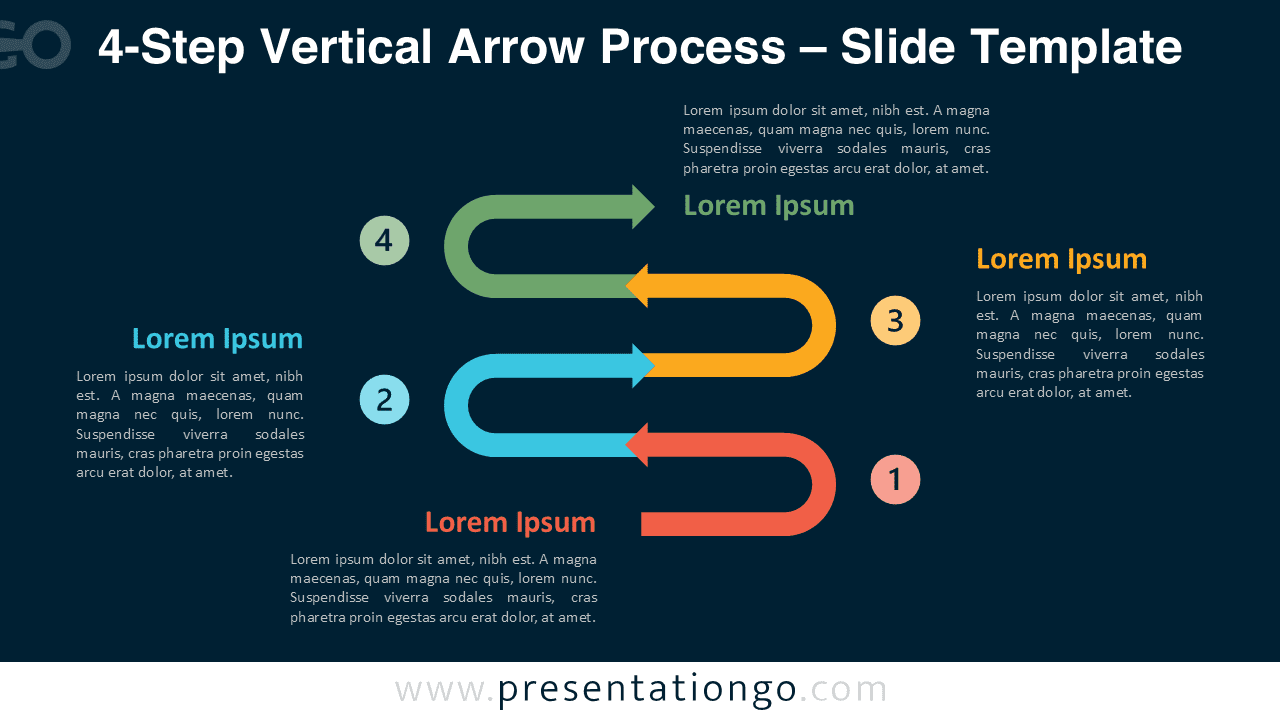


Diagram Features and Customization Options
- Four-step vertical layout with curved directional arrows
- Optimized for widescreen presentations
- Editable arrow shapes, text areas, and colors
- Includes editable icon placeholders for visual emphasis
- Light and dark background versions included
- Fully compatible with PowerPoint and Google Slides
Design and Structure
The 4-Step Vertical Arrow Process diagram uses alternating curved arrows to create a rhythmic visual flow. Each step is clearly numbered and paired with a text area that supports concise explanations. Balanced spacing ensures clarity even when each step contains detailed information.
Color variations help distinguish stages while keeping the overall design cohesive. Icons can be customized to reinforce meaning and improve comprehension.
Practical Applications
- Explaining four-phase business or operational processes
- Presenting project stages or implementation plans
- Describing structured workflows or methodologies
- Teaching multi-step concepts in training materials
- Summarizing processes with four distinct actions
Summary
The 4-Step Vertical Arrow Process diagram provides a structured and professional way to present sequential information. Its vertical layout, editable icons, and flexible formatting make it suitable for business, education, and planning needs.
Complete Vertical Arrow Process Collection
The 4-Step Vertical Arrow Process is part of the complete Vertical Arrow Process collection. The series includes variants from two to six steps, all designed with the same visual language. Each variant addresses a different level of process complexity.
Using multiple variants from the collection allows presenters to maintain visual consistency across slides. You can select the exact number of steps required for each topic while preserving a unified design.


Frequently Asked Questions (FAQ)
Yes, all icons are fully editable placeholders. You can recolor them, replace them with other icons, or remove them entirely and use your own visuals.
In PowerPoint, click on the icon to select it. Use the Shape Format tab to change colors, or right-click and choose Change Picture to replace it with another icon or image. You can also delete the icon and insert a new one via Insert → Icons or Insert → Pictures.
In Google Slides, click the icon to select it. Use the toolbar to change fill and line colors, or delete the icon and add a new one using Insert → Image or Insert → Shape. Icons can be resized and repositioned freely in both tools.