The 6-Step Perspective Multi-Lane Diagram provides a comprehensive structure for presenting six coordinated steps or roles in a clear and visually engaging way. Designed for PowerPoint and Google Slides, this diagram uses a multi-lane perspective layout to show how several elements operate side by side while progressing toward a shared direction. Each lane features a title block, an icon, a human figure marker, and editable text to make communication simple and structured.
Diagram Preview
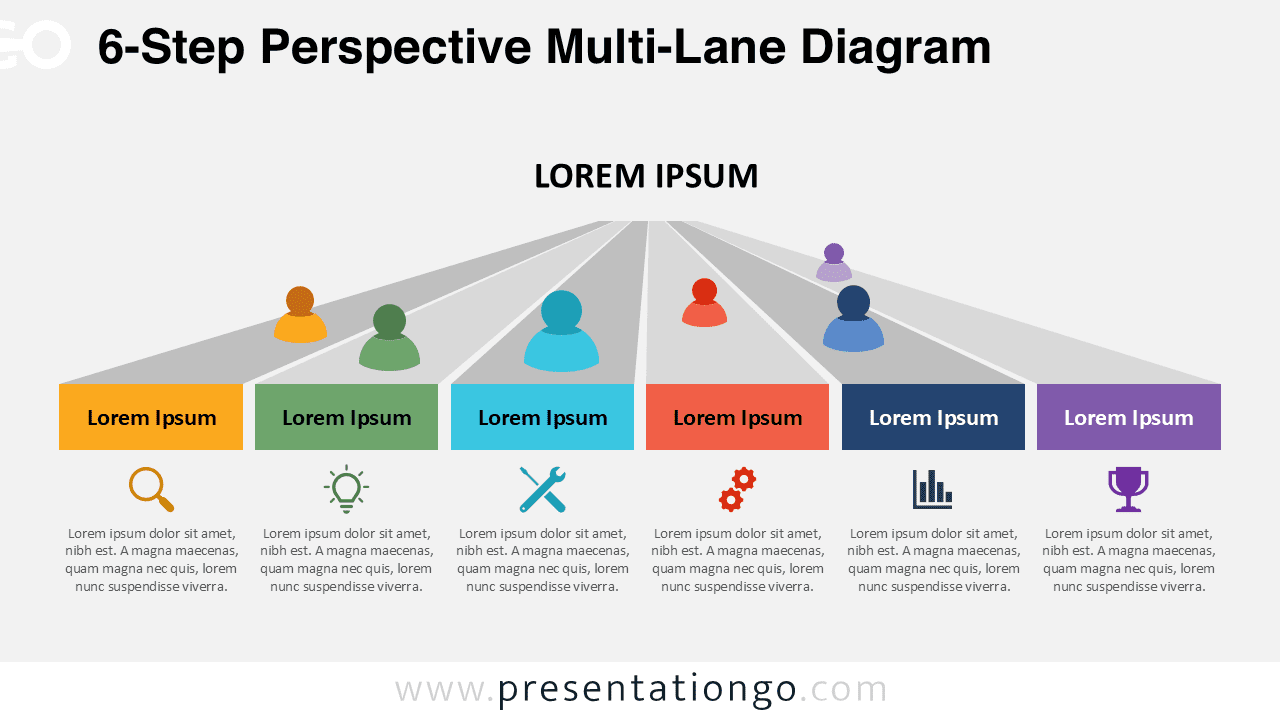
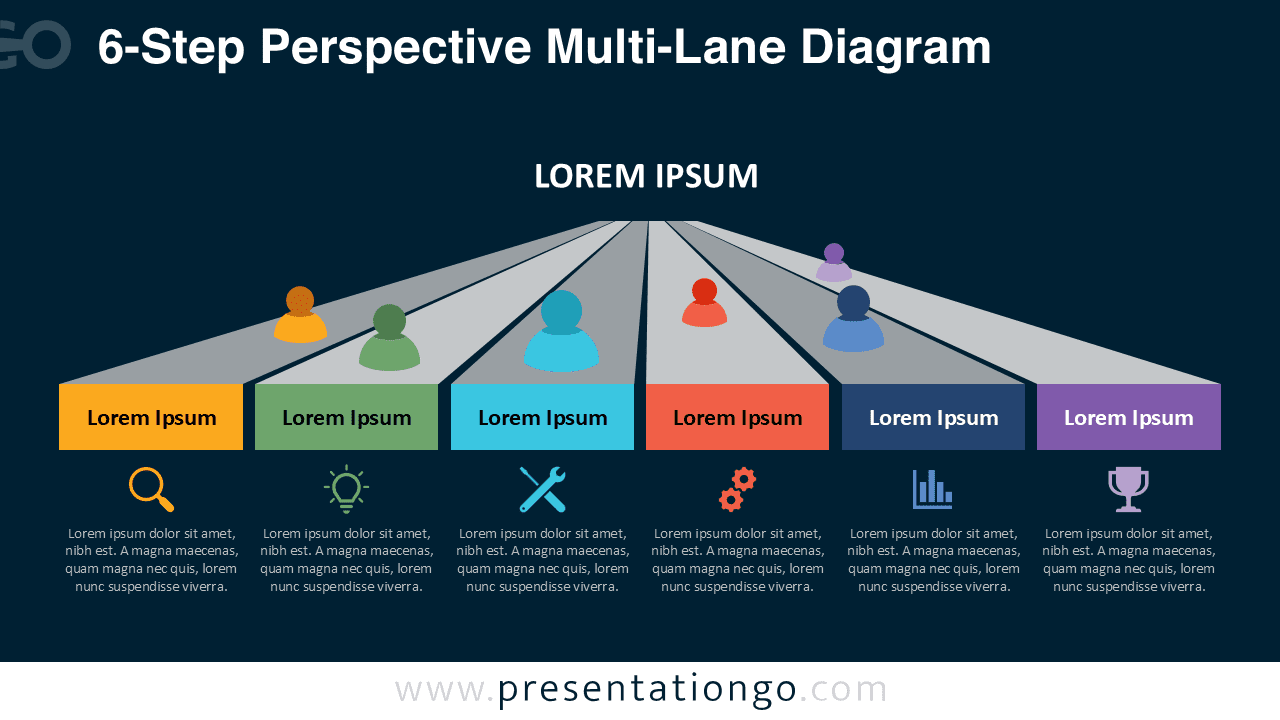


Diagram Features and Customization Options
- Six-lane perspective layout for detailed parallel processes
- Fully editable shapes, text, and colors
- Includes editable icon placeholders
- Compatible with PowerPoint and Google Slides
- Two visual themes: light and dark
Design and Structure
This version supports six lanes, making it suitable for more extensive workflows or capability maps. Each lane is color-coded and visually balanced with an icon and descriptive text. The perspective angle reinforces directional flow and hierarchy while keeping each lane evenly represented. Human figure markers help identify roles, responsibilities, or involvement across the steps.
The dark and light backgrounds enhance versatility, allowing the diagram to fit various presentation styles. All elements can be adjusted quickly, including colors, icons, and text content.
Practical Applications
- Six-phase workflows or project stages
- Role-based or departmental segmentation
- Strategic pillars or multi-part frameworks
- Complex multi-lane process mapping
- Capability or function comparison
Complete Perspective Multi-Lane Diagram Collection
This 6-Step diagram is the most detailed version in the Perspective Multi-Lane Diagram Collection, which includes 3-Step, 4-Step, 5-Step, and 6-Step variants. Each version shares the same structure but adjusts the number of lanes to match the complexity of your message. This collection ensures consistency while giving you flexibility across multiple slides and presentation stages.


Summary
The 6-Step Perspective Multi-Lane Diagram for PowerPoint and Google Slides is ideal for presenting complex parallel workflows. With editable icons, human figure markers, and a clean perspective layout, it supports clear communication in business, education, and strategic presentations.
Frequently Asked Questions (FAQ)
Yes. All icons are editable placeholders. You can delete the existing icon and insert your own PNG, SVG, or vector graphic.
PowerPoint:
Right-click the icon, choose Change Graphic → From Icons / From File, select your new icon, then resize or recolor as needed. This replaces the graphic without losing alignment.
Google Slides:
Delete the icon and insert a new one using Insert → Image for PNG/SVG files. Position it in the same place and resize as needed.